

Contents
Google Chrome for Android Introduces Highly Anticipated Tab Pinning Feature
Google has officially begun rolling out a much-awaited tab pinning feature for its Chrome browser on Android devices. This functionality, previously a staple of the desktop experience and previewed late last year, is designed to streamline mobile browsing by allowing users to keep their most important web pages consistently at their fingertips. The update is progressively reaching Android users with the latest version of the Chrome application.
What is Tab Pinning and Why Is It Useful?
Tab pinning is a convenient feature that enables users to “pin” specific web pages within their browser. Essentially, a pinned tab behaves like a permanent fixture at the beginning of your tab list. This is particularly useful for:
- Frequently Visited Sites: Keep your email, social media, news sites, or work-related tools instantly accessible.
- Research & References: Maintain critical sources for ongoing tasks without fear of losing them.
- Preventing Accidental Closure: Pinned tabs are protected from being mistakenly closed, saving you from the frustration of reopening important pages.
How to Pin Tabs in Chrome on Android
The process for pinning a tab in Google Chrome on your Android device is straightforward and intuitive:
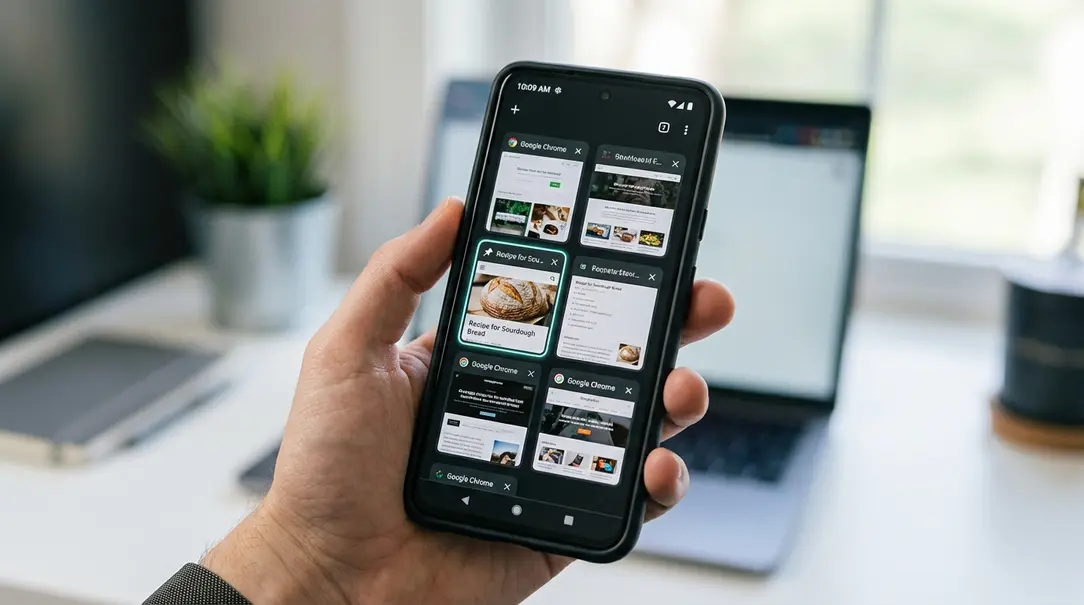
- Open the Tab Grid View: Tap the square icon with a number (representing your open tabs) in the top bar of Chrome to access the tab grid layout. This view displays all your open tabs as thumbnails.
- Select a Tab to Pin: Long-press on the preview of the tab you wish to pin. This action will bring up a contextual menu.
- Choose “Pin tab”: From the menu that appears (typically above the option to close the tab), select “Pin tab.”
Once pinned, the tab will automatically relocate to the very beginning of your list of open pages. The standard “X” button used for closing tabs will be replaced by a distinct pin icon, indicating its new status. Furthermore, pinned tabs cannot be dismissed with a swipe gesture in the grid view, reinforcing their “always-on” nature.
Enhanced Navigation with the Pinned Tabs Bar
To further enhance usability, Chrome introduces a dedicated bar for pinned tabs. As you scroll through your extensive list of open pages, a horizontal carousel of your pinned tabs will appear at the top of the screen. This bar conveniently displays the favicons (small site icons) and names of your pinned websites, offering quick visual access.
Tapping on any favicon in this carousel will instantly transport you to the selected pinned tab. Google has also integrated a swift switching animation, ensuring that navigation between your crucial pinned pages feels fluid and efficient, surpassing the experience of sifting through standard tabs.
Unpinning and Closing Tabs
Should you no longer require a tab to be pinned, you can easily unpin it. Simply long-press on the pinned tab’s preview within the tab grid view, and then select the “Unpin tab” option from the contextual menu. Once unpinned, the tab reverts to a regular status and can then be closed normally using the “X” button or by swiping it away.
Availability: Chrome 144 for Android
The card pinning feature is being progressively rolled out to a wider user base with Google Chrome version 144 on Android. As with many significant updates, the deployment is staged, meaning some users may receive the functionality earlier than others. Ensure your Google Chrome application is updated to the latest version to access this new productivity-boosting tool.
Frequently Asked Questions (FAQ)
Q: What are pinned tabs in Chrome for Android?
A: Pinned tabs are a feature that allows you to “lock” important websites to the beginning of your tab list, making them easily accessible and preventing them from being accidentally closed.

Q: How do I pin a tab on my Android phone?
A: Open the tab grid view, long-press on the tab you want to pin, and then select “Pin tab” from the menu that appears.
Q: Can I accidentally close a pinned tab?
A: No, pinned tabs are protected. They do not have a close button and cannot be swiped away from the tab grid view, significantly reducing the risk of accidental closure.
Q: How do I unpin a tab?
A: Long-press on the pinned tab in the tab grid view and select “Unpin tab” from the contextual menu. Once unpinned, it can be closed normally.
Q: Which Chrome version includes this feature?
A: This feature is rolling out with Google Chrome version 144 for Android. Updates are staged, so it may appear on your device gradually.
About Post Author
