

Contents
Mastering Audio: How to Play Sound on Headphones and Speakers Simultaneously on Samsung Phones
Samsung Galaxy smartphones, powered by the intuitive One UI interface, come packed with a variety of advanced settings designed to enhance user experience and solve common issues. One such powerful, yet often overlooked, feature allows you to play audio through both your headphones and your phone’s speakers concurrently. This capability offers incredible flexibility for audio multitasking and can prove incredibly useful in various everyday scenarios.
This guide will walk you through how to enable this specific setting and explore its practical applications, ensuring you get the most out of your Samsung device’s audio capabilities.
Understanding “Separate App Sound” on Samsung One UI
The secret to this audio flexibility lies in a feature called “Separate App Sound.” Available on devices running One UI 8, and continuing into future versions like One UI 8.5 and One UI 9, this function allows you to designate specific applications to play their audio through a chosen output device, independent of other apps.
For instance, you could be listening to your favorite music or a podcast through your headphones, while simultaneously ensuring that critical notifications, navigation instructions, or other specific app sounds are routed directly through your phone’s built-in speaker. This eliminates the need to constantly switch between audio outputs or miss important alerts.
Step-by-Step: Enabling Separate App Sound
Activating this powerful audio feature on your Samsung Galaxy smartphone is straightforward. Follow these steps:
- Open Settings: Tap on the “Settings” icon, usually found on your home screen or in the app drawer.
- Navigate to Sound Settings: Scroll down and select “Sounds and vibration.”
- Access Separate App Sound: Within the “Sounds and vibration” menu, look for and tap on “Separate app sound.”
- Activate the Feature: Toggle the “Turn on now” switch to enable the feature.
- Select Applications: You will then be prompted to choose which specific applications you want to use with this feature. Select the apps whose audio you wish to separate (e.g., a music player, a podcast app, a game).
- Choose Audio Output Device: After selecting your applications, ensure that the “Separate sound device” option is set to “Phone speaker” (or another desired output device like a Bluetooth speaker if applicable, though for the headphones/speaker scenario, “Phone speaker” is key).
- Confirm and Exit: Once configured, simply close the menu. Your settings will be saved automatically.
Now, the audio from your chosen applications will play through the designated separate output, while all other system sounds and app audio will continue to use your primary audio output (e.g., your headphones).
Practical Scenarios: When This Feature Comes in Handy
While the concept of separate app sound might seem niche, its practical applications are numerous, making daily life more convenient and enjoyable. Here’s a common scenario:
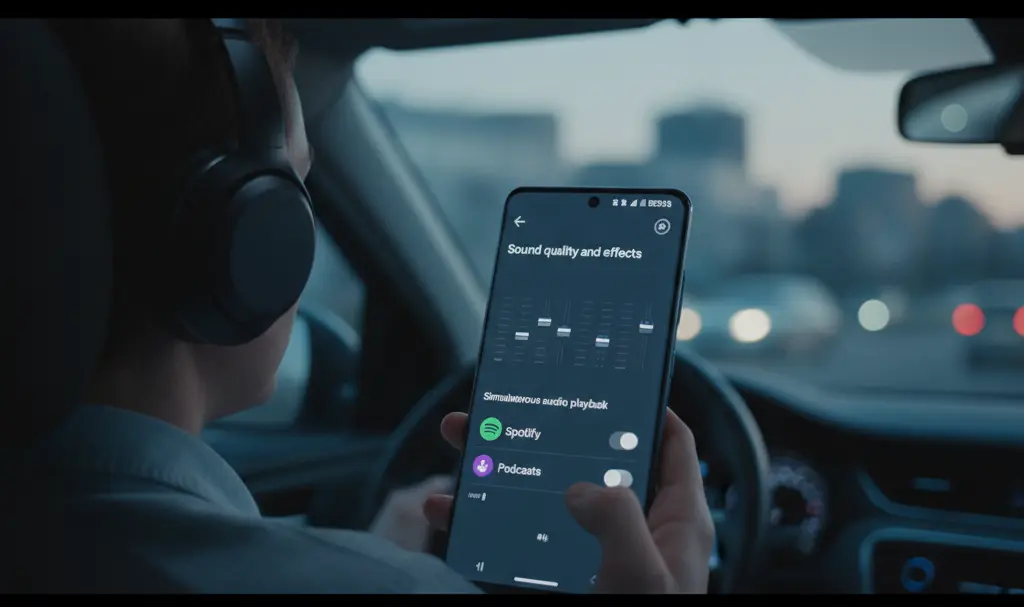
- In-Car Entertainment and Navigation: Imagine you’re driving with a child in the back seat. They want to listen to music or an audiobook from a streaming service via their Bluetooth headphones. With “Separate App Sound” enabled, you can allow their chosen app to play through their headphones, while critical navigation instructions from Google Maps or Waze continue to play clearly through your car’s (or phone’s) built-in speakers. This ensures everyone’s audio needs are met without interruption or compromise.
- Private Listening with Public Alerts: You might be listening to a podcast or music privately through your headphones in a public space, but still need to hear incoming call rings or important work notifications through your phone’s speaker so you don’t miss them.
- Gaming and Communication: Gamers could use this to have game audio playing through headphones for immersion, while a voice chat application or specific game alerts are directed to the phone speaker.
Benefits of Using Separate App Sound
- Enhanced Multitasking: Seamlessly manage audio from different applications without manual switching.
- Personalized Audio Experience: Tailor audio output to individual preferences or situational needs.
- Improved Safety and Convenience: Hear important alerts (like navigation) while enjoying private audio, especially useful during driving or in busy environments.
Frequently Asked Questions (FAQ)
Which Samsung phones support “Separate App Sound”?
This feature is available on Samsung Galaxy smartphones running One UI 8 and newer versions, including One UI 8.5 and One UI 9. Most modern Samsung devices will have access to this setting.

Can I use this feature with any app?
Yes, generally you can select almost any installed application to utilize the “Separate App Sound” feature. During the setup process, you’ll see a list of your apps from which to choose.
What if I want to direct an app’s sound to a different Bluetooth device, not the phone speaker?
During step 6 of the setup process, where you “Choose Audio Output Device,” you will have the option to select “Phone speaker” or any connected Bluetooth audio device. This gives you flexibility beyond just headphones and the phone speaker.
Source: Original content. Opening photo: Generated by Gemini.
About Post Author
