

Contents

Does USB Cable Color Really Affect Speed?
USB cables have been available in a spectrum of colors for years, from classic white and blue to vibrant green, yellow, or red. This variety often leads to a common question: do these colors signify anything about the cable’s performance, especially its data transfer speed, or are they purely aesthetic? We decided to investigate this widespread belief with a straightforward experiment.

The Myth of Color-Coded Speed: A Practical Experiment
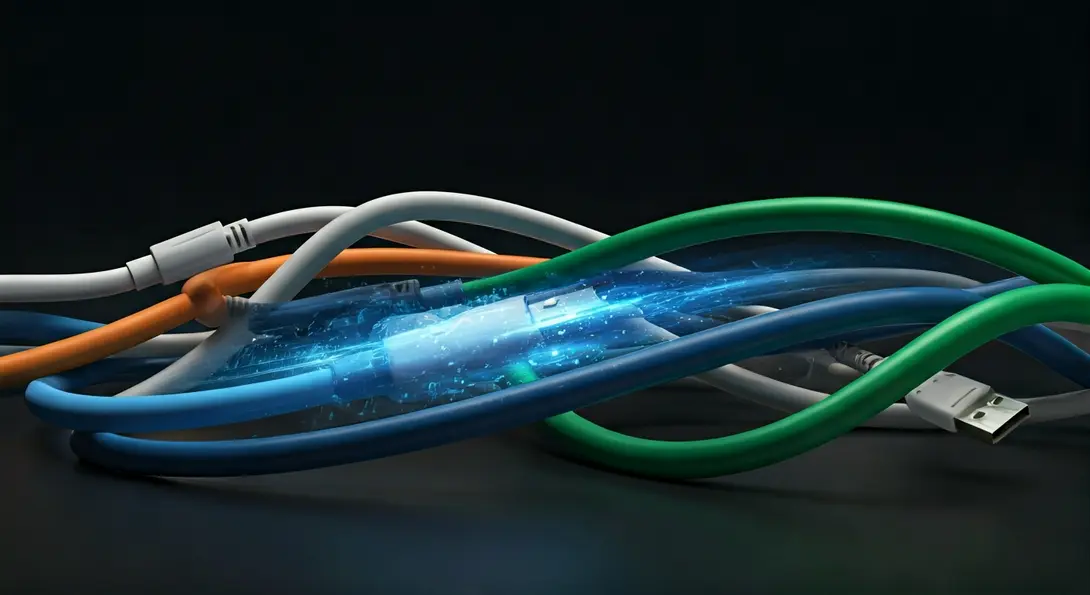
To determine if cable color influences data transfer rates, we connected the same computer to an external hard drive using four different USB-A to USB-C cables. Each cable featured a distinct color: white, orange, blue, and green. We then measured the file copy speed for each cable.
After completing four rounds of file transfers, the results were clear, revealing which cable offered the fastest performance:
- White: 22 Mb/s
- Orange: 13–23 Mb/s
- Blue: 130 Mb/s
- Green: 17 Mb/s
The blue-finished cable significantly outperformed its competitors. But why? The answer isn’t a special dye or pigment. The reason for its superior speed is far less mystical and rooted in technology, not aesthetics.
Understanding USB Standards: The Real Speed Factor
The critical factor determining a USB cable’s performance isn’t its color, but the technological standard it supports. Not all USB cables operate at the same speed, as different devices have varying requirements for data transfer. For instance, not every peripheral needs the ultra-fast speeds of the latest USB4 standard to function correctly.
A Quick Look at Modern USB Standards
Let’s explore the most common USB cable types and their respective speeds:
- USB 3.2 Gen 1: Offers speeds up to 5 Gigabits per second (Gb/s), which translates to approximately 625 Megabytes per second (MB/s). This is fast enough to transfer a full CD’s worth of data in about a second.
- USB 3.2 Gen 2: Doubles the speed to 10 Gb/s, or roughly 1.2 GB/s. This allows for even quicker transfers of large files and streaming high-resolution media.
- USB 3.2 Gen 2×2: Provides an impressive 20 Gb/s (about 2.5 GB/s). It’s important to note that this high-speed standard currently only works with USB-C connectors, leveraging its reversible and multi-lane capabilities.
While these modern standards are prevalent, you might still encounter older USB 2.0 cables, which offer speeds up to 480 Mb/s (around 60 MB/s). These are generally sufficient for devices like keyboards, mice, and some older printers. On the other end of the spectrum, the USB4 standard is becoming increasingly popular. USB4 necessitates the use of a USB-C cable and can achieve a maximum throughput of up to 120 Gb/s, enabling real-world data copying of nearly 15 GB per second. To put that into perspective, you could transfer approximately four DVD movies or one Blu-ray movie in just three to four seconds!
For optimal data security and performance, especially with sensitive devices, understanding your cable’s specifications is key. You might also be interested in how to prevent your smartphone from listening by enhancing microphone privacy, a crucial aspect of digital security.
Why the Blue USB Port/Cable Misconception?
So, where did the mistaken belief that USB cable color affects speed originate? The misconception largely stems from around 2008, when USB 3.0 (now known as USB 3.2 Gen 1) first debuted. To distinguish the then-new, faster standard from older USB 2.0 ports, manufacturers often highlighted USB 3.0 ports with a blue color. This practice led many to associate “blue” with “fast.”
However, in today’s technological landscape, this distinction is largely irrelevant. A significant majority of modern USB ports and cables inherently support at least USB 3.2 Gen 1, if not faster standards. Therefore, relying on color as an indicator of speed is no longer a reliable method.
Choosing the Right USB Cable for Your Needs
When selecting a USB cable, focus on its stated specifications rather than its color. Look for markings on the cable or its packaging that indicate the USB standard (e.g., “USB 3.2 Gen 2×2” or “USB4”). Always ensure the cable’s standard matches the capabilities of both your device and the port you’re connecting it to for optimal performance. Using a high-speed cable with a low-speed port will only yield the lower speed, and vice-versa.
Beyond USB: Other Tech Myths Debunked
This investigation into USB cable colors is just one example of many common tech myths. We often explore and debunk various misconceptions to provide clear, factual information. Some other intriguing questions we’ve tackled include:
- Can placing a coin on your router really speed up the internet?
- Does an expensive HDMI cable truly make a difference in picture quality?
- Do foil hats protect you from 5G waves?
- Does a phone charger consume power when not charging a device?
- Do clothes really shrink in the dryer, or is it a common exaggeration?
- Does pressing the pedestrian crossing button repeatedly make the light change faster?
- Can you unlock a smartphone with a photo of a face?
- Does unlocking a smartphone with a spoon actually work?
- Are washing machine cycle times always accurate?
Frequently Asked Questions (FAQ)
Not necessarily. While USB-C connectors are essential for the fastest modern standards like USB 3.2 Gen 2×2 and USB4, the speed ultimately depends on the specific USB standard the cable and connected devices support. A USB-C cable can still operate at USB 2.0 speeds if that’s the standard it’s built to or if the connected devices only support USB 2.0. Always check the cable’s specifications for its supported data transfer rate.
Yes, excessive cable length can potentially degrade signal quality and thus reduce data transfer speeds, especially with older or lower-quality cables and high-speed standards. For optimal performance, especially with USB 3.0 and newer, it’s generally recommended to use cables within the specified maximum lengths (e.g., around 3 meters for USB 3.0/3.1 Gen 1, shorter for faster standards). Active USB cables with built-in signal boosters can help overcome length limitations.
Several factors could contribute to slow speeds even with a new USB-C cable. First, ensure both your computer’s port and the external drive itself support a high-speed USB standard (e.g., USB 3.2 Gen 2 or faster) that matches your cable. If any component is slower, it will bottleneck the transfer. Second, the type of storage in your external drive matters; an older HDD will be significantly slower than an SSD. Third, system resources, background processes, or even the drive’s formatting can impact performance. Finally, verify the cable’s specific speed rating, as not all USB-C cables support the highest speeds.
Source: Self-developed research.
Opening photo: Gemini
About Post Author
