

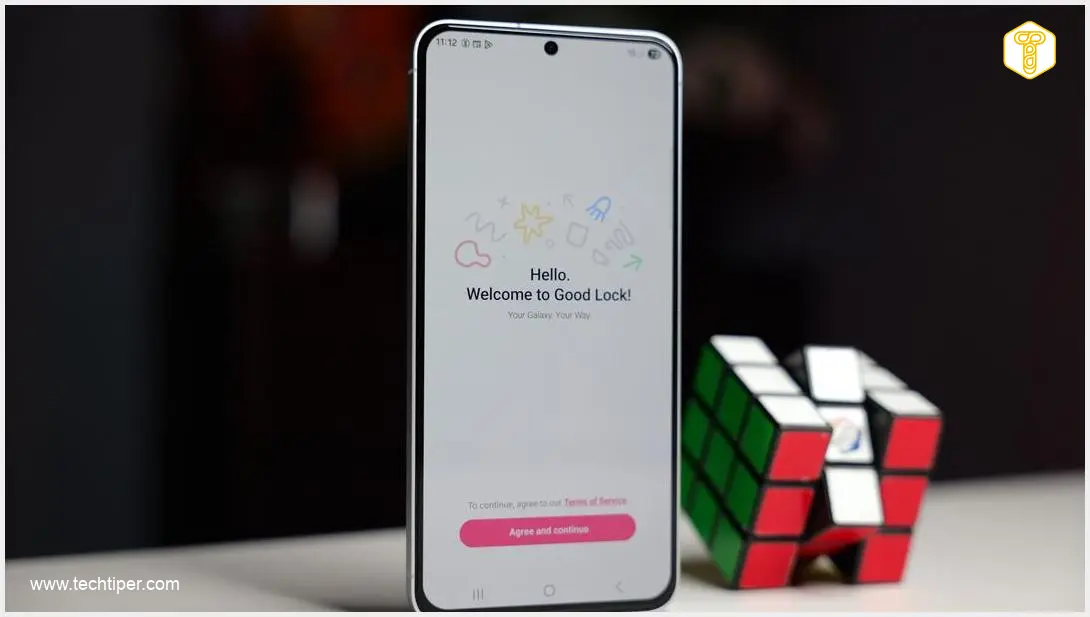
Samsung is catching up to user expectations by introducing a highly anticipated internet speed monitor for smartphones running One UI 9. This feature, which is a standard on many Android devices, has been a long-requested addition for Samsung users. Instead of being a standard option within the system’s main menu, this new functionality requires users to download a specific module from Samsung’s Good Lock suite.

Contents

One UI 9 Gains a New Feature with the QuickStar Module
For a long time, owners of Samsung devices haven’t had an easy way to monitor network parameters in the background directly on their status bar. This changes with the latest update to QuickStar, one of the most popular modules within Samsung’s Good Lock customization application. This update brings a new internet speed monitor that allows users to continuously track data transfer rates in real-time.
The tool displays current download and upload speeds dynamically on the device’s status bar. What’s more, the units automatically scale between kilobytes (KB/s), megabytes (MB/s), and gigabytes (GB/s) per second, adapting to the bandwidth of your Wi-Fi or cellular connection for optimal readability. This update comes as Samsung continues to refine its One UI experience, with recent discussions around a potential design overhaul in Samsung One UI 9 Design Overhaul Leaks and the ongoing development of Android 17 for devices like the Galaxy S26 Ultra in Samsung One UI 9 Android 17 Galaxy S26 Ultra Development.
It’s important to note that the One UI 9 operating system itself does not offer this feature in its default settings, reinforcing Samsung’s approach to offering advanced customization through its Good Lock platform.
How to Enable the New Speed Monitor
Activating the internet speed monitor on your Samsung device involves two key steps:
- Device Compatibility: You must own a smartphone running One UI 9. Currently, this overlay is primarily available for the newest Galaxy S26 series, though Samsung is expected to expand the list of compatible devices over time.
- Utilizing Good Lock: You’ll need to access Samsung’s advanced personalization tools.
- First, download the official Good Lock application from the Galaxy Store.
- Once Good Lock is installed, open it and locate the dedicated QuickStar module.
- Install the latest version of the QuickStar module.
- From within the QuickStar module, you can then activate the internet speed monitor.
This method provides users with a powerful, real-time overview of their network activity, making it easier to monitor data usage and connection performance.
Frequently Asked Questions (FAQ)
The internet speed monitor is not integrated directly into the core One UI 9 system settings. This is likely due to Samsung’s modular approach with the Good Lock suite, which allows users to customize specific features they desire without adding unnecessary bloat to the main operating system for those who don’t need them.
Initially, the feature is available for the latest Galaxy S26 series devices running One UI 9. However, Samsung typically expands compatibility to more devices as they receive the One UI 9 update. Users must also ensure they have the Good Lock application and the QuickStar module installed on their device to access this functionality.
Source: SammyGuru, own elaboration.
Opening photo: Krzysztof Wilamowski
About Post Author
