

Contents
Unlocking Your Router’s USB Port: More Than Just Internet
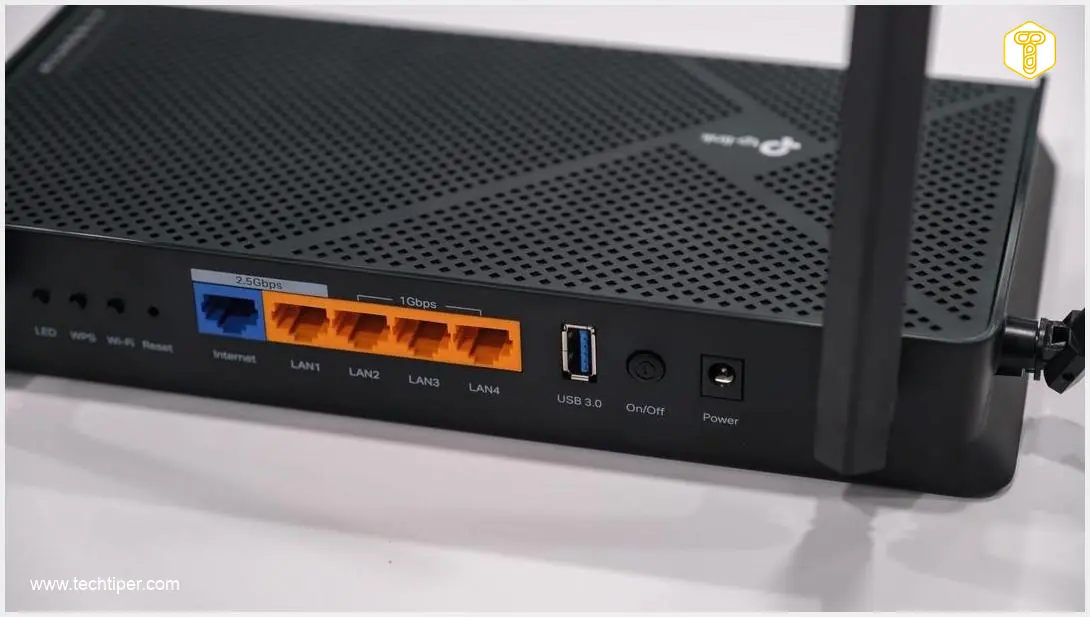
While most of us only connect an Ethernet cable to our routers for a stable internet connection, many models also feature a single USB-A port. Often overlooked, this port, when utilized correctly, can significantly enhance your smart home or work setup, offering functionalities beyond simple internet access.
Enhance Your Network Capabilities
Transform Your Printer into a Network Device
- Modern printers often support network connectivity, allowing multiple users across various devices—laptops, tablets, or smartphones—to print wirelessly. This eliminates the need to connect the printer directly to a single computer, offering convenience in today’s multi-device households.
- How to Set Up a Network Printer via Router USB:
- Check your printer and router manuals: Look for instructions on connecting your printer to a router via USB. Some routers offer a “printer server” function.
- Connect the USB cable: Plug one end of a USB cable into your printer and the other into the USB-A port on your router.
- Configure your devices: Once connected, the printer should appear as a print option on any device connected to the same Wi-Fi network.
- Driver installation: You might need to install additional drivers for the printer or even the router’s printer server utility on your computers. Refer to your printer and router manuals for specific steps, as processes vary greatly by model.
- This setup centralizes your printing, making it accessible to everyone in your home or office, and potentially extends the life of older, non-wireless printers.
Create a Home File Server with an External USB Drive
- Computer hard drive space is finite, and relying solely on cloud storage can quickly become costly or constrained. Establishing a local network-attached storage (NAS) solution using an external USB drive connected to your router provides a cost-effective way to store and share files within your home network.
- This setup is perfect for backing up important documents, photos, or videos, and can be a great complement to strategies like the 3-2-1 backup rule for robust data security.
- Setting Up Your Home File Server:
- Connect the drive: Plug your external USB hard drive into the router’s USB port.
- Format the drive: Ensure your drive is formatted to a widely compatible file system like exFAT. While NTFS is common for Windows, some routers may have compatibility issues with it. FAT32 is also an option, but exFAT supports larger file sizes.
- Access router settings: Open your web browser and navigate to your router’s administration page (usually an IP address like
192.168.1.1or192.168.0.1, found in your router’s manual). Log in with your credentials. - Enable file sharing/NAS: Look for settings related to “USB Storage,” “File Sharing,” or “NAS” (Network-Attached Storage).
- Configure sharing: Enable file sharing and set up any necessary user permissions or passwords.
- Access the shared drive: On your computer, open File Explorer (Windows) or Finder (macOS). In the address bar, type the network path to your router’s shared drive. This is often in the format
\\router_ip_address\share(e.g.,\\192.168.0.1\share). The exact address will be provided in your router’s interface or manual.
- Note: Some internet service providers (ISPs) may disable certain advanced features, including NAS functionality, on routers they supply. If you encounter issues, consult your router’s manual or ISP support.
- Consider extending your home network capabilities further by turning an old phone into a Wi-Fi hotspot or extender to improve coverage. Learn more about this at how to turn an old phone into a Wi-Fi hotspot or extender.
Frequently Asked Questions (FAQ)
No, not all routers have a USB port, and even those that do might not support all functionalities like network printing or NAS. Entry-level or older models may have limited capabilities. Always check your router’s specifications and manual.
Yes, when setting up a network drive, it’s crucial to enable password protection and create separate user accounts if possible. This prevents unauthorized access to your files from within your home network. Additionally, ensure your router’s firmware is up to date to patch any known security vulnerabilities.
A router’s USB port often provides slower performance compared to a dedicated NAS device. Routers typically have less powerful processors and slower USB speeds (often USB 2.0). This means file transfers might be slower, and streaming high-definition media could be more challenging. Dedicated NAS systems are designed for higher throughput, data redundancy, and more advanced features.
Source: Internal development.
Opening photo: Tinhkhuong
About Post Author
