
Contents
Android Auto Connectivity Troubles Resolved by Latest Google Update
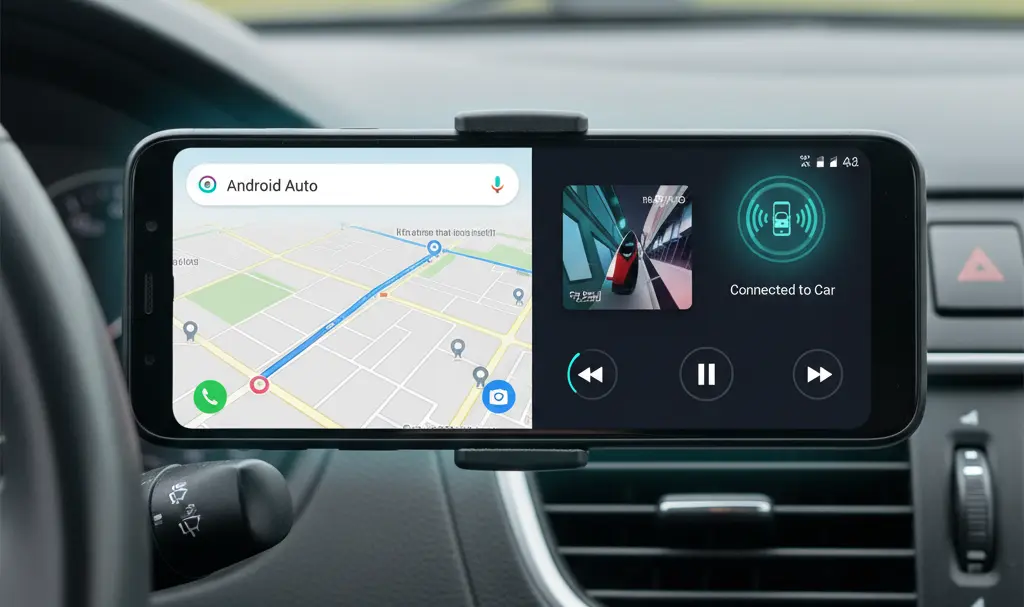
Google has begun rolling out a crucial update for Android Auto, directly targeting persistent connectivity issues that have significantly disrupted the in-car experience for many users. This fix addresses one of the most common and frustrating problems reported in recent weeks, promising a smoother and more reliable connection between smartphones and vehicles.
Widespread Connectivity Problems Plagued Android Auto Users
For some time, Android Auto users have voiced widespread complaints about unstable connections between their smartphones and car infotainment systems. The system frequently failed to launch automatically, often requiring users to manually unlock their phones to establish a connection. This intermittent functionality made navigation, communication, and entertainment features unreliable and frustrating while driving.
Affected Devices and the Scale of the Issue
The connectivity problem wasn’t isolated to a specific device or vehicle. Reports indicated it impacted a wide range of smartphones, including:
- Google Pixel devices (e.g., Pixel 7, 8, 9, and 10 series)
- Various latest Samsung models
The sheer volume of user reports suggested that this was a broader system-level issue, rather than an isolated problem with individual devices or car models.
Unconfirmed Theories on the Root Cause
While some users speculated that Google’s Advanced Protection feature within Android might have been contributing to the connectivity glitches, Google has not officially confirmed these theories. The exact technical cause of the widespread problem remained unaddressed publicly by the tech giant.
Google Deploys Fix, Details Remain Scarce
According to information released by Google, the company has commenced the distribution of a new Android Auto version specifically designed to rectify these nagging connectivity issues. However, Google has not published a detailed public statement or a comprehensive changelog outlining the specifics of the update. Information regarding the fix primarily surfaced through communications directed to media outlets.
The update is being rolled out in stages, meaning not all users will receive it simultaneously. If you haven’t seen the update yet, it’s advisable to check for availability over the coming days. At this time, Google has not disclosed the precise cause of the bug or the technical mechanisms used to resolve it, leaving users to focus on the improved functionality.
Frequently Asked Questions (FAQ)
What steps can users take if they still experience Android Auto connectivity problems after the update?
If you continue to face connectivity issues after receiving the Android Auto update, try these troubleshooting steps:
- Check for App Updates: Ensure both your Android Auto app and Google Play Services are updated to their latest versions via the Google Play Store.
- Restart Devices: Restart both your smartphone and your car’s infotainment system.
- Clear Cache: Go to your phone’s Settings > Apps > Android Auto > Storage, and clear the cache. Avoid clearing data unless you’re prepared to set up Android Auto from scratch.
- Inspect Cables: If you’re using a wired connection, try a different high-quality USB cable. Faulty or low-quality cables are a common cause of connectivity problems.
- Check Car Settings: Some cars have specific USB port settings or Android Auto enable/disable options in their infotainment system. Consult your car’s manual.
- Disable Battery Optimization: For the Android Auto app, ensure battery optimization is disabled, as it can sometimes interfere with background processes.
- Review Permissions: Verify that Android Auto has all necessary permissions enabled on your smartphone.
- Factory Reset Android Auto (Last Resort): As a last resort, you can clear all data for the Android Auto app and set it up again.
- Report to Google: If problems persist, report the issue directly to Google through the Android Auto app’s feedback mechanism or their support forums, providing details about your phone, car, and the specific issues you’re facing.
Source: Android Police. Opening photo: Krzysztof Wilamowski
About Post Author
