
Contents
New Phishing Threat Turns Your Browser into a Remote Surveillance Tool
We are facing a new type of threat that can transform an ordinary web browser into a remote surveillance tool. Experts from Malwarebytes have detailed a sophisticated phishing campaign that leverages the trusted Google brand to trick users into installing dangerous spyware. But how does this attack work, and more importantly, how can you recognize and protect yourself from it?
This article will explain the mechanisms behind this advanced threat, from deceptive Google security alerts to the full compromise of your smartphone. We will cover:
- How attackers are using new methods to seize your data.
- The step-by-step process of a typical attack.
- How your browser can be completely controlled.
- The escalating threat when a browser isn’t enough.
- Essential tips to protect yourself from this type of attack.
A Novel Method for Data Theft
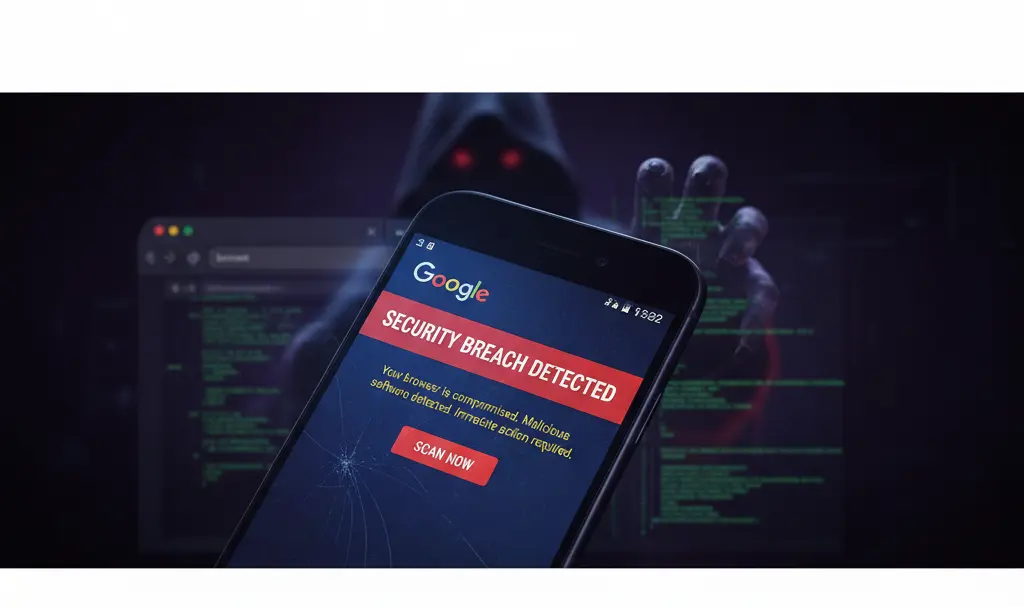
Malwarebytes Labs describes an elaborate phishing and espionage campaign that impersonates an official “Google Account security checkup” page. This campaign cleverly transforms a user’s browser into a Remote Access Trojan (RAT), effectively a remote surveillance tool, without requiring the installation of traditional malware.
Victims land on a meticulously crafted page designed to look like an official Google alert. They are then prompted to “install” a “Security Check” application. This deceptive process tricks users into granting permissions for push notifications, access to contacts, precise GPS location, and clipboard data – all presented as protective measures. In reality, these permissions give attackers extensive control over the device and its data.
How the Attack Unfolds
The attack typically begins with the display of an incredibly convincing webpage that mimics Google’s official account security control panel. Users are informed of a supposed threat and encouraged to perform a “quick security test.” This “test” is, in fact, a multi-stage process designed to infect their device.
A crucial element of this deception is the use of Progressive Web App (PWA) technology. PWAs are web applications that can be installed on a device and accessed like native apps, even offline. In this attack, the malicious webpage is installed as an application directly from the browser. Once launched, the address bar often disappears, which makes the interface almost indistinguishable from legitimate native system tools. This subtle change effectively lowers the victim’s guard, making them believe they are interacting with a secure, official application.
Full Control Over Your Browser
The application installed via this method functions much like a Remote Access Trojan (RAT), granting hackers extensive permissions to collect sensitive information. The system asks for consent to display notifications, access contacts, GPS location, and clipboard data. These permissions are critical for attackers:
- Clipboard Access: Allows criminals to intercept copied passwords, cryptocurrency wallet keys, and other sensitive text.
- Contact Access: Enables the theft of contact lists, which can be used for further phishing or spam campaigns.
- Location Data: Provides precise geographical tracking of the victim.
- Notifications: Can be used to display further malicious prompts or gather information from legitimate app notifications.
An additional threat comes from the use of Service Workers. These are scripts that your browser runs in the background, separate from a web page, enabling features like offline experiences, push notifications, and background synchronization. In this attack, Service Workers allow the malicious software to operate persistently in the background. This means the RAT can regularly communicate with the attacker’s server, transmitting reports on user activity and intercepted Multi-Factor Authentication (MFA) codes, bypassing a critical security layer.
When the Browser Isn’t Enough: Escalating the Attack
For victims who follow all the instructions, the web-based layer delivers a second, more dangerous payload: an Android Package Kit (APK) file masquerading as a “critical security update” for Android. The download page falsely states it’s version 2.1.0, 2.3 MB in size, and verified by Google – all designed to appear legitimate.
The actual file is a compact 122 KB package named com.device.sync and labeled as “System Service.” This application aggressively demands 33 Android permissions, including many high-risk permissions:
- SMS access
- Call log access
- Microphone access
- Contacts access
- Control of accessibility services
But the capabilities don’t stop there. Alongside this extensive list of permissions, the application also includes:
- An Autofill service: Designed to intercept credential autofill requests, stealing usernames and passwords.
- A Custom keyboard: A keylogger that records every keystroke, capturing sensitive information typed by the user.
- A Notification reader: Capable of observing screen content and executing actions in other applications, including capturing potential two-factor login codes.
- An Accessibility service: This highly powerful feature can watch screen content, perform gestures, and interact with other apps, essentially giving the attacker full control over the device’s user interface.
To ensure persistence and avoid detection and removal, the APK registers itself as a device administrator. This can significantly complicate uninstallation. It also sets itself to launch automatically upon device startup and includes tools to restart its components if they are forcibly closed, ensuring constant surveillance and control.
How to Protect Yourself from This Attack
The fundamental rule of digital security is to remember that Google will never force you to install additional applications or extensions through pop-up windows on third-party websites. Official security verification tools are exclusively available through your myaccount.google.com dashboard. Any alert originating from a different domain should immediately be treated as a phishing attempt.
To further safeguard your devices and personal data:
- Verify URLs: Always check the website address (URL) carefully. Look for discrepancies, misspellings, or unusual domains.
- Be Skeptical of Pop-ups: Treat any unsolicited pop-ups or alerts demanding immediate action or software installation with extreme caution.
- Review Permissions: Before installing any app, especially an APK from an unknown source, meticulously review the requested permissions. If an app requests permissions that seem excessive or irrelevant to its stated function, do not install it.
- Use Reputable Sources: Only download applications from trusted sources like the Google Play Store. Avoid sideloading APKs unless you are absolutely certain of their origin and integrity.
- Enable Multi-Factor Authentication (MFA): While attackers target MFA codes, having MFA enabled significantly increases security, as it requires an additional verification step beyond just a password.
- Keep Software Updated: Regularly update your operating system and all applications to patch known vulnerabilities.
- Use Security Software: Employ reputable antivirus and anti-malware solutions on your devices.
Frequently Asked Questions (FAQ)
What is a PWA (Progressive Web App) in the context of this attack?
A Progressive Web App (PWA) is a type of web application that can be installed on your device and behaves much like a native app, even appearing without an address bar. Attackers exploit PWA technology to make their malicious webpages look like legitimate, installed applications, deceiving users into thinking they are using a trusted system tool rather than a dangerous website.
How can a malicious PWA or APK gain “full control” over my browser or smartphone?
By tricking users into granting numerous high-risk permissions, such as access to contacts, precise GPS location, clipboard data, SMS, call logs, microphone, and accessibility services. These permissions, combined with features like custom keyboards (keyloggers) and notification readers, allow attackers to monitor activity, steal credentials, intercept two-factor authentication codes, and even manipulate other applications on your device.
What is the most important thing to remember to avoid this type of phishing attack?
Always remember that Google will never ask you to install additional software or extensions through pop-ups on third-party websites. Official Google security tools are only found directly on myaccount.google.com. Be extremely wary of any security alerts or installation prompts from unfamiliar domains or unexpected pop-ups. Always verify the URL and scrutinize requested permissions.
Source:
Opening photo: Gemini
About Post Author
