
Contents
Unlock Google Maps’ Full Potential: 7 Hidden Features You Need to Know
Google Maps is an incredibly user-friendly tool, but to truly maximize its capabilities, it’s worth taking a moment to explore its lesser-known, powerful features. Whether you’re planning a short stroll through the city or embarking on an extensive road trip, these seven hidden gems can significantly enhance your navigation experience and daily convenience.
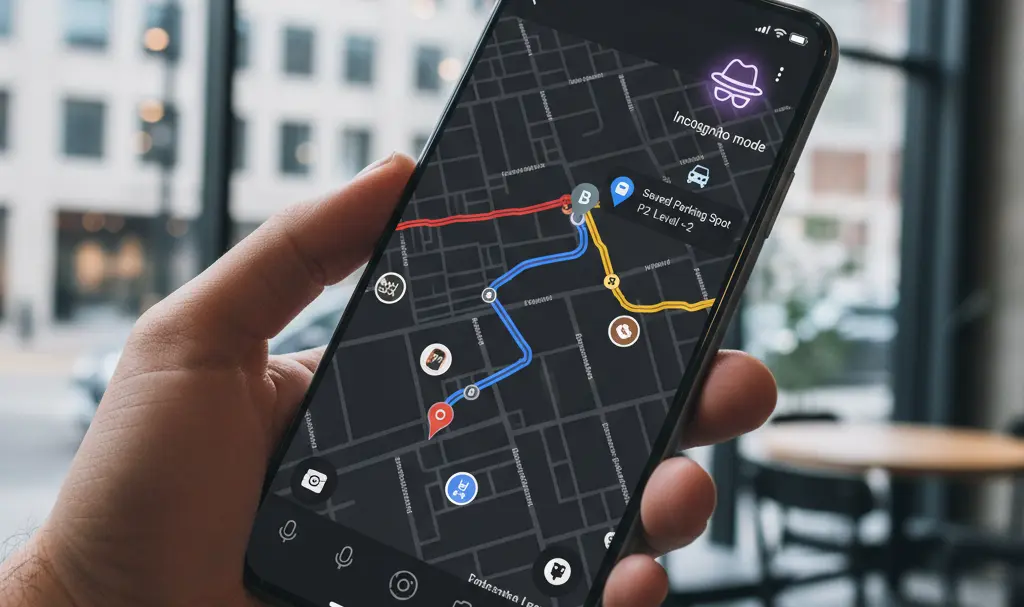
1. Protect Your Privacy with Incognito Mode
Google Maps algorithms are designed to be incredibly helpful, sometimes to a fault. Imagine planning a surprise, like finding the perfect florist, only for Google Maps to suggest flower shops when your partner glances at your phone! To prevent such accidental reveals, Incognito Mode is your best friend.
How to Activate Incognito Mode:
- Open the Google Maps app.
- Tap on your profile icon (usually located in the top-right corner).
- From the menu, select “Turn on Incognito mode.”
Once activated, Google Maps will no longer save your search history or personalize recommendations to your account, ensuring your browsing remains private and free from unexpected hints.
2. Optimize Your Digital Well-being: Limit Google Maps Notifications
In today’s digital age, managing notifications is crucial for maintaining focus and reducing distractions. Google Maps, while helpful, can sometimes send non-essential alerts. Fortunately, you can easily customize these without missing important information.
How to Manage Notifications:
- Tap your profile icon in Google Maps.
- Go to Settings > Notifications.
Here, you’ll find various categories where you can enable or disable specific notifications. For example, if you don’t actively review places on Google Maps, you can easily turn off alerts related to “Reviews and media.” Dedicate a few minutes to review these options and tailor your notification experience to your preferences.
3. Navigate with Confidence: Always Keep North Up
For some, navigating is simpler when the map’s orientation is fixed. By default, Google Maps rotates the map to match your direction of travel. However, you can lock the map to always point north, activating a useful compass mode.
How to Set Map Orientation:
- Tap your profile icon.
- Go to Settings > Navigation settings.
- Scroll down and enable the option: “Keep map north up.”
This setting can provide a more consistent visual reference, making it easier to orient yourself, especially when walking or when you prefer a static map view.
4. Tailor Your Routes: Specify Your Vehicle Type
Did you know Google Maps can customize your driving routes based on the type of car you drive? This allows the app to provide more accurate estimated times, suggest fuel-efficient paths, and even account for specific vehicle needs.
How to Set Your Vehicle Type:
- Access the Navigation settings.
- Tap on the “Your vehicles” section.
You don’t need to specify the exact make and model; simply select your engine type from four categories:
- Gasoline
- Electric
- Diesel
- Hybrid
This setting helps Google Maps offer more relevant routing information, potentially saving you time and fuel.
5. EV Owners: Pinpoint Your Charger Type
If you’ve selected “Electric” as your vehicle type, an additional useful option becomes available: “Plugs & adapters.” This feature is invaluable for electric vehicle (EV) drivers, as it helps Google Maps identify and recommend compatible charging stations along your route or at your destination.
How to Specify Your EV Charger Type:
- After selecting “Electric” under “Your vehicles,” tap on “Plugs & adapters.”
- Select the charging connector type(s) your vehicle uses (e.g., CCS, Type 2, CHAdeMO).
By specifying your charger type, Google Maps will filter charging locations to show only those compatible with your EV, making range anxiety a thing of the past.
6. Enhance Visibility: Enable Dark Mode Permanently
If you prefer a darker interface for your apps, or if your Android system is set to dark mode, you might find the bright Google Maps interface jarring. Thankfully, you can set the app to dark mode permanently.
How to Activate Permanent Dark Mode:
- Navigate back to Navigation settings.
- Select “Map display” > “Color scheme.”
- Change the mode from “Automatic” to “Night.”
This will ensure Google Maps consistently displays in dark mode, providing better visibility at night and potentially reducing eye strain.
7. Never Forget Where You Parked: Save Your Parking Location
Exploring an unfamiliar city or a vast parking lot? Google Maps can be your personal parking assistant, remembering exactly where you left your car. This feature is incredibly useful for tourists or anyone prone to forgetting their parking spot.
How to Save Your Parking Spot:
- Tap the blue dot that represents your current location on the map.
- From the expanded list of options, select “Save parking location.”
A small pin will appear on the map, along with the text: “You parked here.” When you return to your car, simply tap the pin and choose “Clear” to remove the saved location. This keeps your map clutter-free for your next adventure.
Frequently Asked Questions (FAQ)
Why should I use Incognito mode in Google Maps?
Incognito mode prevents Google Maps from saving your search history and personalizing recommendations to your account. This is particularly useful for maintaining privacy, planning surprises, or simply browsing without influencing future suggestions.
How can I reduce unwanted notifications from Google Maps?
You can manage Google Maps notifications by tapping your profile icon, then going to Settings > Notifications. Here, you’ll find various categories where you can enable or disable specific alerts, allowing you to customize your notification experience and focus on what’s important.
Can Google Maps help me find charging stations for my electric vehicle?
Yes! If you set your vehicle type to “Electric” in Navigation settings, you’ll gain access to “Plugs & adapters.” By specifying your EV’s charging connector type (e.g., CCS, Type 2), Google Maps will filter and show only compatible charging stations, making it easier to plan your routes.
How do I save my parking location in Google Maps?
To save your parking spot, simply tap the blue dot representing your current location on the map. From the options that appear, select “Save parking location.” A pin will mark your spot, making it easy to find your car later. You can clear the saved location by tapping the pin and selecting “Clear.”
Source: Own work. Opening photo: Gemini
About Post Author
