
Contents
Is Your Google Pixel Watch Overcounting Steps? Here’s the Simple Fix!
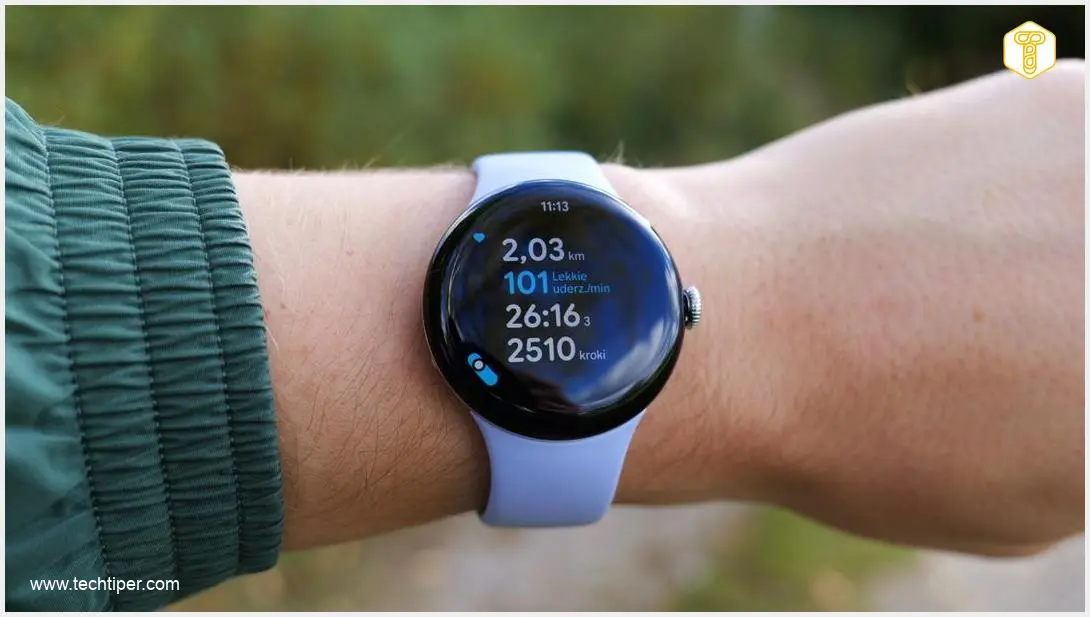
Step counting is a fundamental feature of modern smartwatches and fitness trackers. It’s crucial for monitoring activity levels, setting fitness goals, and getting accurate health insights. However, many Google Pixel Watch users have recently reported significant inaccuracies with their device’s step tracking, often leading to wildly overinflated numbers.
If your Pixel Watch has been mysteriously adding thousands of steps while you’re barely moving, or even at rest, you’re not alone. Thankfully, a simple, user-discovered solution can quickly resolve this frustrating issue.
The Problem: Inaccurate Step Tracking on Google Pixel Watch
For a while, Google Pixel Watch models, including the original and subsequent generations, have generally been reliable for recording daily activities like steps. However, a recent change—likely triggered by a device update, possibly the March software update—has introduced a widespread bug affecting step count accuracy.
Users across various Pixel Watch generations began noticing their smartwatches were drastically overcounting steps. In some extreme cases, the device would register several thousand extra steps with minimal physical activity, or even when the wearer was completely still. This inconsistency is often evident when comparing the step count shown on the watch itself versus the data displayed in the paired Fitbit application. This disparity suggests the problem lies more with a synchronization or data processing error within the app or system, rather than a faulty hardware sensor.
These erroneous step counts don’t just affect your daily step goals; they also skew other important health metrics. Overcounted steps lead to inaccurate estimations of distance covered and calories burned, as these calculations often rely directly on your recorded movement. While this bug can be irritating, a straightforward fix has emerged from the user community.
The Simple Solution: How to Fix Overcounted Steps
The good news is that the most effective solution, widely confirmed by users, is surprisingly simple and purely software-based. It involves a quick reset of the Fitbit application’s local data.
Follow these steps to recalibrate your Pixel Watch’s step counter:
- Clear the Fitbit App Cache on Your Pixel Watch: Navigate to the app settings on your Google Pixel Watch and clear the cache for the Fitbit application.
- Clear the Fitbit App Cache on Your Paired Smartphone: On your smartphone, go to your phone’s app settings (for Android, typically Settings > Apps > Fitbit > Storage & cache; for iOS, you might need to offload or reinstall the app, or restart the phone) and clear the cache for the Fitbit app there as well.
- Restart Both Devices: After clearing the cache on both your watch and your phone, perform a full restart of both devices.
This process effectively clears out any corrupted local data and eliminates erroneous synchronization states that are most likely causing the overcounting issue. By refreshing the app’s data and restarting the devices, you create a clean slate for accurate step tracking.
Why Accurate Step Counting Matters
Maintaining accurate step counts is more than just a novelty; it’s a vital component of effective personal health management. Precise data allows you to:
- Monitor Fitness Progress: Track your daily activity levels reliably to ensure you’re meeting your fitness goals.
- Set Realistic Goals: Base your workout plans and health objectives on truthful metrics, preventing discouragement from skewed data.
- Understand Energy Expenditure: Get a more accurate picture of your caloric burn, which is essential for weight management and dietary planning.
- Stay Motivated: Rely on consistent feedback to maintain motivation and make informed decisions about your physical activity.
Frequently Asked Questions (FAQ)
Why is my Google Pixel Watch suddenly overcounting steps?
The issue of overcounting steps on the Google Pixel Watch likely stems from a software bug introduced in a recent update, possibly the March software release. This bug appears to affect the synchronization or processing of step data between the watch and the Fitbit app, leading to inflated numbers even with minimal movement.
Does this fix work for all Google Pixel Watch models?
Yes, users across various generations of the Google Pixel Watch have reported success with this method. Since the problem seems to be related to the Fitbit app’s data handling and synchronization, clearing the cache is a universal solution that should work for all Pixel Watch models experiencing this issue.
How often should I clear the Fitbit app cache?
You typically only need to clear the Fitbit app cache if you notice inaccuracies or performance issues with your Google Pixel Watch’s step tracking. It’s not a routine maintenance task unless the problem reoccurs. If the issue persists after a few days, you might consider repeating the process or checking for further app updates.
What if clearing the cache doesn’t fix the problem?
If clearing the Fitbit app cache and restarting both devices doesn’t resolve the overcounting issue, consider these additional troubleshooting steps: ensure both your Pixel Watch and Fitbit app are updated to their latest versions, check for any pending system updates on your smartphone, or as a last resort, try factory resetting your Pixel Watch and setting it up again. If the problem still persists, contacting Google support for further assistance is recommended.
Source: AndroidAuthority
Opening photo: Krzysztof Wilamowski
About Post Author
