
Contents
Mastering Your Mobile: A Comprehensive Guide to Turning Off Any Smartphone
Turning off a smartphone might seem like a straightforward task, but in today’s diverse mobile landscape, it’s a common point of confusion for many users. With manufacturers constantly innovating, the simple act of powering down a device has evolved, often requiring different button combinations or menu navigation depending on the make and model. This guide will walk you through the various methods to safely and effectively turn off your phone, whether it’s a responsive Android device, an iPhone, or a stubborn device that simply won’t cooperate.
The Basics: How to Power Down Your Device
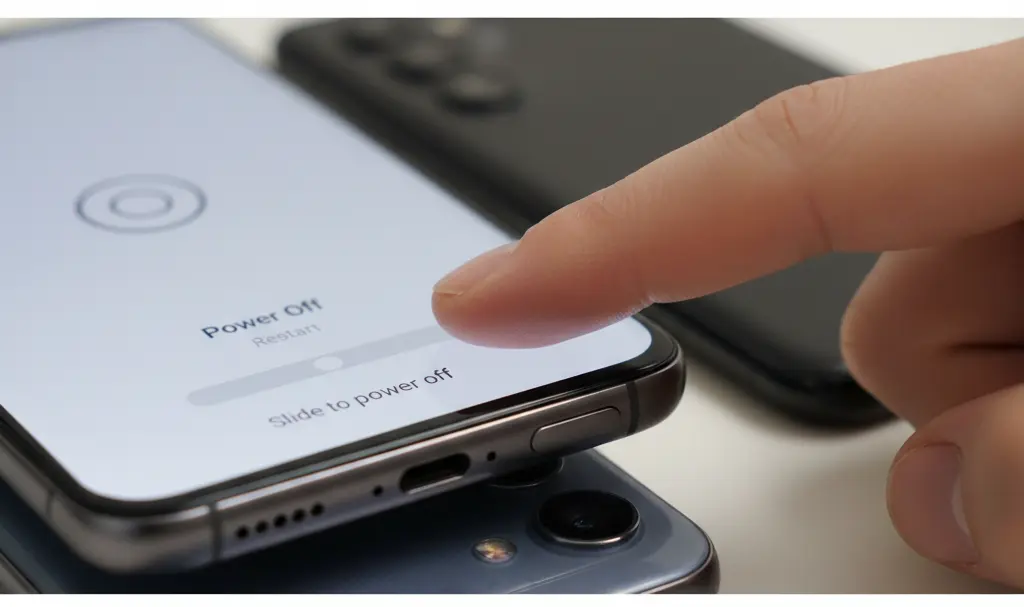
In most modern smartphones, the fundamental process for turning off your device involves interacting with either the power button alone or a combination of buttons. This action typically brings up a system menu, allowing you to select the “Power Off” option.
Here’s the general approach:
- Press and hold the power button or the appropriate button combination (e.g., power button and volume down).
- Wait for the power menu to appear on your screen.
- Select the “Power Off” or “Shut Down” option.
- Confirm your selection if prompted by the phone.
While this is the most common method, it’s important to remember that the exact execution can differ slightly between manufacturers and operating systems. What works for an iPhone might be different for an Android phone, and a frozen device will require a different approach altogether.
Turning Off an Android Phone
For most Android devices, the standard way to power off is by pressing and holding the power button. This remains the quickest method for many users.
- Press and hold the power button.
- Wait for the power menu to appear.
- Select “Power Off.”
- Confirm the shutdown if prompted.
In some newer Android models, pressing the power button alone might activate a voice assistant or another function instead of the power menu. If this happens, you’ll typically need to use a combination of the power button and the volume down button simultaneously to access the power options. A simple rule of thumb: first, try holding just the power button. If that doesn’t work, then try holding the power button and the volume down button together.
Additionally, many modern Android versions offer a convenient way to power off from the quick settings menu. Simply swipe down from the top of your screen to reveal the quick settings panel, where you can often find a power icon or a “Power Off” option.
Powering Down an iPhone
The method for turning off an iPhone varies depending on your specific model. Apple specifies that newer devices equipped with Face ID require a two-button combination, while older models with a Home button typically need only one. There’s also an option to power down your iPhone directly from its settings, which can be useful if your physical buttons are malfunctioning.
For iPhones with Face ID (no Home button):
- Press and hold the side button and either the volume up or volume down button simultaneously.
- Wait for the “Slide to Power Off” slider to appear on the screen.
- Drag the slider to power off your device.
- Allow a few moments for your iPhone to completely shut down.
For iPhones with a Home Button or older models:
Usually, you just need to press and hold the side button (or the top button on very old models), then slide the power off slider. Understanding how to power down your iPhone is also part of general device maintenance, alongside tips to improve iPhone battery life.
Turning off your iPhone via Settings:
This is an excellent alternative if your physical buttons aren’t working as expected.
- Go to “Settings.”
- Tap on “General.”
- Scroll down to the very bottom.
- Tap “Shut Down.”
- Drag the power off slider.
When Your Phone Won’t Cooperate: Force Shutdown
A forced shutdown is your go-to solution when your phone becomes unresponsive and doesn’t react to standard commands or touch input. This method typically involves holding down the power button or a specific button combination for an extended period, effectively cutting power to the device.
For instance, some manufacturers, like Motorola, suggest holding the power button for approximately 10-20 seconds if the phone has stopped responding. Other brands, such as Huawei, indicate that for certain models, you might need to hold the power button or a power and volume combination for at least 10 seconds. The exact duration and button combination can vary, so if one method doesn’t work, try holding the buttons for a longer period or experimenting with different combinations (e.g., power + volume down).
It’s important to remember that while a forced shutdown is not inherently dangerous for your device, it should generally be reserved for situations where a regular shutdown isn’t possible. It prevents data corruption that might occur if the phone is suddenly powered off during critical operations, but it’s a necessary tool for an unresponsive device.
Troubleshooting: Why Your Phone Might Not Turn Off
If your phone refuses to power down, the issue usually isn’t with the power-off function itself, but rather with the system or hardware not responding correctly. Common reasons include:
- Critically Low Battery: The phone might not have enough power to complete the shutdown process.
- System Freeze or Crash: The operating system has become unresponsive.
- Stuck Background Application: An app is consuming too many resources or is causing a conflict.
- Software Glitch After an Update: New updates can sometimes introduce temporary bugs.
- Unresponsive Touchscreen: You can’t interact with the “Power Off” option.
- Damaged Power Button: The physical button itself is faulty.
- Memory or System Overload: Too many processes running at once, overwhelming the phone’s resources.
If your phone consistently freezes when attempting to shut down, it’s a strong indication that the problem might be more significant than a one-off system error. In such cases, consider backing up your data and performing a factory reset, or seeking professional technical assistance. If your phone is lost and you’re trying to remotely power it off, or simply locate it, consult our ultimate guide on how to find a lost phone.
Frequently Asked Questions (FAQ)
What if my phone is completely frozen and won’t respond to any button presses?
If your phone is completely unresponsive, you’ll need to perform a force shutdown. This typically involves holding down the power button, or a combination of the power and volume down buttons, for an extended period (usually 10-20 seconds). The exact method can vary by manufacturer, so if one combination doesn’t work, try another or hold the buttons for a longer duration.
Is it safe to force my phone to shut down?
Yes, generally it is safe to force your phone to shut down, especially when it’s frozen or unresponsive. It’s designed as a last resort to regain control of your device. However, it’s best to use this method only when a regular shutdown isn’t possible, as repeatedly forcing a shutdown during normal operation could, in rare cases, lead to minor software glitches or data corruption if the phone is performing critical background tasks.
Why do newer phones often have more complicated ways to turn off compared to older models?
Newer smartphones integrate more features into their physical buttons. For example, a single press of the power button might now activate a voice assistant, launch the camera, or serve as a shortcut. To accommodate these new functions, manufacturers have introduced multi-button combinations for basic actions like powering off, or moved the option into the software interface, making the physical buttons more versatile.
How can I prevent my phone from freezing or refusing to turn off in the future?
To minimize the chances of your phone freezing or becoming unresponsive, regularly update your operating system and apps, avoid running too many demanding applications simultaneously, clear your phone’s cache periodically, ensure you have sufficient storage space, and restart your phone occasionally (a gentle shutdown and restart helps refresh the system). If issues persist, consider uninstalling recently added apps or performing a factory reset after backing up your data.
You now have a comprehensive understanding of how to power down your smartphone. In most scenarios, turning off your phone is a straightforward process, but the specific method will depend on your operating system, the manufacturer, and whether your device is functioning normally. If your phone is responsive, a simple press of the power button or a combination of buttons will usually suffice. If it’s frozen or unresponsive, a forced shutdown or restart will be necessary. The key takeaway is that whether you’re using an Android device, an iPhone, or any other smartphone, there’s always a quick and safe way to power down your device, even if the screen or system temporarily stops responding.
Source: Self-created. Opening photo: Gemini
About Post Author
