
Contents
How to Transform Your Old Smartphone into a Wi-Fi Hotspot Extender
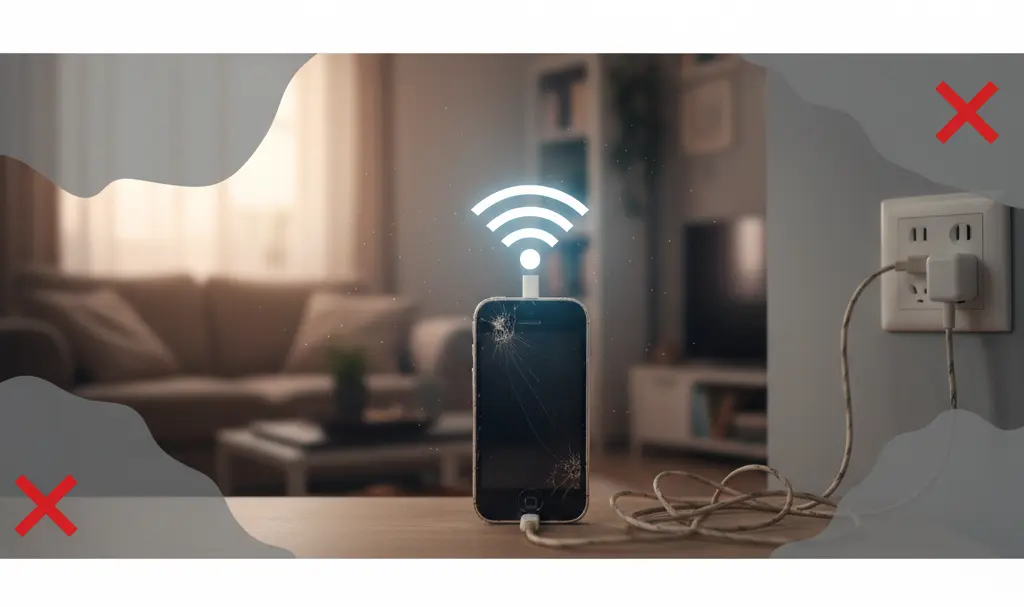
An old smartphone doesn’t have to meet its end in a dusty drawer. Instead, these versatile devices can be repurposed for various practical uses. One of the most effective ways to give an unused phone a new lease on life is by transforming it into a Wi-Fi hotspot extender. This ingenious method can help eliminate dead zones in your home network and boost signal strength without requiring any investment in additional hardware.
Why Your Old Smartphone is the Perfect Wi-Fi Booster
An old Android phone can be an excellent solution for patching up a weak wireless network, especially in areas where your main router struggles to provide a stable signal. This scenario is common in several situations:
- Complex Layouts: Apartments with intricate designs or thick walls often impede radio waves, leading to poor signal penetration.
- Multi-Story Homes: In houses with multiple floors, Wi-Fi signals frequently weaken on higher or lower levels.
- Extended Areas: Spaces like garages, basements, or gardens often fall outside the primary Wi-Fi range.
In practice, your smartphone acts as an intermediary, receiving the signal from your main router and re-transmitting it to create a new access point. While this solution may not match the performance of dedicated mesh Wi-Fi systems or repeaters, it offers a quick and free way to improve network coverage in many cases. All you need is an old smartphone and a charger.
Step-by-Step Guide: Transforming Your Android Phone into a Hotspot
The process of turning your Android phone into a Wi-Fi hotspot relies on features built into the operating system. Please note that the exact menu names and availability may vary slightly depending on your Android version and phone manufacturer.
1. Connect to Your Existing Wi-Fi Network
First, ensure your old phone is connected to the existing Wi-Fi network that you intend to extend. This is crucial as the phone will “repeat” this signal.
2. Access Hotspot and Tethering Settings
Navigate to your phone’s system settings. Typically, you’ll find the relevant options under the “Network & Internet” section, where you should see a “Hotspot & tethering” function. Many smartphones also allow you to activate the hotspot directly from the quick settings panel by swiping down from the top of the screen.
3. Configure Your Hotspot
Before activating the hotspot, there are a few critical steps:
- Remove the SIM Card: It is imperative to remove the SIM card from the smartphone. If the SIM card remains inserted, the device might default to using cellular data instead of repeating your Wi-Fi signal, potentially incurring data charges.
- Set a Secure Name and Password: Before the first activation, it’s highly recommended to set a unique network name (SSID) and a strong, secure password for your new hotspot. This prevents unauthorized access to your extended network.
- Choose Frequency Band (if available): Newer smartphones may offer the option to set up a 6 GHz network. However, for broader compatibility with older devices or smart home gadgets, the 2.4 GHz or 5 GHz bands are generally more suitable.
4. Position and Power Your Device
Once configured, connect your phone to a charger to ensure uninterrupted power. Position the smartphone in a location where it can reliably receive a strong signal from your main Wi-Fi network. This is usually somewhere between your main router and the Wi-Fi dead zone.
5. Test and Optimize Your Network
Finally, measure your network parameters. You can use an online speed test tool to check the connection speed through your new hotspot. Compare this result with the performance of your main Wi-Fi network. If the connection speed is unsatisfactory, try experimenting with different locations for your smartphone to find the optimal placement.
Important Considerations and Limitations
While using an old smartphone as a Wi-Fi extender is a convenient and cost-free solution, it comes with certain limitations due to hardware architecture and wireless networking principles.
- Reduced Throughput: A significant drawback is the reduction in bandwidth. Your phone receives and transmits data on the same frequency band, which leads to a division of the available bandwidth and increased latency (delay). This can result in slower speeds than your main network.
- Connection Stability Issues: You might experience problems with connection stability, especially when the network is under heavier load (e.g., multiple devices streaming or downloading simultaneously).
- Compatibility Restrictions: Not every smartphone allows for simultaneous Wi-Fi connectivity and hotspot functionality. This limitation often stems from the device’s chipset and the implementation of network drivers in Android. Some devices, when the hotspot is activated, automatically disconnect from the Wi-Fi network and switch to cellular data transmission, rendering them unsuitable as Wi-Fi extenders.
- Overheating and Lifespan: Operating as a continuous hotspot can cause the phone to heat up, which may reduce its overall lifespan. Therefore, using an old smartphone as an access point should generally be considered a temporary or supplementary solution, rather than a full-fledged alternative to dedicated Wi-Fi repeaters or mesh systems.
Frequently Asked Questions (FAQ)
Can an iPhone be used as a Wi-Fi hotspot extender in the same way?
While iPhones have personal hotspot capabilities, they typically do not function as true Wi-Fi extenders (repeaters) in the same manner as some Android phones can. An iPhone’s personal hotspot usually shares its cellular data connection rather than re-broadcasting an existing Wi-Fi signal. Therefore, this guide’s method primarily applies to Android devices.
What’s the difference between a smartphone hotspot and a dedicated Wi-Fi repeater or mesh system?
A smartphone hotspot, when used as an extender, acts as a simple bridge, sharing its bandwidth to both receive and transmit. Dedicated Wi-Fi repeaters and mesh systems are purpose-built for network extension, often featuring dedicated antennas and chipsets for more efficient signal handling, higher throughput, better stability, and broader coverage. Mesh systems, in particular, create a seamless, unified network, whereas a smartphone creates a separate access point.
How can I ensure my phone doesn’t use cellular data instead of Wi-Fi for the hotspot?
The most crucial step is to physically remove the SIM card from the phone. Without a SIM card, the phone cannot access cellular data, forcing it to rely solely on its Wi-Fi connection for the hotspot functionality. Additionally, always confirm that your phone is connected to your home Wi-Fi network before enabling the hotspot.
Are there any security risks when using an old phone as a Wi-Fi hotspot extender?
If not properly secured, any Wi-Fi hotspot can pose security risks. To mitigate these, always set a strong, unique password for your hotspot, ideally using WPA2 or WPA3 encryption if available. Keep the phone’s software updated to patch any known vulnerabilities. Also, be aware that an older phone might not receive the latest security updates, which could present a minor risk compared to newer devices.
Source: ZDNER, own elaboration. Opening photo: Krzysztof Wilamowski
About Post Author
