
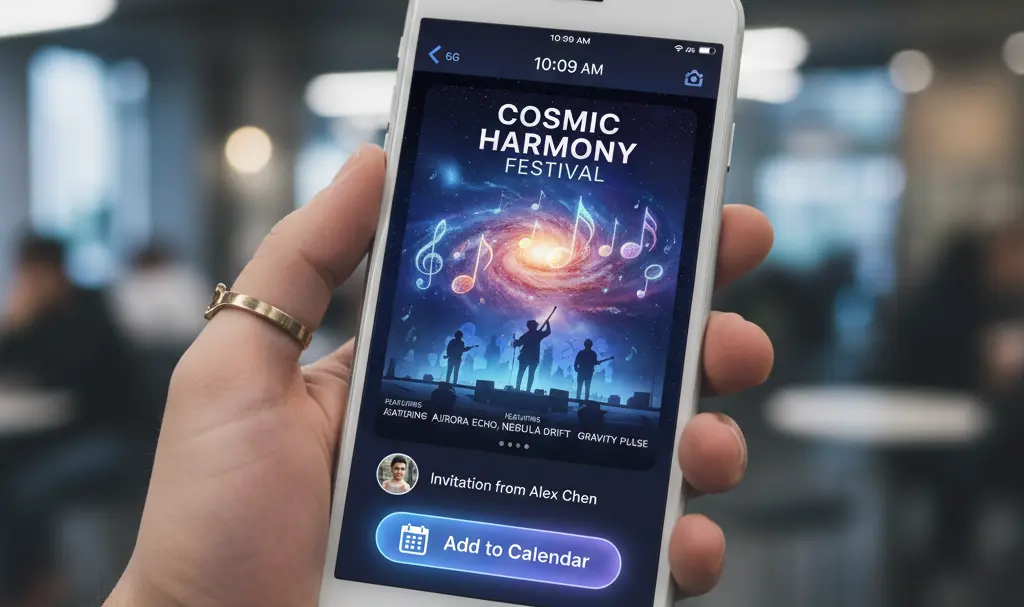
iOS 26 introduces a groundbreaking feature, powered by Apple Intelligence, that significantly simplifies managing your daily schedule. This innovative tool allows you to effortlessly convert event information from screenshots into fully-fledged Apple Calendar entries with a single tap.
Contents
Effortless Calendar Management: iOS 26 Transforms Screenshots into Events with Apple Intelligence
The Frustration of Manual Data Entry
In our fast-paced digital world, we often encounter event details—like concert announcements, meeting invitations, or webinar schedules—in screenshots. Historically, converting this information into a usable calendar entry meant manually transcribing dates, times, locations, and titles into your calendar app. This process was not only time-consuming but also prone to errors, especially when dealing with multiple pieces of information or tight deadlines.
Recognizing this common pain point, Apple has integrated a smart solution into iOS 26 that streamlines this workflow, reducing a tedious task to a simple screenshot and a tap.
How the Screenshot-to-Event Feature Works in Practice
With iOS 26, Apple has revamped the screenshot experience. Instead of the familiar small preview in the corner of the screen, taking a screenshot now defaults to a full-screen editing interface. It’s within this enhanced interface that Visual Intelligence, a key component of Apple Intelligence, comes into play.
Seamless Workflow: From Screenshot to Calendar
When you capture a screenshot containing potential event information—such as a concert announcement, a meeting invite, or a webinar schedule—iOS 26 locally analyzes the image using Visual Intelligence. This advanced AI identifies the structure of an “event” within the image, looking for key details like:
- Dates: Recognizing specific days or date ranges.
- Times: Pinpointing start and end times.
- Locations: Identifying addresses or venue names.
- Titles: Extracting the name or subject of the event.
If the system detects a potential event, a small “Add to Calendar” button conveniently appears at the bottom of the screenshot interface. Tapping this button will automatically populate a draft calendar entry, pulling all the crucial information directly from the image. In many cases, this means no manual typing is required at all.
Before finalizing, users are presented with a summary view where they can:
- Verify the extracted details.
- Change the event name if needed.
- Select the appropriate calendar (e.g., Work, Personal).
- Adjust the duration of the event.
Once satisfied, a single tap confirms the entry. For more detailed editing, such as adding notes, links, or specific reminders, iOS 26 seamlessly transitions you to the standard event creation screen within the Calendar app, providing access to all familiar options.
Visual Intelligence: A Core Component of Apple Intelligence
The screenshot-to-event mechanism isn’t a standalone application but rather an integral part of Apple Intelligence, Apple’s comprehensive personal intelligence system designed to understand the context of what’s currently on your screen. Visual Intelligence, in particular, is engineered to:
- Recognize products within images.
- Extract data from graphics.
- Identify events and suggest relevant actions, like adding to your calendar.
It’s important to note that this feature operates exclusively within the full-screen screenshot interface. If you revert to the older model with the small thumbnail preview in the corner and dismiss it quickly, the “Add to Calendar” button will not appear. However, simply tapping the thumbnail will open the full-screen view, thereby enabling Visual Intelligence capabilities.
Frequently Asked Questions (FAQ)
What is Apple Intelligence?
Apple Intelligence is Apple’s personal intelligence system, integrating generative AI models with a user’s personal context to provide highly relevant and helpful features across iOS, iPadOS, and macOS. It aims to enhance productivity and simplify daily tasks.
How does the screenshot-to-event feature save time?
This feature eliminates the need for manual data entry. Instead of typing out event details from a screenshot, iOS 26 automatically extracts and populates them into your calendar with just a few taps, significantly reducing the time and effort involved.
Does this feature work with all types of screenshots?
The feature works best with screenshots that clearly contain event-related information such as dates, times, locations, and titles. Visual Intelligence is designed to identify these patterns effectively.
Can I edit the event details after they are automatically filled?
Yes, after iOS 26 automatically fills the event details, you are presented with a summary view where you can review, edit, and adjust any information (like title, date, time, calendar, or duration) before saving the event. You can also access the full Calendar app interface for more advanced editing.
Source: 9to5Mac, ghacks, Apple. Opening photo: Gemini
About Post Author
