
Contents
Take Control: Prevent Your Smartphone from Listening In
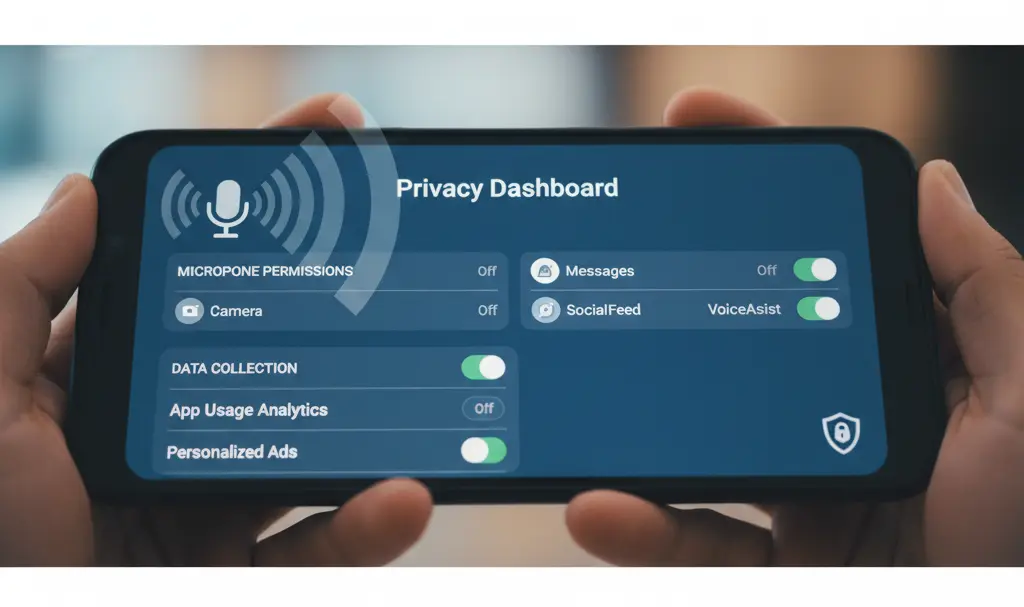
Most people associate their smartphone’s microphone with phone calls, video chats, or voice commands. However, the reality is far more complex. Your phone’s microphone can be active in ways you might not expect, potentially collecting audio data that reveals your preferences, habits, and even private conversations. While technology offers immense convenience, it also necessitates a proactive approach to privacy.
This article provides a comprehensive guide on how to understand and manage your smartphone’s microphone permissions, ensuring you retain control over your personal data and digital privacy. Taking a few minutes to adjust these settings can make a significant difference in how your information is handled by apps and companies.
Understanding Microphone Data Collection on Your Smartphone
The microphone in your smartphone is a powerful tool. Beyond its obvious uses for communication, many applications and services leverage it for various functionalities, such as voice assistants, sound recognition, and even to enhance personalized advertising. This means your device could potentially be listening and collecting data even when it appears idle.
Companies often collect audio data—sometimes anonymized, sometimes linked to your profile—to improve services, provide tailored recommendations, or for targeted advertising. Without proper privacy settings, your smartphone could regularly transmit information about your product preferences and interests, often without your explicit, conscious consent for continuous monitoring.
Step-by-Step Guide to Disabling Audio Data Collection
Protecting your audio privacy involves two primary areas: managing Google’s data collection and controlling individual app permissions. Let’s explore how to secure both.
Disable Voice & Audio Activity in Your Google Account
The Google app is a central point for many Android users, and it has specific settings that control voice and audio data collection. Disabling this is a crucial step in safeguarding your privacy.
Here’s how to do it:
- Open the Google app: Locate and tap the Google application on your smartphone.
- Access your profile: Tap your profile icon, typically located in the upper-right corner of the screen.
- Manage your Google Account: Select “Manage your Google Account” from the menu that appears.
- Navigate to Data & privacy: In your Google Account menu, scroll down and tap on “Data & privacy.”
- Find Web & App Activity: Under the “History settings” section, tap on “Web & App Activity.”
- Toggle off Voice & Audio Activity: Within “Web & App Activity” settings, look for the sub-setting that says “Include voice and audio activity.” Untick or toggle this option to turn it off. You may be prompted to confirm your choice.
Once this feature is disabled, Google will no longer save audio recordings of your interactions or background sounds to your account. Remember that this specific setting pertains to data stored by Google; you will still need to manage individual app permissions.
Restricting Microphone Access for Individual Apps on Android
Beyond Google’s specific settings, it’s equally important to review and manage microphone access for all other applications on your device. You should only grant microphone permission to apps that genuinely require it for their core functionality.
Here’s how to manage app permissions on Android:
- Go to Settings: Open your smartphone’s “Settings” app.
- Access Privacy settings: Scroll down and tap on “Privacy” (or “Privacy & security” on some versions).
- Locate Microphone access: In the Privacy menu, you might find a general toggle for “Microphone access.” The simplest way to broadly restrict microphone use is to disable this feature. Toggling this off will prevent all apps and services from using the microphone automatically.
Utilizing the Permission Manager for Granular Control
For more refined control, use the “Permission Manager” (sometimes called “App permissions” or “Permissions”) within the Privacy settings:
- Open Permission Manager: Tap on “Permission Manager” in the Privacy settings.
- Select Microphone: You’ll see a list of different permissions. Tap on “Microphone.”
- Review apps: This screen shows which apps have access to your microphone (Allowed), which have requested it (Ask every time), and which are denied (Denied).
- Adjust individual app permissions: Tap on any app from the “Allowed” list to change its permission. You’ll typically see three options:
- Allow only while using the app: The app can only use the microphone when it’s actively open and in the foreground.
- Ask every time: The app will prompt you for permission each time it tries to access the microphone.
- Don’t allow: The app is completely blocked from accessing the microphone.
It’s crucial to understand that “using an app” in the system’s context can include when an app is minimized and running in the background. Therefore, for maximum privacy, the “Don’t allow” setting is often the safest choice for apps that don’t explicitly need microphone access to function (e.g., a simple photo editor or a news reader).
For example, does your web browser, like Google Chrome, truly need microphone access all the time? Likely not, unless you frequently use voice search or specific web-based communication tools within it. For most users, denying microphone access to such apps is a sound privacy decision.
Investing 15-20 minutes to review and adjust these settings across your device is a small price to pay for greater peace of mind and enhanced personal data security. Take control of your digital privacy today!
Frequently Asked Questions (FAQ)
Does turning off microphone access affect voice assistants like Google Assistant?
Yes, if you completely disable microphone access for the Google app or your device globally, voice assistants may not function or will require you to manually activate them for each command. You might need to adjust settings to allow microphone access “only while using the app” for voice assistants to work when you actively summon them, while still preventing continuous background listening.
What are the primary risks of leaving microphone access broadly enabled for all apps?
Leaving microphone access broadly enabled increases the risk of unauthorized audio data collection, even by legitimate apps for purposes like targeted advertising or profiling. Malicious apps could potentially record your conversations without your knowledge. It also contributes to a larger digital footprint, making your preferences and habits more susceptible to analysis and potential misuse.
How often should I review my app permissions for microphone access?
It’s a good practice to review your app permissions, especially microphone access, periodically – perhaps every few months, or whenever you install new apps or update existing ones. App updates can sometimes introduce new permission requests, and regular checks ensure your privacy settings align with your current preferences.
Are these microphone privacy settings also available on iOS devices?
Yes, similar privacy controls exist on iOS devices. iPhone users can go to “Settings” > “Privacy & Security” > “Microphone” to see a list of apps that have requested microphone access and can toggle permissions on or off for each app individually. Apple also provides indicators when the microphone is in use.
Source: Original article. Opening photo: Gemini
About Post Author
