

Contents
Safeguard Your Digital Life: 7 Essential Smartphone Privacy Settings to Adjust Now
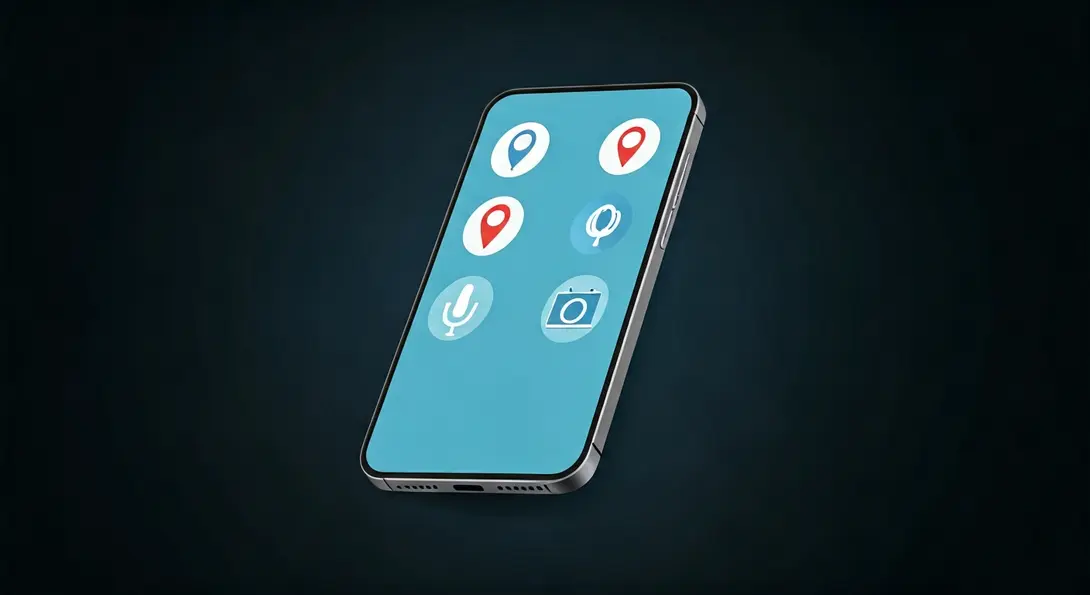
In our increasingly connected world, smartphones have become indispensable tools, holding a vast amount of personal information. While modern operating systems like Android and iOS are designed to isolate apps from your phone’s core functions and user data, requiring explicit permission for access to features like your camera, contacts, or storage, there’s a catch. Unfortunately, many commercial app developers frequently misuse this mechanism, compelling users to grant permissions that are not truly necessary for the app’s functionality.
This widespread practice can inadvertently expose your private data, location, and even conversations to third parties, often without your full awareness. Taking control of your app permissions is a crucial step in safeguarding your digital privacy. This guide will walk you through essential settings on both Android and iOS, helping you understand what to look for and how to make informed decisions about your data.
How to Manage App Permissions on Your Smartphone
Reconfiguring app permissions is an intuitive process, requiring just a few taps on most devices. Here’s how you can do it on both major mobile platforms:
On Android:
- Open your device’s Settings.
- Navigate to the “Apps” or “Apps & notifications” section.
- Look for “Permission Manager” or “Privacy” (the exact wording may vary depending on your Android version and phone manufacturer).
- Inside the Permission Manager, you’ll find categories like Microphone, Location, Contacts, etc., with a list of apps that have access to each.
- Alternatively, you can go into the settings of a specific app and manually modify its permissions from there.
On iOS:
- Open your device’s Settings.
- Tap on “Privacy & Security”.
- Here, the system neatly groups all sensors and data categories, such as Location Services, Contacts, Photos, Microphone, etc.
- Tap on each category to see which apps have requested access and adjust their permissions.
Critical Privacy Settings to Review Immediately
1. Microphone Access: Preventing Unwanted Eavesdropping
Many applications constantly request microphone access. While officially this is for features like text dictation, voice search, or recording messages in communication apps, in practice, it can allow background processes to listen to your surroundings. Algorithms leveraging natural language processing can detect keywords related to brands or products, leading to immediate targeted advertising and user profiling. This raises significant privacy concerns, as your conversations could potentially be used to inform marketing strategies.
To enhance your privacy, change microphone permissions to “Only while using the app” or “Ask every time”. This ensures that the microphone is only active when you are actively engaging with the app. For more insights on this specific topic, check out our guide on how to prevent your smartphone from listening through its microphone.
2. Location Tracking and GPS: Guarding Your Whereabouts
Access to your location on newer smartphones is often indicated by a discreet blue dot or icon. Continuous recording of your geographical coordinates allows algorithms to reconstruct a precise daily plan of your movements. Based on the time spent at specific points, analytical systems can easily identify your workplace, home address, and a list of visited stores or service points. This detailed tracking can paint a comprehensive picture of your life, which can be highly valuable to data brokers and advertisers.
There’s usually no reason for applications other than dedicated navigation software to know your precise location around the clock. Limit location permissions to “Only while using the app”. Additionally, on both Android and iOS, it’s advisable to disable the “Precise Location” option for programs that only require an approximate region to function effectively, further enhancing your anonymity.
3. Calendar and Schedule Access: Protecting Your Personal Plans
For marketing companies, access to your calendar is a goldmine of information about your plans and habits. Saved events often contain details about travel, business meetings, and even private medical appointments. Such data allows corporations to precisely predict future consumer behavior, offering them an unfair advantage in targeting you with specific promotions or services. This level of insight into your personal life can feel intrusive and compromise your autonomy.
If a particular program genuinely requires calendar integration, force the system to “Ask every time” for permission before adding or accessing events. Alternatively, consider entering sensitive events manually into your calendar without granting app access, or use a separate, secure calendar app for critical information.

4. Camera Access: Preventing Unauthorized Visual Recording
The camera on your smartphone can be exploited by malicious software or aggressive tracking scripts embedded within applications to record images or videos without your knowledge or consent. This is a significant security risk, potentially compromising your privacy in sensitive environments. The safest standard is to restrict camera access to moments when you intentionally activate the function, for example, when taking a photo within a messaging app. Under no circumstances should a utility program, calculator, or flashlight app have the right to activate your camera in the background.
Always review camera permissions and limit them to essential apps, ideally to “Only while using the app”. Be wary of apps requesting camera access that have no obvious photographic function.
5. Contacts and SMS Integration: Securing Your Network and Sensitive Codes
Social media applications frequently request to synchronize your address book under the pretext of easily finding friends. While seemingly harmless, this allows platforms to build extensive maps of social relationships, aggregating data not just about you, but also about everyone in your contact list who may not have consented to this data sharing. This network data can be incredibly valuable for targeted advertising and social engineering.
An even greater threat is access to your SMS messages. These can contain private conversations, but more critically, they often hold verification codes for two-factor authentication (2FA) for bank accounts and email inboxes. Granting an app access to your SMS can open the door to account hijacking and severe financial or personal data breaches. Revoke contact and message permissions for all applications that are not your default, system-level communication programs. Ensuring your 2FA codes remain private is paramount for your digital security. For more on advanced digital tools, consider exploring integrations like ChatGPT, Apple CarPlay, Android Auto, and Gemini.
6. Health Data Aggregation: Protecting Your Most Personal Information
Information such as your step count, heart rate, workout history, weight, menstrual cycle data, and sleep quality are exceptionally sensitive. These biological parameters, aggregated by your smartphone and wearable devices, can potentially fall into the hands of insurance companies. Based on this data, they could estimate your risk profiles and future premium costs, leading to discriminatory practices or higher rates. This data could also be used for other forms of profiling or discrimination.
Ensure that access to motion sensors and central health platforms like Google Health or Apple Health is granted exclusively to dedicated, trusted medical and fitness applications. Always read the privacy policies of health apps carefully to understand how your data will be used and shared.
7. Additional Permissions: Beyond the Basics
Modern mobile systems allow for precise management of storage. Instead of giving a newly installed application full access to your device’s photo gallery, choose the option to share only specified, individual photos. Metadata embedded in graphic files often contains precise time and geographical coordinates of where the photograph was taken, revealing sensitive information. Granting full access allows apps to collect this metadata en masse.
Also, pay close attention to your Bluetooth module. While convenient, this technology can be used to track your position indoors, especially in large venues like malls or airports. Review which apps have Bluetooth access and disable it for those that don’t genuinely need it. Minimizing unnecessary access points reduces your digital footprint and enhances your overall privacy.
Frequently Asked Questions (FAQ)
Many app developers request broad permissions for various reasons, sometimes for future features, sometimes to collect data for advertising, analytics, or even to enable tracking by third-party services integrated into the app. While some might be for legitimate purposes, others are often overreaching, and users should be cautious. Always question why an app needs a particular permission.
Yes, revoking essential permissions might limit or disable certain features of an app. For example, a camera app won’t work without camera access. However, for many apps, especially those that request excessive permissions (like a calculator asking for location), revoking unnecessary access will likely have no impact on core functionality. If an app genuinely needs a permission, it will usually prompt you again when you try to use the feature that requires it. It’s a good practice to test the app after adjusting permissions.
“Ask every time” offers the highest level of control, as it forces the app to request permission each time it needs to use a sensitive feature, making you fully aware of its usage. “Only while using the app” is also a strong privacy choice, allowing the app to use the feature only when it’s actively open and in use. Both are significantly more secure than “Always allow” or “Allow all the time,” which lets apps access features in the background without your explicit knowledge. The best choice depends on your comfort level and the app’s genuine needs.
Source: ZDNet, developed in-house. Opening photo: Gemini
About Post Author
