

Contents
Breathe New Life Into Your Smart TV: The Ultimate Guide to Clearing Cache
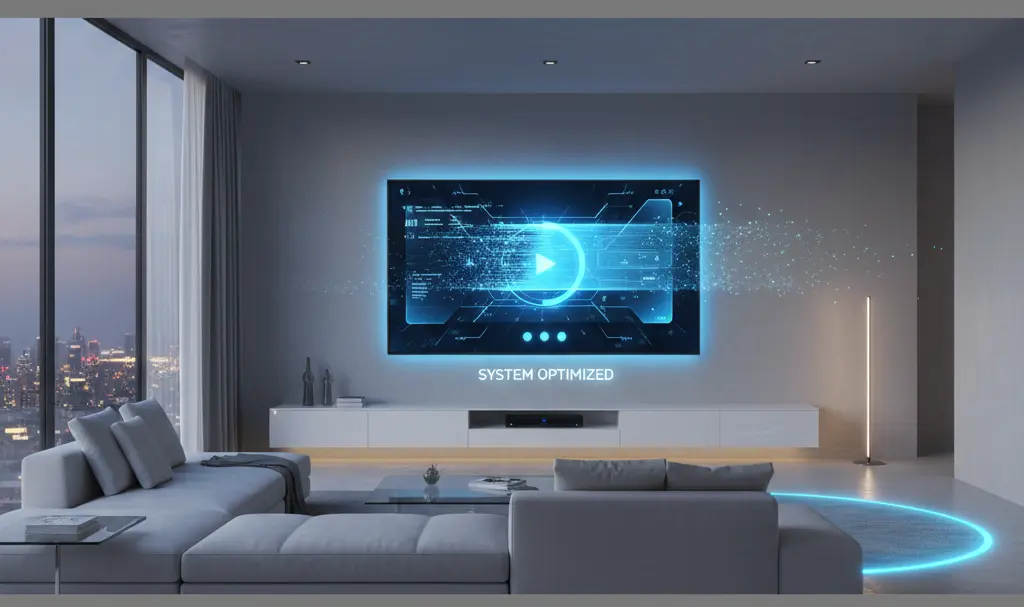
A pristine television is more than just a sparkling screen—it requires a smoothly operating internal system. The fastest, most effective method to accelerate a sluggish TV is clearing its temporary files, commonly known as the cache. This simple maintenance step can restore your Smart TV’s performance, making it run as seamlessly as the day you bought it.
Why Is Your Smart TV Running Slow?
Many of us are accustomed to rebooting our smartphones when they start lagging. Restarting flushes the device’s temporary memory, preventing the hardware from getting bogged down. Unfortunately, very few people remember to perform similar maintenance on their televisions.
Modern Smart TVs are basically large computers. They rely heavily on numerous applications—especially streaming platforms—that constantly accumulate cache data. This temporary storage area is designed to grant faster access to frequently used information. For instance, streaming apps save your “continue watching” progress, load high-resolution video thumbnails, and store user preferences locally.
However, the longer you go without clearing this cache, the more cluttered your system becomes. Even a premium 55-inch display can suffer from severe lag if its internal storage is maxed out. As modern interfaces integrate heavier features—such as Google Gemini bringing powerful new AI capabilities to TVs while reducing phone reliance—maintaining a clean cache is essential to prevent system bottlenecks. This also applies to streaming sticks and set-top boxes attached to your TV.
The Benefits of Clearing Your TV’s Cache
If you notice that your TV’s interface stutters or streaming apps take unusually long to load, a cache clearance is the best first step. Here is what you stand to gain:
- Faster Loading Times: Removing bloated temporary files allows your operating system and individual apps to boot up faster and operate smoothly.
- Increased Storage Space: Over time, neglected apps can “swell” in size. Deleting the cache frees up valuable internal storage capacity, which is vital for new system updates.
- Bug and Glitch Fixes: If an application is crashing, freezing, or failing to load entirely, a corrupted cache file is often the culprit. Clearing it acts as a soft reset without requiring a full app reinstallation.
How to Clear the Cache on Your Smart TV
While the exact process varies slightly depending on your TV manufacturer, the core logic remains consistent across the board. You can generally clear the cache on an app-by-app basis or, on some models, execute a system-wide cleanup.
Note: Clearing an app’s cache is completely safe. It will not delete your personal data, downloaded apps, or login credentials. It only removes temporary junk files.
How to Clear Cache on Android TV and Google TV
Android and Google operating systems make it incredibly simple to manage app storage. To clear out the clutter:
- Navigate to your TV’s Settings menu (usually represented by a gear icon).
- Select Apps.
- Click on See all apps.
- Scroll down and select the specific application you want to optimize.
- Choose Clear cache and confirm your selection.
How to Clear Cache on Samsung Smart TVs
Samsung’s Tizen operating system handles storage optimization through a dedicated device care menu:

- Press the Home button and go to Settings.
- Navigate to Support, then select Device Care.
- Choose Manage Storage.
- Highlight the app causing trouble, press the select button to open the menu, and choose View Details.
- Click Clear Cache.
How to Clear Cache on LG Smart TVs (webOS)
If you own an LG television, particularly advanced models like the new LG Smart TVs with AI, Micro RGB, and OLED gaming features, keeping the webOS snappy is crucial. While LG doesn’t feature a direct “clear cache” button for individual apps, you can easily flush the system memory:
- To clear browser cache: Open the web browser app, navigate to Menu -> Settings -> Clear Browsing Data.
- To optimize overall system memory: Simply unplug the TV from the wall outlet for 60 seconds, then plug it back in. This “power cycle” automatically dumps the system’s temporary memory payload.
Frequently Asked Questions (FAQ)
Does clearing the TV cache delete my streaming service passwords or accounts?
No, clearing the cache only deletes temporary background files like images and thumbnails used to load the app faster. Your account information, passwords, watch history, and personal preferences are stored in the app’s “Data.” As long as you select “Clear Cache” and not “Clear Data,” you will not be signed out of your accounts.
How often should I clear the cache on my Smart TV?
There is no strict timeline, but performing a cache clean-up every few months is highly recommended. You should also clear it immediately if you notice the TV slowing down, apps crashing, or if you receive a “storage full” error message. Routine maintenance keeps your television responsive.
If clearing the cache doesn’t fix my lagging TV, what should I do next?
If your television is still running slowly after clearing the cache, check for software and app updates. If everything is up to date, try uninstalling unused applications to free up more storage space. As a final troubleshooting step, you can perform a factory reset, though this will erase all your custom settings and require you to log back into all your accounts.
Source: Gemini & Opening photo: Gemini
About Post Author
