Contents
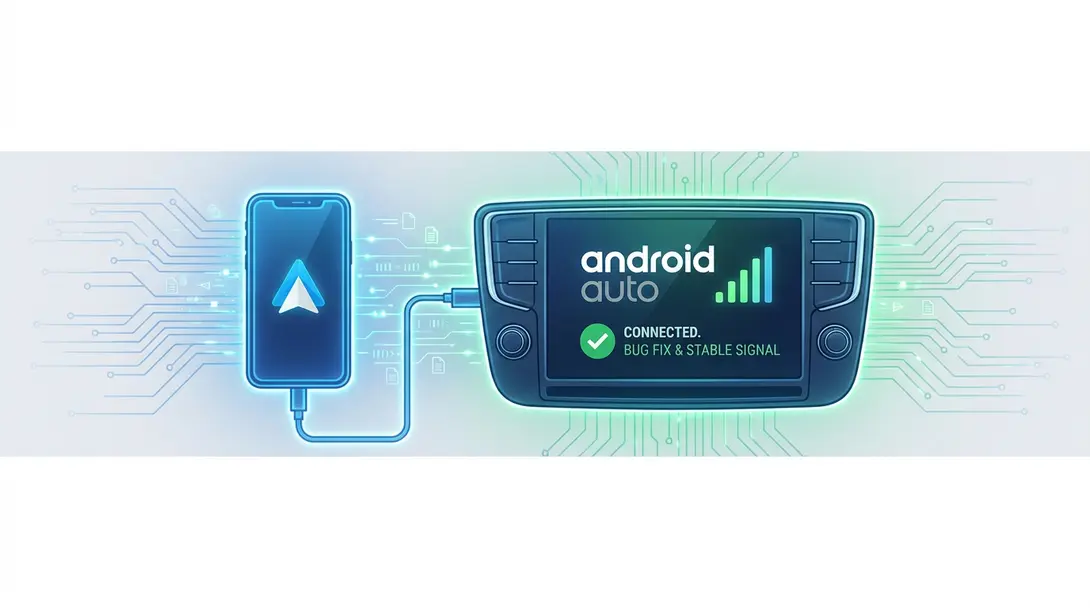
Google Addresses Persistent Android Auto Connectivity Issues with Version 17.3 Update
For many Android Auto users, the experience of seamlessly integrating their smartphone with their car’s infotainment system has recently been marred by frustrating technical glitches. Since early July 2023, numerous reports surfaced detailing sudden disconnections between smartphones and vehicles, along with frequent application freezes. This widespread frustration prompted Google to acknowledge the issue and release a critical update.
The Problem: Widespread Disconnections and Freezes
The core of the problem lay in unpredictable connectivity issues. Users frequently reported their Android Auto connection abruptly dropping, often mid-navigation or during a call. Beyond disconnections, the application itself would often freeze, rendering essential functions like maps, music, and communication inaccessible. The severity of these issues led to a significant uproar within the Android Auto community, with users voicing their concerns across various online forums.
Google’s Official Acknowledgment and Solution
The situation became so critical that Google representatives, including Mishaal Rahman, a Community Manager, engaged directly with users on forums to address the widespread complaints. Google officially identified the root cause of the problem:
“We identified a bug related to uncertified, non-factory car stereos, which affected a small number of users during the rollout of Android Auto version 17.2.”
— Mishaal Rahman, Community Manager at Google
This admission provided clarity, indicating that users with aftermarket head units were particularly susceptible to these glitches. Fortunately, Google swiftly rolled out a solution in the form of a software update.
The fix comes with Android Auto version 17.3. Google representatives strongly recommend all users experiencing these problems to update their application immediately. While the primary solution is version 17.3, it was also noted that certain improvements were present in stable version 17.2 (specifically 17.2.662638) and the beta channel (17.3.662813). Regardless of your current channel, updating to the latest available version is crucial for resolving these persistent issues. For a deeper dive into how Google is tackling these and other related problems, you can read about Android Auto finally fixed: Google resolves persistent connectivity issue and stay updated on developments like the Android Auto disappearing signal icon visual bug Google tests.
How to Update Android Auto to Version 17.3
Updating your Android Auto application is a straightforward process that can significantly improve your in-car experience. Follow these simple steps:
- Open the Google Play Store: On your Android smartphone, locate and tap the Google Play Store icon.
- Search for “Android Auto”: Use the search bar at the top of the Play Store to find the Android Auto application.
- Select the Application: Tap on the Android Auto app listing from the search results.
- Update if Available: If an update is available, you will see an “Update” button. Tap this button to initiate the download and installation of the latest version.
Once updated, you should notice a significant improvement in the stability and reliability of your Android Auto connection, ensuring a smoother and more enjoyable journey without unexpected interruptions.
Frequently Asked Questions (FAQ)
The Android Auto version 17.3 update primarily addresses critical issues such as sudden disconnections between your smartphone and car’s infotainment system, as well as frequent application freezes that disrupted navigation, music playback, and communication. These problems were particularly prevalent with uncertified, non-factory car stereos.
To check your Android Auto version, open the Android Auto app on your smartphone (or go to Settings > Connected Devices > Connection Preferences > Android Auto on some devices). Scroll down or look for “Version” or “About.” The version number will be displayed there.

If you don’t see an “Update” button for Android Auto in the Google Play Store, it could mean one of a few things: your app is already up to date, the update is being rolled out in phases and hasn’t reached your device yet, or you might need to clear the Play Store cache. You can also try restarting your phone and checking again. If issues persist, consider joining the Android Auto beta program for early access to updates.
Source: Android Authority
Opening photo: Gemini
About Post Author