Contents
Android Auto Gets Major Upgrades: Immersive 3D Maps and Speedometer Roll Out
Android Auto is once again leveling up, with two significant new features now reaching a broader user base. Both enhancements are focused on improving the Google Maps experience within your vehicle. It’s worth checking Google Play for updates to these components, as the changes are truly impactful.
Immersive 3D Maps for Enhanced Navigation
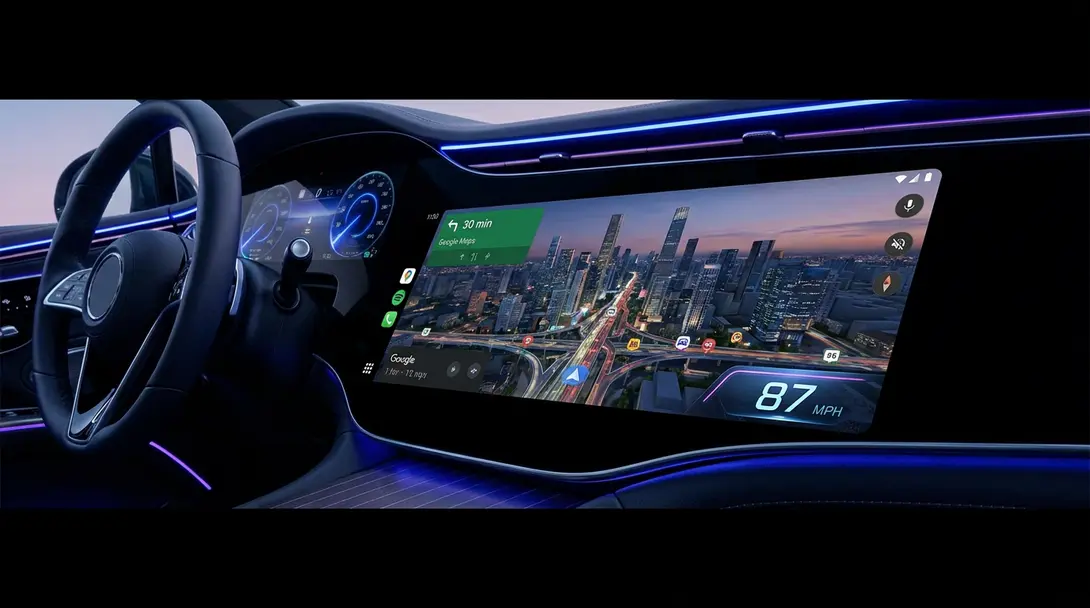
Google recently announced the Immersive Navigation mode, a groundbreaking feature that brings a new dimension to in-car mapping. Leveraging rich data from Street View and satellite imagery, buildings, bridges, overpasses, and even terrain are now rendered in stunning 3D along your route. This innovation is designed to give drivers a much clearer sense of their surroundings and the context of the area they are navigating.
Previously, less than 10% of Android Auto users globally had access to this immersive experience. However, that’s rapidly changing, with a growing number of users reporting the new feature appearing in the stable version of Google Maps. Interestingly, this wider rollout appears to be targeting stable users first, as some beta users have yet to see the same update.
You can identify the availability of this feature not just by the three-dimensional buildings on your map. A distinctive blue Gemini icon, symbolizing the use of AI to render the new map display, now appears next to the name of the current street icon.
Speedometer Now Visible in Android Auto
Another highly anticipated and widely requested feature for Android Auto is the integrated speedometer, which becomes visible while navigating with Google Maps. While users on the beta versions of both programs might have spotted this update earlier, its rollout is now accelerating.
Reports indicate that users of stable versions of Android Auto and Google Maps should also begin to see the speedometer appearing. It is typically positioned in the lower right corner of the screen, offering a clear and convenient way to monitor and verify your current speed against the data provided by your vehicle. Be sure to update your apps and check if these new functionalities are already available to you!
How to Access the Latest Android Auto Features
To ensure you receive these cutting-edge updates, follow these simple steps:
- Check for Updates: Open the Google Play Store on your smartphone and search for “Google Maps” and “Android Auto.” Install any pending updates.
- Server-Side Rollout: Keep in mind that these features are often rolled out gradually via server-side updates. This means they might appear on your device even without an app update, but having the latest app versions increases your chances.
- Patience is Key: If you don’t see the features immediately, don’t worry. Google typically deploys these updates in phases, so they should reach your device soon.
Frequently Asked Questions (FAQ)
Immersive Navigation utilizes Street View and satellite imagery to render buildings, bridges, and terrain in 3D on your Google Maps display in Android Auto. This provides a more realistic and contextual view of your route, helping you orient yourself better while driving.
Many new features for Android Auto and Google Maps are rolled out gradually via server-side updates. This means that even with the latest app versions, it might take some time for the features to activate on your device. Ensure your apps are updated, and the features should appear in due course.

Yes, Google Maps within Android Auto continues to enhance its capabilities for electric vehicle (EV) drivers, including features like EV route planning with charging station integration. These ongoing improvements aim to make EV navigation seamless and efficient.
Source: 9 to 5 Google
Opening photo: Gemini
About Post Author