

Contents
The Refrigerator FPS Myth: TechBusters Put It to the Test
Many PC gamers who have experienced the frustration of a struggling setup, barely managing to run games smoothly, have undoubtedly wondered how to boost their frame rate (FPS). A common, albeit outlandish, internet myth suggests that placing your gaming rig in a refrigerator could be the solution. As part of our TechBusters series, we decided to put this theory to the ultimate test.
The TechBusters Experiment: Laptop in the Fridge
Setting Up the Test
To accurately assess the impact of refrigeration on in-game performance, we needed a game that already pushed our test laptop to its limits at room temperature. For this experiment, we utilized a 2019 laptop model equipped with 8 GB of RAM and a dedicated graphics card comparable to an MX250. Given these specifications, even less demanding games can present a significant challenge for this machine, making it an ideal candidate for our unusual test.
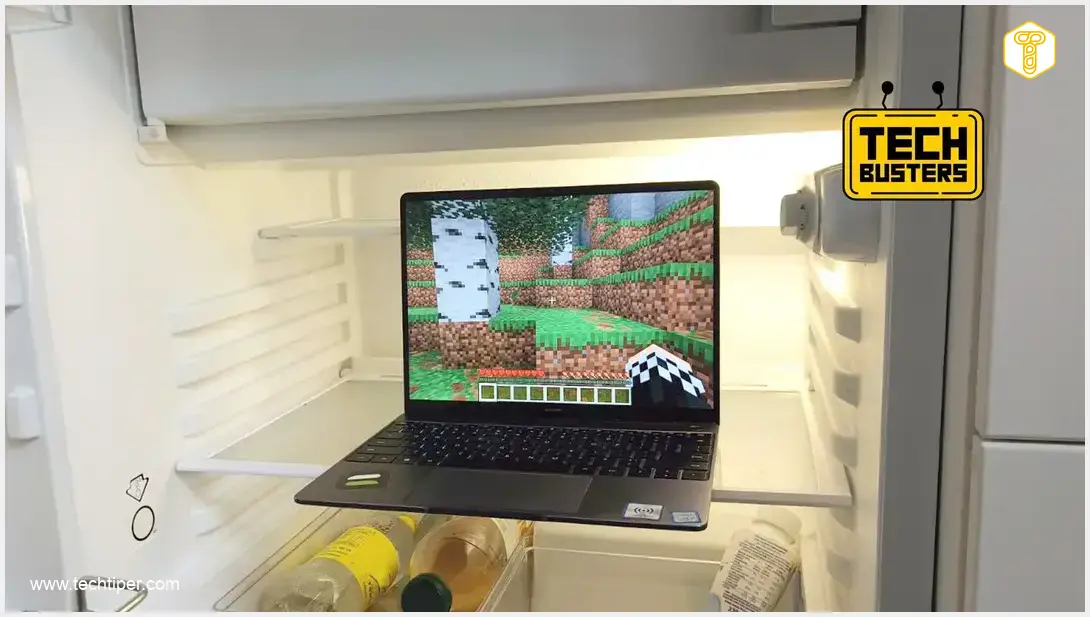
We chose the iconic game Minecraft. It’s relatively easy to run but often doesn’t perform perfectly on mid-range hardware, making it susceptible to improvements from more efficient cooling. Without any external cooling or even a charger, this laptop typically achieved 30–40 FPS in Minecraft, with frequent drops approaching 20 frames per second.
A frame rate (FPS) measures how many unique images or “frames” a display can produce per second. A higher FPS generally means a smoother, more responsive gaming experience.
The Refrigeration Test and Results
With our setup ready, we carefully placed the laptop in an open refrigerator, launched Minecraft, and monitored the changes using an active FPS counter. The results were indeed intriguing: the game consistently maintained 40 FPS, and even frequently approached the 50 FPS mark. While not a groundbreaking leap, it was a noticeable, albeit slight, improvement.
How Refrigerator Cooling Impacts a Gaming Laptop
The low temperature inside the refrigerator plays a direct role in this performance boost. It prevents the active components within the laptop from reaching their maximum permissible operating temperatures as frequently (or at all). When a computer’s components exceed these thermal thresholds, a phenomenon known as “throttling” often occurs.
Throttling is a protective mechanism where the system deliberately reduces the clock speed of components like the CPU or GPU to prevent overheating and potential damage. This forced reduction in performance directly impacts how smoothly and efficiently applications or games can run, leading to lower FPS and a less responsive experience. By keeping the laptop cooler, the refrigerator effectively minimized or eliminated throttling, allowing the components to operate closer to their optimal clock speeds.
Of course, while our experiment showed a performance improvement, storing a laptop in a refrigerator is an impractical and potentially damaging long-term solution. The condensation and extreme temperature changes can harm internal components. Instead, there are several sensible and effective alternatives:
- Cooling Pads: These external pads sit underneath your laptop and use fans to blow cool air, improving airflow and heat dissipation. They typically connect via USB.
- Undervolting: This advanced technique involves reducing the voltage supplied to the CPU or GPU without decreasing their clock speeds. Lower voltage means less heat generation and can significantly reduce throttling, leading to more stable performance. For those interested in optimizing their system, exploring Windows 11 debloat and performance guides can provide further insights into system tweaks like undervolting.
- Regular Cleaning: Dust buildup inside your laptop can significantly hinder airflow and cooling efficiency. Regular cleaning of fans and vents can make a big difference.
- Thermal Paste Replacement: Over time, the thermal paste between your CPU/GPU and their heatsinks can degrade, reducing heat transfer. Replacing it with fresh, high-quality thermal paste can improve cooling.
Exploring More Tech Myths with TechBusters
Our TechBusters team loves to debunk or confirm various tech myths. Beyond the refrigerator experiment, we’ve investigated numerous other intriguing claims. For more surprising tech revelations, check out our ranking of technology gadgets that sound like a joke but are real, and delve into some of the myths below:

- Can a smartphone function as a metal detector?
- Are bananas truly fire-resistant?
- Is wireless charging genuinely more expensive than wired charging?
- Can you register two different fingerprints for the same authentication on a single phone?
- Do automatic doors detect height and open faster for taller individuals?
Frequently Asked Questions (FAQ)
No, it is not safe or recommended. While temporary exposure to cold might reduce throttling, the rapid temperature changes and condensation inside a refrigerator can cause severe and permanent damage to your laptop’s internal components, including the motherboard, screen, and battery.
Effective and safe cooling methods include using a laptop cooling pad, regularly cleaning your laptop’s vents and fans to prevent dust buildup, replacing old thermal paste, and considering software optimizations like undervolting. Ensuring proper airflow around your laptop by placing it on a hard, flat surface is also crucial.
Throttling is a mechanism where your computer’s CPU or GPU automatically reduces its operating speed to prevent overheating when it reaches a certain temperature threshold. This reduction in clock speed directly lowers your gaming performance, causing lower FPS, stuttering, and a less smooth experience to protect the hardware from damage.
Source: Self-developed content.
Opening photo: Krzysztof Rojek / Android.com.pl
About Post Author
