
Contents
Why Does Sound Cut Out in Bluetooth Speakers or Headphones?
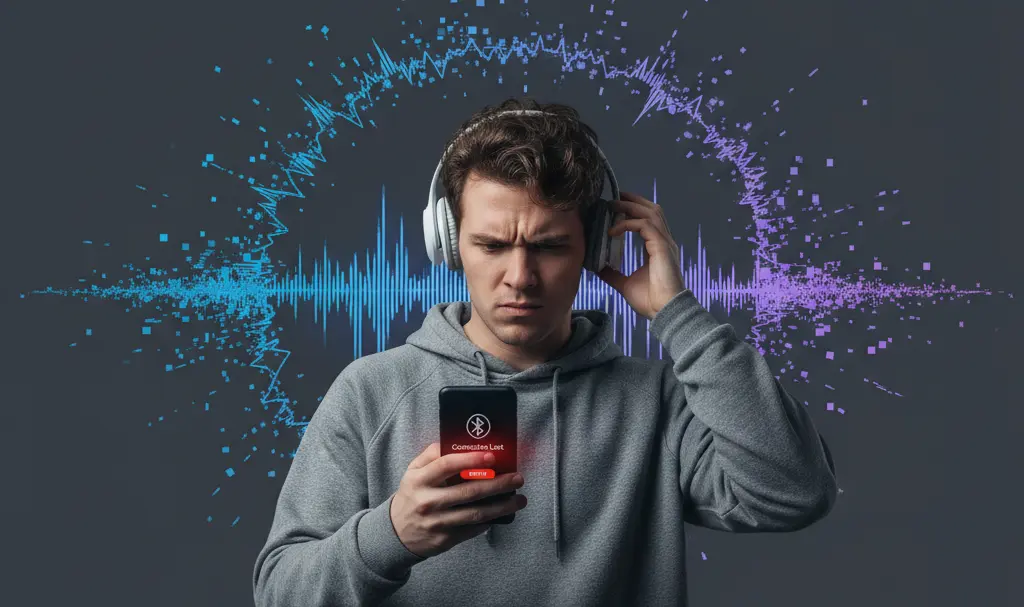
Bluetooth technology offers incredible freedom, allowing you to enjoy your favorite audio wirelessly through headphones and speakers. However, it’s not uncommon to experience frustrating interruptions where the sound cuts out, making your listening experience less than ideal. This comprehensive guide will help you understand the common causes behind these disruptions and provide practical solutions to get your audio back on track.
Common Reasons for Bluetooth Audio Interruptions
Understanding why your Bluetooth audio might be cutting out is the first step to resolving the issue. Here are the most frequent culprits:
1. Excessive Distance Between Your Bluetooth Device and Phone
Bluetooth operates within a specific range, typically around 10 meters (33 feet) for Class 2 devices, which include most headphones and portable speakers. If your audio device is too far from your smartphone or the source of your music, the signal can weaken and cause dropouts.
**Solution:**
* **Keep them close:** Place your phone and Bluetooth speaker or headphones within a few meters of each other. The closer they are, the stronger and more stable the connection.
2. Physical Obstacles Interfering with the Signal
Just like Wi-Fi, Bluetooth signals can be obstructed by physical barriers. Walls, furniture, and even your own body can weaken the signal, leading to choppy audio or complete disconnections.
**Solution:**
* **Clear line of sight:** Try to maintain a clear path between your audio device and the source. If you’re moving between rooms, consider bringing your phone with you to minimize obstructions.
3. Slow or Unstable Internet Connection (for Streaming Audio)
If you’re streaming music or podcasts from online services, an unreliable internet connection can be the primary reason for audio interruptions, even if your Bluetooth connection itself is stable. If your Wi-Fi or mobile data can’t buffer the audio fast enough, the sound will cut out.
**Solutions:**
* **Check your internet:** Ensure you have a strong and stable Wi-Fi or mobile data connection. Try moving closer to your Wi-Fi router or switching to a different network.
* **Reduce audio quality:** Lowering the streaming quality in your music app settings can reduce the bandwidth required, making it easier for a slower connection to keep up.
* **Download for offline playback:** Whenever possible, download your music or podcasts to your device and play them offline. This completely bypasses internet connection issues.
4. Interference from Other Nearby Devices
Bluetooth operates on the 2.4 GHz frequency band, which is also used by many other wireless devices, including Wi-Fi routers, cordless phones, microwave ovens, smart home devices, and even some computer peripherals. These devices can create electromagnetic interference that disrupts your Bluetooth signal.
**Solutions:**
* **Increase separation:** Move your Bluetooth headphones or speaker away from other electronics that might be causing interference.
* **Turn off unused devices:** If possible, temporarily switch off other 2.4 GHz devices that are not in use to pinpoint the source of interference.
* **Consider 5 GHz Wi-Fi:** If your router supports it, connect your phone to a 5 GHz Wi-Fi network to reduce congestion on the 2.4 GHz band.
5. Multiple Applications Using Bluetooth Simultaneously
Your smartphone or tablet has finite processing power and Bluetooth bandwidth. If you’re running multiple applications that heavily utilize Bluetooth or other system resources at the same time (e.g., listening to music, receiving numerous notifications, running GPS navigation, or transferring files), it can strain your device and lead to audio dropouts.
**Solutions:**
* **Close unused apps:** Minimize background apps, especially those that might be using Bluetooth or generating frequent notifications.
* **Manage notifications:** Temporarily disable notifications from chat apps or social media when critical listening is required.
* **Device performance:** Ensure your device isn’t overloaded. If you find your affordable Bluetooth gadgets are struggling, consider checking your phone’s performance or freeing up memory.
Advanced Troubleshooting Tips
If the above solutions don’t resolve your issue, consider these additional steps:
* **Restart devices:** A simple restart of both your phone and the Bluetooth audio device can often clear temporary glitches.
* **Re-pair your devices:** Forget the Bluetooth connection on your phone and then re-pair your headphones or speaker. This can refresh the connection profile.
* **Update firmware/software:** Check for any available software updates for your phone and firmware updates for your Bluetooth audio device. Manufacturers often release updates that improve connectivity and stability.
* **Test with another device:** Try connecting your Bluetooth headphones/speaker to a different phone or computer to determine if the problem lies with the audio device or your primary source.
* **Reset your Bluetooth device:** Many Bluetooth speakers and headphones have a factory reset option. Consult your device’s manual for instructions.
* **Check Bluetooth codecs:** Ensure both your device and headphones/speaker support compatible Bluetooth audio codecs (e.g., SBC, AAC, aptX, LDAC). Sometimes an incompatibility or an attempt to use a high-bandwidth codec over a weak connection can cause issues.
For advanced users looking to secure their smart home, understanding how to change Bluetooth device names for home security can also be beneficial, ensuring clarity and organization in your connected environment.
Frequently Asked Questions (FAQ)
How can I definitively check for Bluetooth interference in my home?
To check for interference, first try moving your Bluetooth device and phone to different locations in your home, especially away from common interference sources like Wi-Fi routers, microwaves, and other electronics. Systematically turn off other wireless devices one by one to see if the audio improves. You can also use spectrum analyzer apps (available for some Android devices) to visualize the 2.4 GHz band and identify crowded channels, though this requires a bit more technical knowledge.
Does the age or model of my smartphone affect Bluetooth audio stability?
Yes, it can. Older smartphones may have outdated Bluetooth chipsets or software, which can lead to less stable connections, poorer range, or limited codec support compared to newer models. Newer phones often feature more advanced Bluetooth versions (e.g., Bluetooth 5.0, 5.2, 5.3) with improved range, speed, and power efficiency, contributing to a more robust audio experience. Processor speed and RAM also play a role; a phone struggling with general tasks might also struggle to maintain a seamless Bluetooth audio stream.
My Bluetooth device supports high-quality codecs like aptX or LDAC, but the audio still cuts out. What could be the problem?
While high-quality codecs offer superior sound, they also require more bandwidth, making them more susceptible to signal degradation. If your audio is cutting out despite using a premium codec, it’s likely due to signal interference, excessive distance, or physical obstructions. Try switching to a more basic codec like SBC or AAC in your phone’s developer options (if available) to see if stability improves. This can help determine if the high bandwidth requirement of the advanced codec is contributing to the problem. Also, ensure your phone and audio device are close to each other and have a clear line of sight.
Source: General knowledge, user experience
Opening photo: Gemini
About Post Author
