
Contents
Samsung One UI AI: Daily Essentials vs. Overhyped Gimmicks
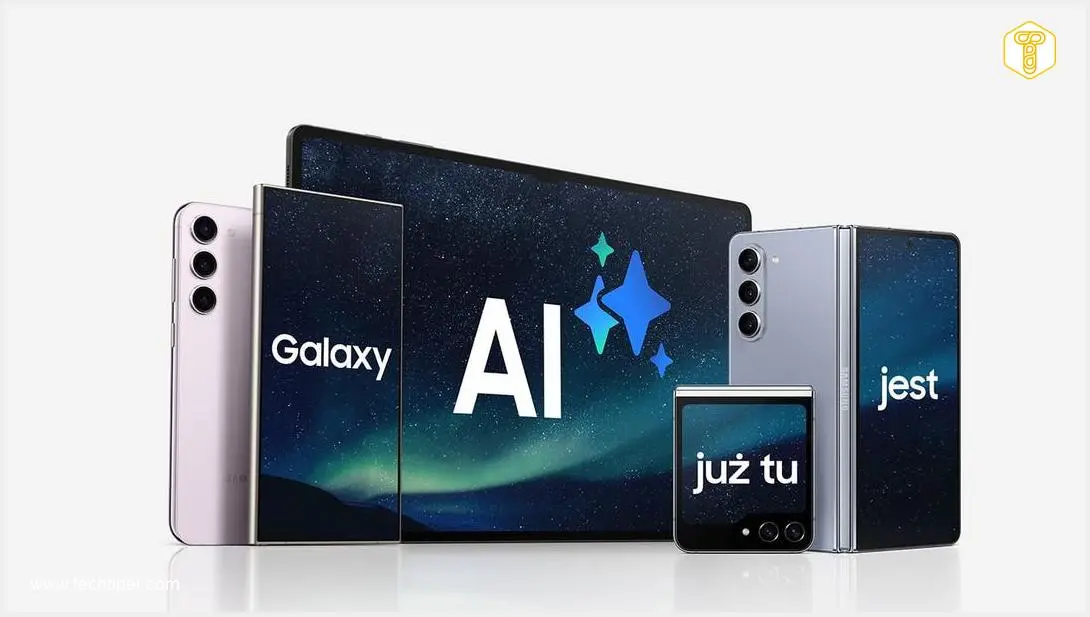
When Samsung first started hyping Galaxy AI, I admit I was skeptical. It felt like another wave of marketing jargon, and my initial reaction to AI integration in One UI was one of doubt. However, with time, I’ve gained clarity on which functions genuinely enhance my daily workflow and which feel like unnecessary bloatware. By 2026, AI in One UI is pervasive enough that it’s hard to ignore, but it’s equally difficult to overlook the features that seem designed purely for marketing aesthetics rather than practical utility.
3 AI Features I Consistently Use in One UI
Through my daily interactions with Samsung’s One UI, three particular AI features have seamlessly integrated into my routine, proving their worth beyond initial skepticism.
1. Galaxy AI-Powered Writing Support
The writing support provided by Galaxy AI has become a natural extension of my work. This tool isn’t just a content creator; it’s an intelligent editor that understands context.
When drafting text in Samsung Notes, I frequently need quick corrections, paragraph shortening, or a spell check. For more extensive content, its ability to summarize and extract key points is invaluable. It excels at helping me organize my thoughts and structure them into cohesive narratives. My only minor critique is its current limitation to Samsung Notes; extending this functionality across other system areas would be a significant enhancement.
2. Gemini Integration
I frequently leverage Gemini, which is easily accessible within One UI. This AI-powered assistant has become my go-to quick information hub. It’s remarkably efficient at providing rapid answers to my queries.
A simple three-second press of the power button brings up a convenient pop-up window where the assistant generates content. Gemini is fast, responsive, and, crucially, predictable. It’s particularly effective when I need to quickly draft an introduction for a longer article or craft a detailed email response. Gemini streamlines these tasks without unnecessary complexity. Discover more about how Gemini is evolving with features like live AI conversations and voice search: Google Gemini 3.1 Flash: Live AI Conversation & Voice Search.
3. AI Selection from the Edge Panel
Finally, a feature I’ve used extensively for a long time, and continue to use frequently in 2026, is AI Selection, accessible from the Edge Panel. This is a must-have and a natural component of One UI, perfectly suiting my communication style with friends and colleagues.
When sending messages, I often share charts, portions of images, or text snippets, and this function is ideal for that. Instead of taking a full-screen screenshot, I can select any specific area I wish to convey. Furthermore, before sending, I can quickly and conveniently edit it—for example, by drawing arrows or adding highlights. This tool is also excellent for extracting text from images when I only need to share specific sentences.
6 Overhyped AI Features in One UI
Unfortunately, that’s where the list of truly useful AI functions in One UI ends for me. Several features, particularly those related to calls and messages, feel largely superfluous.
1. Communication Assistants
- Call Assistant: The live translation of phone calls isn’t a feature I need, as I don’t typically communicate with people abroad in different languages.
- Writing Assistant: While it operates within the Messages app and can help generate SMS responses, I find conversing with a generative AI for text messages unnatural and artificial. Consequently, I don’t use it at all.
- Translator: The ability to translate conversations in voice or text form is, at this moment, not something I require in my daily life.
2. AI Photo Editing
The same applies to AI-powered photo editing. While features like object removal or image enhancement can look impressive, in practice, I’ve used them only a handful of times—mostly just to test how they work. When I need serious photo editing, I prefer to do it on a computer, where I have complete control over the material.
Smartphone AI attempts to be clever, but it often results in unnatural edges, artifacts, or simply an odd-looking effect. This function seems more geared towards content creators who need polished visuals for platforms like Instagram, rather than the average user who might not find it essential. For a broader look at One UI features, including innovative sharing options, check out Samsung One UI 9: NameDrop Feature on Android 17.
3. Drawing Assistant
I also don’t use the Drawing Assistant, which can transform rough sketches into more sophisticated drawings. This isn’t a creative outlet I typically engage in during my leisure time.
4. Circle to Search
Finally, one of the most overhyped features remains Circle to Search. Samsung and Google try to convince us that this is a natural way to search for information, but for me, it simply doesn’t work effectively.
In theory, you circle a part of the screen, and AI finds everything related to it. In practice, however, I use it so sporadically that I often forget where the feature is even located. If I want to search for something, I can do it much faster and more precisely using traditional methods. Circle to Search was envisioned as a revolution but has become an add-on that many users forget about after a week.
AI in One UI: Evolving, But Lacking a Clear Vision
Looking at One UI in 2026, it’s clear that Samsung has made significant strides in improving the interface’s usability. However, it also continues to push AI into areas where it isn’t truly needed.
The functions that work well have become a natural part of my daily life—like intelligent writing and Gemini integration. Those that were meant to impress but lack practical application have simply vanished from my workflow.
Perhaps this is the ultimate test for any technology: if I’m still using something months later, it means it has genuine value. If not, it was merely a marketing gimmick designed to dazzle but failed to withstand the test of real-world use.
Frequently Asked Questions (FAQ)
What criteria make an AI feature genuinely useful in a smartphone UI?
Truly useful AI features are those that seamlessly integrate into daily tasks, save time, or offer capabilities not easily achieved otherwise. They should be intuitive, reliable, and address a common user need without feeling forced or artificial. Features that adapt to user habits and provide practical solutions for communication, organization, or information retrieval often stand out. If a feature requires extra steps or feels less efficient than traditional methods, its utility is diminished.
How does Samsung decide which AI features to integrate into One UI?
Samsung’s integration of AI features into One UI likely stems from a combination of market research, competitive analysis, and internal innovation. They aim to enhance user experience, differentiate their devices, and align with broader industry trends. Some features might be developed in collaboration with partners like Google (e.g., Gemini, Circle to Search), while others are proprietary to Samsung. However, the article suggests that while some features are driven by genuine utility, others might be introduced more for marketing appeal to showcase technological advancement.
What are the potential privacy implications of widespread AI integration in smartphone operating systems?
Widespread AI integration raises significant privacy concerns, particularly regarding data collection and processing. Features like writing assistants, translation services, and image editors often rely on analyzing user input, conversations, and personal media. While companies typically state that data is anonymized or processed on-device, concerns remain about how much personal information is shared, stored, and used to train AI models. Users should review privacy policies, understand data permissions, and be mindful of the information they allow AI features to access to protect their digital privacy.
Source: Original Content. Opening photo: Samsung / Press materials
About Post Author
