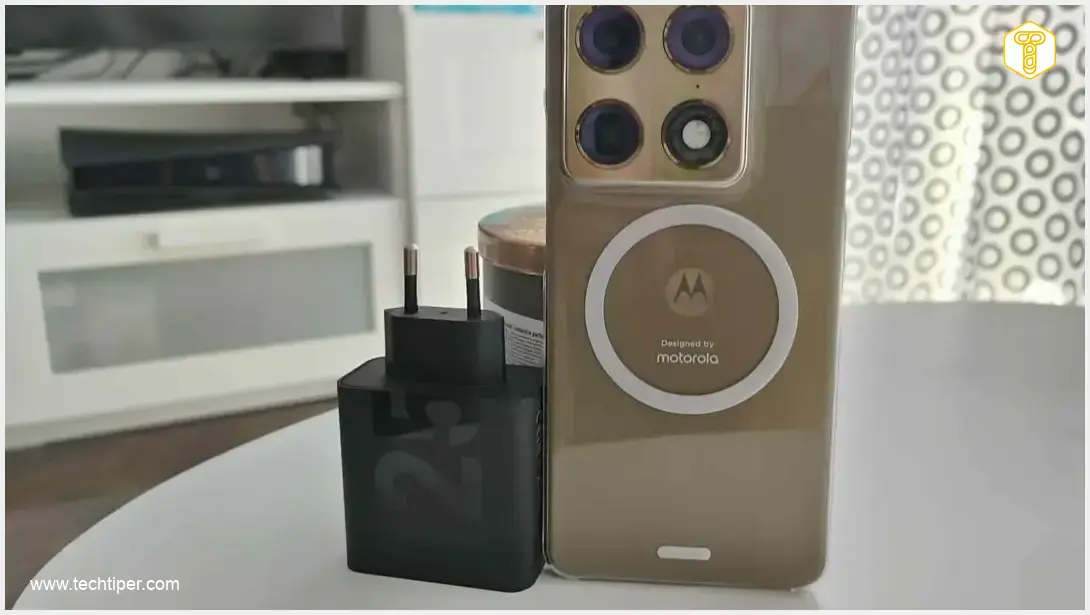
The Modern Charging Conundrum: Why Finding the Right Charger Matters
In the past, things were simpler. Every mobile phone, even basic models, came with a dedicated charger. You could be 100% confident you were utilizing your device’s full potential. However, today, many smartphones only include a USB-C cable, leaving the search for a compatible charger entirely up to the user. In a world of diverse charging speeds and standards, this task is far from straightforward. This guide will help you navigate the complexities of Motorola smartphone charging, ensuring you get the most out of your device.Searching for the Perfect Match: A Personal Experience
When I purchased my Motorola Signature, I knew it supported a maximum charging speed of 90 watts. Fast charging was a crucial feature of my previous device, so naturally, I didn’t want to downgrade. My intuitive first step was to search for a ’90W charger for Motorola smartphones.’ To my surprise, no such model appeared in search results; I was primarily shown 68W adapters. Confused, I double-checked the phone’s specifications – ’90W’ was clearly stated. I then consulted the phone’s packaging and the brief instruction manual. There was no explicit information like ‘You must purchase Charger X.’ However, I noticed a QR code near the USB cable, which was supposed to lead to the correct charger. It didn’t quite work as expected; the QR code directed me to the manufacturer’s main website. I had to manually navigate to the ‘accessories’ section and then ‘chargers’ to finally uncover the necessary information.Understanding Motorola’s Official Charger Offerings
A quick look at the official Motorola website clarified everything. Motorola currently offers three types of chargers for its smartphones: 33W, 68W, and 125W. This means that if your Motorola phone supports more than 68W charging – like the Motorola Signature or potentially upcoming models such as the Motorola Razr Fold 2026 or the Motorola Razr 70 Ultra – you’ll need to opt for the significantly more powerful 125W adapter. That’s precisely what I did, and indeed, my Motorola Signature now charges at its maximum 90W speed.Beyond Plugging In: Maximizing Charging Efficiency and Battery Life
Did you think simply plugging your smartphone into a charger was enough? Not quite. Motorola smartphones offer two key settings that can significantly impact both charging speed and long-term battery health. Understanding and utilizing these options will ensure you’re getting the best performance from your device.Extend Your Battery’s Lifespan with Intelligent Battery Protection
To ensure your battery lasts longer, it’s advisable to activate the intelligent battery protection schedule shortly after setting up your new smartphone. This feature helps maintain battery health by preventing overcharging. Here’s how to enable it:- Navigate to Settings > Battery.
- Select Battery Protection.
- Choose Intelligent schedule.
Unlock Full Speed: Enabling Charging Acceleration
Even with the most powerful charger, Motorola’s Hello UI might default to a conservative charging speed. To utilize the maximum charging speed your device supports, you’ll need to enable a specific setting. Follow these steps to activate charging acceleration:- Go to Settings > Battery.
- Tap on Charging Acceleration.
- Toggle on the main switch to enable the feature.
Frequently Asked Questions (FAQ)
Motorola streamlines its charger offerings. If your phone supports a high wattage like 90W, you’ll typically need to purchase their higher-tier charger, such as the 125W model. This ensures compatibility and delivers the maximum charging speed your device can handle, as there isn’t a dedicated 90W charger in their lineup.
Motorola generally offers three primary power adapters: 33W, 68W, and 125W. The specific charger you need depends on the maximum charging speed your smartphone supports. Always check your device’s specifications to choose the most appropriate and powerful charger for optimal performance.
To prolong your Motorola smartphone’s battery life, enable the “Battery Protection” feature found in Settings > Battery. Activate the “Intelligent schedule” option, which learns your charging habits and pauses charging at 80% until just before you typically unplug it, reducing battery strain.
First, ensure you are using an official Motorola charger that matches or exceeds your phone’s maximum supported charging wattage (e.g., a 125W charger for a 90W-capable phone). Second, check your phone’s settings: go to Settings > Battery > Charging Acceleration and make sure this feature is toggled on to enable maximum charging speeds.
About Post Author