

Contents
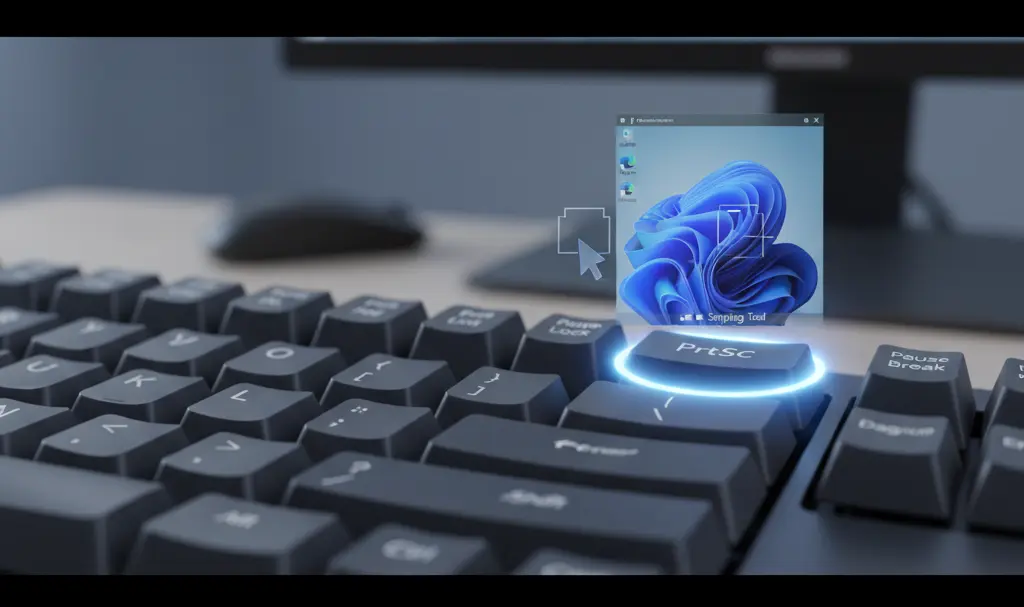
Understanding the Evolving Print Screen Functionality in Windows 11
Microsoft has rolled out an unusual update to Windows 11, altering the default actions assigned to the Print Screen key (PrtSc). This change is multifaceted, and understanding its implications is key to ensuring your daily workflow remains uninterrupted. Here’s a comprehensive breakdown of what’s happened and how it might affect you.
The Evolution of the Print Screen Key: A Brief History
The Print Screen key has a long history of utility in Windows, evolving its function over time:
- Early Windows Versions: Historically, pressing the PrtSc key would capture the entire screen and save it directly to the clipboard. Users would then paste this screenshot into an image editor like MS Paint or Adobe Photoshop for further editing or saving.
- Later Windows Versions (Prior to this Update): More recently, the PrtSc button was configured by default to launch the Snipping Tool (or Snip & Sketch), a built-in utility designed for more advanced screen capture options, allowing users to select specific areas of the screen.
The Latest Twist: Third-Party Application Override
Now, with the newest Windows 11 update, another layer of complexity has been added. Windows 11 includes a new setting that dictates how the PrtSc key will behave. Critically, this setting allows external applications to assert control over the PrtSc button.
This means that certain installed applications can now override the Print Screen key’s default action, preventing it from launching the Snipping Tool. This override remains active until you specifically disable it within that particular application’s settings. For users who frequently rely on the Snipping Tool or have a specific workflow tied to the PrtSc key, this automatic override could be a significant inconvenience, potentially requiring them to adjust their habits or configuration.
How to Regain Control: Disabling the New PrtSc Option (Windows 11 Pro)
This is where the update becomes particularly intricate, especially concerning different Windows 11 editions. To disable this new overriding behavior for the PrtSc key, you typically need to access the Local Group Policy Editor (gpedit.msc). The challenge is that this powerful administrative tool is, by default, only available in Windows 11 Pro and Enterprise editions.
Steps for Windows 11 Pro Users:
- Open the classic ‘Run’ dialog by pressing
Windows Key + R. - Type
gpedit.mscinto the dialog box and press Enter. This will launch the Local Group Policy Editor. - Navigate through the following path:
Computer ConfigurationAdministrative TemplatesWindows ComponentsFile Explorer
- Within the ‘File Explorer’ section, look for an option related to the Print Screen button’s behavior. Microsoft is expected to introduce a specific policy setting here that allows administrators to control or disable the third-party application override for the PrtSc key. Once found, you can configure it to your preference, effectively restoring the desired default behavior or preventing applications from taking control.
What About Windows 11 Home Users?
As of now, it appears that the Local Group Policy Editor and, consequently, this specific option, are not directly accessible to users running Windows 11 Home. This means Home edition users might not have a straightforward built-in method to disable the new PrtSc override feature. However, it’s possible that Microsoft may implement an alternative solution or integrate this option into the standard Settings app in future updates. Users of Windows 11 Home should keep an eye on upcoming system updates for potential changes.
Why This Change? Modernizing User Control
While potentially disruptive, Microsoft’s decision to allow applications to override the Print Screen key likely stems from a broader push towards offering more flexibility and control within the operating system. It enables developers to integrate advanced screenshot functionalities directly into their applications (e.g., gaming capture tools, professional design software) without requiring users to switch between tools. This move aims to streamline workflows for users who might prefer a third-party application’s capture features over Windows’ built-in options, providing a more tailored user experience in a modern computing environment.
The Print Screen key’s functionality in Windows 11 has certainly taken a complex turn. While it offers more adaptability for third-party applications, it necessitates a deeper understanding of system settings, particularly for those on Windows 11 Pro, to manage its behavior effectively. Staying informed about these changes is crucial for maintaining your preferred workflow.
Frequently Asked Questions (FAQ)
What is the main change to the Print Screen key in Windows 11?

The primary change is that Windows 11 now allows external, third-party applications to override the default behavior of the Print Screen (PrtSc) key. This means an app can take control of PrtSc, preventing it from launching the Snipping Tool or copying the screen to the clipboard by default.
How can I disable the Print Screen override in Windows 11?
For Windows 11 Pro users, you can disable this feature using the Local Group Policy Editor (gpedit.msc). Navigate to Computer Configuration > Administrative Templates > Windows Components > File Explorer and look for a relevant policy setting to configure.
Is the Local Group Policy Editor available in Windows 11 Home?
No, the Local Group Policy Editor (gpedit.msc) is not typically available in Windows 11 Home editions. This means Home users may not have a direct built-in method to manage this specific Print Screen setting via Group Policy. Microsoft might introduce alternative solutions in future updates for Home users.
What was the Print Screen key’s function before this change?
Previously, the PrtSc key either copied the entire screen to the clipboard (in older versions) or, more recently, launched the Snipping Tool (or Snip & Sketch) for more interactive screen captures.
Source: Windows Latest. Opening photo: Gemini
About Post Author
