

Contents
Effortlessly Stream Movies from Your Smartphone to Your TV Wirelessly
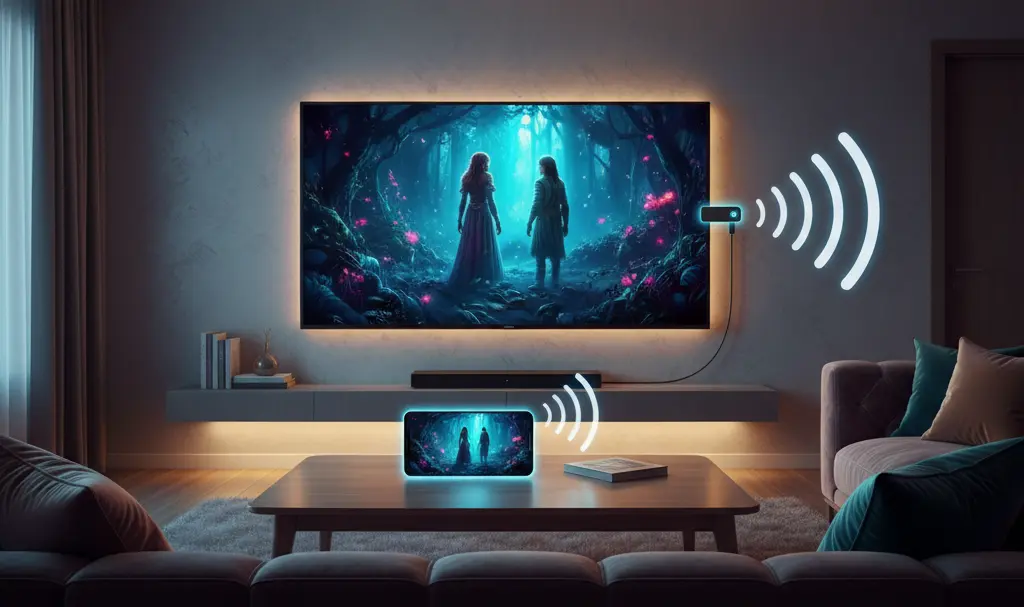
Gone are the days when you needed cumbersome cables to stream movies from your phone to your TV. Modern technology offers seamless wireless solutions, allowing you to cast your favorite content directly from your smartphone to the big screen. Features like Chromecast, AirPlay, and screen mirroring have revolutionized how we enjoy media at home. This guide will walk you through the various methods to effortlessly stream films from your smartphone directly to your television.
Popular Wireless Streaming Methods
Streaming content from your smartphone to your TV wirelessly is simpler than ever, thanks to several popular and effective methods. Each offers a unique way to bridge the gap between your mobile device and your television, catering to different setups and preferences.
Streaming Devices
- Streaming Devices (e.g., Chromecast, Roku, Amazon Fire Stick): These compact devices plug into your TV’s HDMI port, transforming any television into a smart TV capable of accessing popular streaming services like Netflix, HBO Max, Disney+, and more. They are particularly useful for older TVs that lack built-in smart features. To use one, simply plug the streaming device into an available HDMI port, power it on, and then select the casting option within your desired streaming app on your smartphone. Learn about alternatives to Chromecast for 4K streaming.
- Screen Mirroring: This technology duplicates your entire smartphone screen onto your television. Whatever you see on your phone, your TV displays. This is ideal for sharing photos, presentations, or content from apps that don’t have built-in casting functions. To activate screen mirroring, navigate to your smartphone’s quick settings panel and look for options such like ‘Cast,’ ‘Smart View,’ ‘Wireless Display,’ or ‘Screen Share’ (the name may vary depending on your phone model). From there, select your TV from the list of available devices.
- AirPlay: Exclusive to Apple devices (iPhone, iPad, Mac), AirPlay functions similarly to screen mirroring but offers enhanced integration within the Apple ecosystem. It allows you to cast videos, photos, music, and more from your Apple device to an Apple TV or any AirPlay 2-compatible smart TV. To use AirPlay, start playing the video content on your Apple device, tap the dedicated AirPlay icon, and then choose your Apple TV or compatible smart TV from the list.
- Built-in App Casting Features: Many popular streaming applications, such as YouTube and Netflix, include a dedicated casting icon directly within their interface. This feature allows you to stream video content directly from the app on your phone to your TV, providing a seamless viewing experience without mirroring your entire screen. Simply tap the cast icon (usually a rectangle with a Wi-Fi symbol) within the app and select your desired TV. This method often offers better video quality and allows you to use your phone for other tasks while the video plays on the TV.
Essential Requirements for Wireless Streaming
To ensure a smooth and enjoyable wireless streaming experience from your phone to your television, two fundamental conditions must be met:
- Stable Wi-Fi Connection: Both your smartphone and your television (or streaming device) must be connected to the same Wi-Fi network. A strong, stable Wi-Fi connection is crucial for uninterrupted streaming, especially for high-definition content. For optimal performance, consider using a 5GHz Wi-Fi band if both your devices support it, as it offers faster speeds and less interference.
- Smart TV or Streaming Device: Your television needs to be ‘smart’ in some capacity. This means it either has a built-in Smart TV operating system (like Android TV, webOS, Tizen, etc.) or it is connected to an external streaming device such as a Chromecast, Roku, Apple TV, Amazon Fire Stick, or a similar media player. For older televisions that lack internet connectivity or smart features, purchasing an external streaming stick or box is a necessary and cost-effective solution to enable wireless streaming capabilities. This effectively transforms your traditional TV into a smart hub. You might also be interested in how wireless 4K transmissions are becoming preferred over HDMI in the modern era. Explore the shift from HDMI to wireless 4K.
Ensuring these two factors are in place will allow you to effortlessly stream content from your mobile device directly to your television, opening up a world of entertainment possibilities.
Frequently Asked Questions (FAQ)
My TV isn’t a Smart TV. Can I still stream content from my phone?
Yes, absolutely! If your TV doesn’t have smart capabilities, you can easily enable wireless streaming by purchasing an external streaming device. Devices like Chromecast, Roku, Amazon Fire Stick, or Apple TV plug into your TV’s HDMI port and connect to your home Wi-Fi network, effectively turning your older TV into a smart TV capable of receiving content from your phone.
Why is my wireless streaming often laggy or buffered?
Lagging or buffering during wireless streaming is typically due to an unstable or slow Wi-Fi connection. Ensure both your phone and TV (or streaming device) are connected to the same strong Wi-Fi network. Try moving your Wi-Fi router closer to your devices or reducing interference from other electronics. Using a 5GHz Wi-Fi band if available can also improve performance. Overloaded networks or outdated router firmware can also contribute to issues.

Can I stream movies from my phone to my TV without a Wi-Fi network?
Generally, most popular wireless streaming methods like Chromecast, AirPlay, and in-app casting rely on both devices being connected to the same Wi-Fi network. However, some specific devices or apps might offer direct peer-to-peer connections (like Miracast sometimes can) that don’t require an active internet connection but still utilize Wi-Fi Direct technology. For reliable and feature-rich streaming, a stable Wi-Fi network is almost always recommended.
Source: Self-developed. Opening photo: Gemini
About Post Author
