

Contents

How to Speed Up a Slow Smart TV: Two Essential Maintenance Tips
Is your Smart TV running noticeably slower than the day you bought it? If streaming apps are stuttering, menus are lagging, and remote commands take seconds to register, you are not alone. Before you assume your hardware is completely outdated and start looking into upgrading to the newest LG Smart TVs with AI and Micro-RGB OLED, there are two simple maintenance steps you should take. Clearing your app cache and performing an occasional factory reset can resolve the vast majority of performance issues.

The Hidden Culprit: Why App Cache Slows Down Your TV
Every application installed on your Smart TV—whether it is Netflix, YouTube, or Spotify—saves temporary data known as cache. In theory, this cache is designed to make these programs launch faster by storing frequently used assets locally. However, this mechanism only works up to a certain point.
Over time, these temporary files accumulate. Because most televisions have limited internal storage compared to smartphones or computers, a bloated cache takes up valuable space and system resources. Instead of helping your TV run efficiently, it begins to actively hinder performance.
The Consequences of a Bloated Cache
- Extended loading times: Applications take significantly longer to open and initialize.
- Video playback issues: Movies and shows may stutter, drop frames, or buffer endlessly despite a fast and stable internet connection.
- Unresponsive menus: Navigating through the home screen feels sluggish and delayed.
To combat this, you should periodically navigate to your television’s settings and clear the application cache. The exact path depends on your operating system (such as Android TV, Samsung’s Tizen, or LG’s webOS), but it is generally located under the “Apps” or “Device Storage” menu. You do not need to do this every day—once every few weeks, or simply whenever you notice a drop in performance, is perfectly sufficient for a noticeable boost.
The Factory Reset: Giving Your TV a “Second Life”
The second crucial habit for maintaining your television is performing an occasional factory reset. This is not the same as simply turning the device off and on again or unplugging it from the wall socket (a basic power cycle). A factory reset completely wipes the system data and restores it to its original, out-of-the-box state.
Why is this so effective? As your Smart TV ages and receives multiple firmware updates, the operating system naturally accumulates software bugs, leftover files from uninstalled apps, and conflicting background processes. Furthermore, as TVs integrate heavier, more advanced software elements—like Google Gemini for less phone reliance and enhanced smart home control—a clean slate becomes even more beneficial. A reset sweeps away this digital clutter, bringing the device’s responsiveness back to a near-new state.
Things to Keep in Mind Before Resetting
Because a factory reset wipes all user data, it does come with a minor inconvenience: you will need to reconnect to your Wi-Fi network, download your third-party applications again, and log back into your streaming accounts. For this reason, a full reset is not a weekly chore. It is a deep-cleaning measure reserved for once or twice a year, or whenever the TV starts exhibiting severe, persistent lag that clearing the cache simply cannot fix.
Two Simple Habits That Make a Massive Difference
Clearing the cache and performing a factory reset are quick, cost-free maintenance tasks that drastically improve the user experience on any Smart TV. Many consumers ignore these steps, incorrectly assuming that their hardware is “just getting old.” In reality, the hardware is often perfectly capable; it is the overloaded software, accumulated data, and system errors causing the bottleneck.
If your television is dragging its feet, start with these two straightforward software solutions. It is the easiest way to restore smooth, fluid operation without spending a dime on replacement hardware.
Frequently Asked Questions (FAQ)
Does a factory reset delete my downloaded apps and accounts?
Yes. A factory reset restores your Smart TV entirely to its original out-of-the-box state. This means it will erase all downloaded applications, custom picture settings, Wi-Fi network passwords, and user accounts. You will need to re-download your preferred apps and log back into your streaming services afterward.
Will clearing the app cache log me out of my streaming accounts?
Generally, no. Clearing the ‘cache’ only removes temporary files—such as image thumbnails and background data—that help the app load faster initially. It does not delete your login credentials or saved user data. However, if you accidentally select ‘Clear Data’ instead of ‘Clear Cache’ in your TV’s settings, it will log you out and completely reset the application.
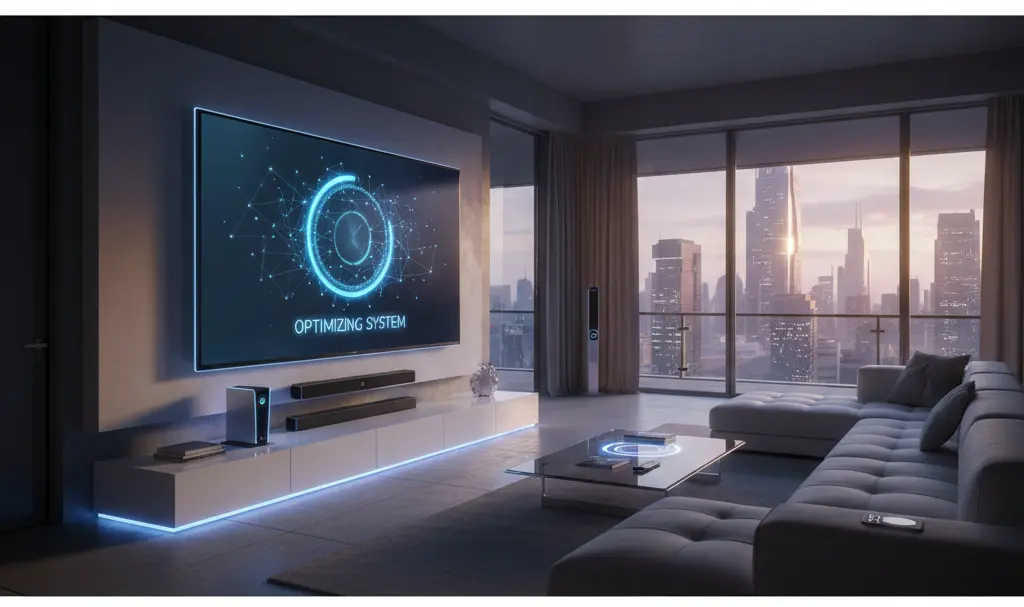
Source: Original elaboration & Opening photo: Gemini
About Post Author
