

Contents
How to Disable AI Overviews in Google Search
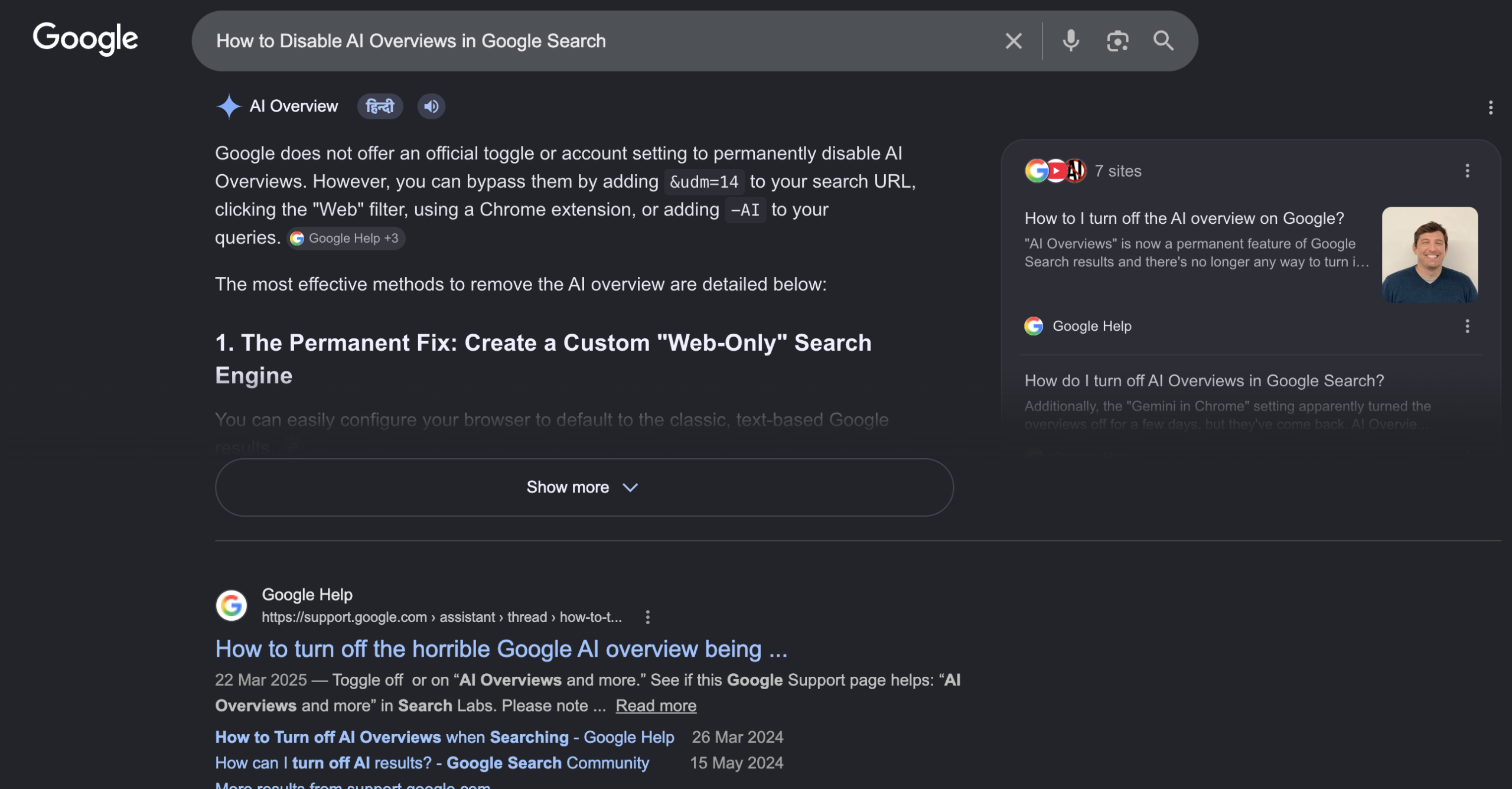
Google has been rolling out its AI Overviews, generative summaries that appear prominently at the top of search results. While intended to provide quick answers, these AI-powered snippets aren’t universally welcomed. Many users seek ways to revert to a more traditional search experience, free from AI interruptions. Although Google doesn’t offer a straightforward, global “off” switch for AI Overviews, several effective workarounds can help you reclaim your classic search results.
Understanding Google’s AI Overviews and Why Users Want to Disable Them
What are AI Overviews?
AI Overviews, often referred to as AI summaries or AI answers, are a new feature in Google Search. They use generative artificial intelligence to synthesize information from various sources and present a concise summary directly above the standard organic search listings. Google considers these summaries an integral part of its search functionality, akin to Knowledge Panels or Featured Snippets, hence the lack of a universal disable option.
Why are they a concern for some users?
For many, the introduction of AI Overviews has raised concerns. These include:
- Reduced Control: Users may feel they have less control over the information presented, as AI summaries dictate the initial focus of their search.
- Risk of Hallucinations: Like all AI models, generative AI can occasionally produce “hallucinations”—incorrect or misleading information presented as fact.
- Difficulty in Sourcing: While AI Overviews often cite sources, directly accessing the original content can sometimes be less straightforward than with traditional search results. This can be particularly frustrating for users who prioritize deep dives into specific topics or want to critically evaluate information.
Despite these concerns, there are effective strategies to significantly reduce or eliminate the presence of AI Overviews from your search experience.
Practical Methods to Reclaim Classic Search Results
Here are several techniques, ranging from simple to more advanced, to help you bypass Google’s AI Overviews and return to the search results you prefer.
The Simple ” -AI” Operator Trick
One of the quickest ways to remove AI Overviews from a specific search query is by using the “NOT” operator. Simply append -AI (or -ai) to the end of your search phrase. For example, if you’re searching for “how to tie a tie,” you would type “how to tie a tie -AI” into the search bar and press Enter.
In most instances, this simple addition will cause the AI Overview to disappear, presenting you with the traditional, organic search results without the generative summary at the top.
Pros:
- Extremely simple to implement.
- Requires no browser extensions, settings changes, or complex configurations.
- Works across both desktop and mobile devices.
Cons:

- Not Persistent: You must add the
-AIoperator to every single search query. Google does not remember this preference for your account or future searches.
Utilizing the “Web” Filter for Traditional Results
Google has introduced a “Web” filter as an alternative to the standard categories like “All,” “Images,” “Videos,” or “News.” After performing a search, you can click on the “Web” filter to switch to a view that displays only classic webpage links, without AI panels, image carousels, or rich cards.
How to use the Web filter:
- Perform your desired search query on Google.
- Look for the filter options, usually located below the search bar.
- Click on the “Web” filter.
While effective, this method also requires a per-query action. However, there’s a more permanent workaround for advanced users:
Advanced Tip: Creating a Custom Search Engine
For a more persistent solution, you can create a custom search engine in your browser (e.g., Google Chrome) that automatically applies the “Web” filter. This involves adding the parameter udm=14 to the search URL.
Steps (example for Chrome):
- Go to your browser’s settings and navigate to the “Search engine” section.
- Choose “Manage search engines and site search.”
- Click “Add” for a new search engine.
- Fill in the fields:
- Search engine: Google Web Search (or any name you prefer)
- Shortcut: googleweb.com (or a short keyword)
- URL with
%sin place of query:https://www.google.com/search?q=%s&udm=14
- Set this new custom search engine as your default.
With this setup, any search you type into your browser’s address bar will automatically open in the “Web” view, bypassing AI Overviews by default. This approach offers a significant improvement in convenience for those who consistently prefer classic results.
Advanced Solutions: Browser Extensions and Ad Blockers
For users seeking more comprehensive and automated removal of AI Overviews, browser extensions and ad blocker rules offer robust solutions.
Browser Extensions
Various browser extensions and plugins are designed to filter Google search results, automatically hiding elements associated with AI Overviews. These tools often work by targeting specific HTML elements or scripts on the search results page to prevent AI summaries from displaying. A quick search in your browser’s extension store for “disable Google AI” or “hide AI Overviews” may yield suitable options.
Ad Blockers (e.g., uBlock Origin)
Popular ad blockers, such as uBlock Origin, can be configured to block specific elements on a webpage using custom filtering rules. By adding the appropriate CSS selectors, you can prevent the AI Overview box from even loading on the page.
Example custom filter rules for uBlock Origin:
google.com##.hdzaWegoogle.com##.Beswgc
You can add these rules to your ad blocker’s custom filters list. Keep in mind that Google frequently updates its page structure, so these selectors might need occasional adjustments if the AI Overviews reappear. For an enhanced AI search experience, you might explore new functionalities such as live AI conversations and visual search capabilities that offer different interaction modes without interfering with traditional search results.
Exploring Google Search Labs (Regional Availability)
In some regions, Google Search Labs offers an experimental feature called “AI Overviews and more.” Users who have access to Search Labs might find an option to disable this specific experiment, which could lead to AI Overviews no longer appearing by default.
However, access to Search Labs and its experimental features is not universal. It varies depending on your geographical location and the specific Google account you are using. Check your Google Search settings or visit labs.google.com/search to see if this option is available to you. Similarly, exploring updates to the Google App’s AI mode and history features could provide more control over AI interactions in other Google products.
Maintaining Control Over Your Search Experience
While Google continues to integrate AI into its core search product, users are not without options. The methods outlined above provide effective ways to tailor your search experience, whether you prefer the classic links or wish to manage the presence of AI-generated summaries. By understanding these tools and techniques, you can ensure your daily searches align with your preferences and needs.
Frequently Asked Questions (FAQ)
Why doesn’t Google offer an official way to disable AI Overviews?
Google views AI Overviews as an integral and evolving part of its search experience, similar to other rich results like Knowledge Panels. They are designed to enhance information delivery, and as such, Google has not provided a global ‘off’ switch, treating them as a core feature rather than an optional add-on.
Are there any risks associated with relying on AI Overviews?
Yes, while generally helpful, AI Overviews can sometimes generate “hallucinations”—inaccurate or misleading information. They also summarize content, which might omit crucial details or nuances. Users should always consider cross-referencing information, especially for critical topics, and follow the provided source links to verify facts.
Will using methods like the “-AI” operator or the “Web” filter affect my search results negatively?
No, these methods are designed to filter how results are displayed or what information is included. They do not negatively impact the quality or relevance of the underlying search results. You will still receive comprehensive organic listings; the AI Overview is simply removed or not generated for that specific display.
How can I stay updated on changes to Google Search features and AI integration?
To stay informed about Google Search developments, including AI features and potential new controls, regularly check official Google blogs (such as the Google Search Blog or AI Blog), technology news sites, and your browser’s search engine settings for new customization options. Participating in programs like Google Search Labs (if available in your region) can also provide early access and insights into upcoming changes.
Source: 9to5Google, zdnet, Google, PC Mag
Opening photo: own SS
About Post Author
