Contents
Gboard Gets a Fresh Look: Material 3 Expressive Arrives on Android Smartphones
Google is progressively rolling out a significant update for its Gboard keyboard on Android devices. Users with Pixel phones or those who have installed Gboard as their preferred typing solution will soon notice a refreshed interface. This update brings Google’s modern Material 3 Expressive design language to the forefront, enhancing both aesthetics and usability. Let’s delve into what’s new and how you can make the most of these changes.
Embracing Material 3 Expressive
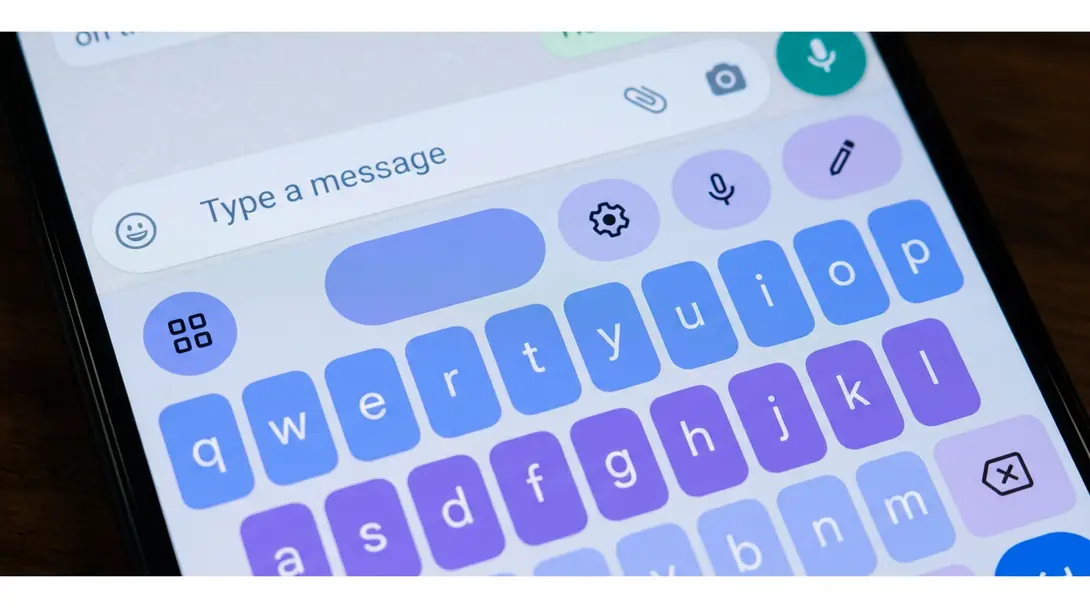
The latest Gboard update aligns with Google’s ongoing effort to implement the Material 3 Expressive design across its core applications. This design philosophy emphasizes a more vibrant, dynamic, and personalized user experience. For Gboard, this translates into a noticeable overhaul of the shortcut layout and overall button appearance.
Key Changes to the Gboard Interface
- Refreshed Shortcut Layout: The most prominent change is the updated arrangement of shortcuts. Buttons are now larger, featuring a distinct “pill-shaped” format. This design makes icons and their associated functions easier to identify and interact with at a glance.
- Enhanced Customization: Gboard now offers greater flexibility in personalizing your keyboard shortcuts. You can easily reorganize your most-used functions to suit your typing habits.
How to Access and Customize New Features
To reveal the expanded menu of options and shortcuts:
- Tap the four-square icon located on the left side of your Gboard panel. This will bring up an array of utility buttons for features like themes, one-handed mode, clipboard, and more.
Once the options panel is open, you can customize its layout:
- Look for the pencil icon positioned in the lower-right corner of the screen.
- Tap this icon, and you’ll be able to drag and drop function icons to any preferred position within the options panel, tailoring it to your workflow.
These intuitive controls ensure that your most essential tools are always within easy reach, making your typing experience more efficient. For tips on maximizing your typing speed, consider exploring ways to type faster on your keyboard. How to Type Faster on Your Keyboard
Availability: Stable Release and Beta Program
This exciting update is already live in the stable version of Gboard (version 17.7). This means you don’t need to join any beta programs to experience the new design. However, for users keen to get the earliest access to new features and improvements, joining Google’s beta program for Gboard can be beneficial. While there’s a minimal risk of encountering minor bugs, beta participants often receive updates significantly faster than the general public.
Beyond On-Screen: Exploring Typing Tools
While Gboard’s updates focus on the on-screen experience, the broader world of typing tools continues to evolve. For those who frequently type long documents or prefer a tactile experience, external keyboards can offer significant advantages. Devices like the Logitech MX Keys Mini provide a premium wireless typing experience, blending comfort and efficiency. The Perfect Wireless Typing Keyboard: Logitech MX Keys Mini Review
Frequently Asked Questions (FAQ)
Material 3 Expressive is Google’s latest design language, bringing a more modern, dynamic, and intuitive interface to Gboard. It features larger, pill-shaped buttons and enhanced visual clarity, making the keyboard more pleasant and easier to use.
The update is being rolled out gradually to Android smartphones, particularly Pixel devices. Ensure your Gboard app is updated to version 17.7 or newer via the Google Play Store. If you don’t see it immediately, it should arrive soon as part of Google’s phased rollout.

Yes, absolutely! After tapping the four-square icon on the left of the Gboard panel to open the options menu, you can then tap the pencil icon in the lower-right corner. This allows you to drag and drop function icons to rearrange them according to your preferences, personalizing your keyboard experience.
The larger, pill-shaped buttons significantly improve readability and tap accuracy. Their distinct format makes it easier to quickly identify and select the desired function or shortcut, reducing errors and enhancing the overall typing experience, especially on smaller screens or for users who prefer clearer visual cues.
Source: 9 to 5 Google. Opening photo: Gemini
About Post Author