

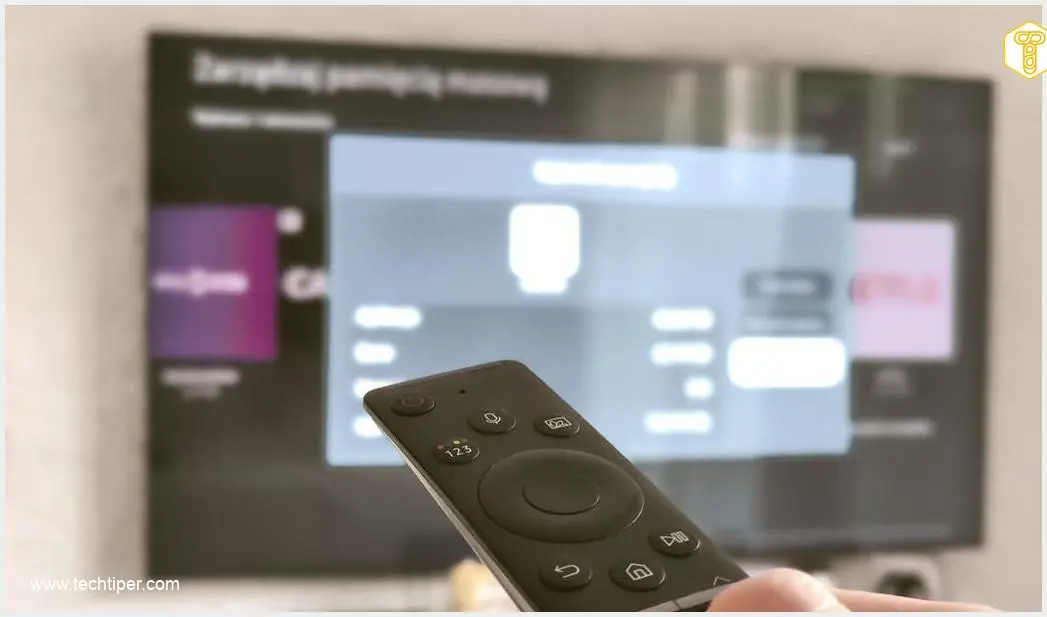
Over time, many smart TVs, including those from Samsung, can experience a noticeable slowdown in system performance. This can lead to frustrating delays and a less enjoyable viewing experience. Fortunately, there are several simple yet effective ways to boost your Samsung TV’s speed, with one method taking mere seconds to implement.
Contents
Four Methods to Speed Up Your Samsung TV
1. Quick Restart with Your Remote
The “Cold Boot” Method
This is the fastest and most straightforward way to improve your Samsung TV’s responsiveness. Samsung refers to this as a “cold boot,” a process that effectively refreshes the system.
How to do it:
- Simply press and hold the power button on your remote control for a few seconds.
- Release the button only when your TV begins to restart.
This process typically takes no more than 5 seconds. A cold boot automatically clears your TV’s temporary cache memory, which can accumulate data and slow down performance over time. Users often notice quicker system reactions and more responsive applications on most modern Samsung devices after performing this quick restart.
2. Power Cycle Your TV (Discharging)
A Cold Boot Without the Remote
This method is closely related to the quick remote restart and is particularly useful if you don’t have immediate access to your remote control. Power cycling your TV can also resolve minor software glitches and improve overall performance.
How to do it:
- Unplug your TV’s power cord directly from the electrical outlet.
- Wait for at least thirty seconds. This allows any residual power to drain from the TV’s internal components, ensuring a complete reset.
- Plug the power cord back into the outlet.
This action initiates the same “cold boot” process as the remote method, clearing temporary data and giving your TV a fresh start.
3. Update Your Software
Keeping Your TV’s Brain Current
Regular software updates are crucial for maintaining smooth system operation and ensuring your Samsung TV runs efficiently. Manufacturers frequently release updates to fix bugs, improve performance, and introduce new features.
How to check for updates:
- Navigate to your TV’s “Settings” menu.
- Select “Support.”
- Choose “Software Update.”
- Click “Update Now.”
Running an outdated version of the system software might not immediately cause major issues, but it can contribute to a slower TV and an increased likelihood of encountering errors or glitches. For instance, new display technologies like Micro RGB OLEDs in LG’s new smart TVs or advanced AI features in devices like those powered by Google Gemini TV rely on optimized software to function seamlessly.
Enable Automatic Updates:
- If you’re concerned about missing critical updates, you can enable automatic updates.
- Go to “Settings.”
- Select “All Settings.”
- Choose “Support” (or “Technical Support” depending on your model).
- Select “Software Updates” and look for an option to enable automatic updates.
4. Remove Unnecessary Applications
Decluttering Your Smart TV
Just like smartphones, smart TVs can become bogged down by too many installed applications, especially those that are rarely used or no longer needed. A cluttered system can consume valuable RAM (Random Access Memory), leading to slower performance.
How to remove apps:
- Press the “Home” button on your dedicated remote control.
- Navigate to the apps section.
- Select the application you wish to remove.
- Look for an “Options” or “Delete” prompt (often by pressing and holding the select button on the app icon, or accessing a sub-menu).
- Confirm the uninstallation.
By removing redundant apps, you free up system resources, which not only speeds up your TV’s operation but can also potentially improve picture quality by allowing the TV to dedicate more processing power to visual elements. This concept is similar to how optimizing your phone can enhance the performance of new features like those found in Google Gemini TV, reducing reliance on your phone for certain tasks.

Frequently Asked Questions (FAQ)
How often should I restart my Samsung TV?
While there’s no strict rule, a quick restart (cold boot) once a week or whenever you notice a slowdown can significantly help maintain optimal performance. It’s a good habit to incorporate into your routine.
Can clearing the cache on my Samsung TV delete my personal settings or saved data?
No, a cold boot or power cycle primarily clears the temporary cache and background processes. Your personal settings, installed apps, login information, and saved preferences will remain intact.
What if my Samsung TV is still slow after trying these methods?
If your TV remains sluggish, consider performing a factory reset as a last resort. This will return your TV to its original settings, deleting all installed apps and personal data, so ensure you back up any critical information or settings if possible. It’s also advisable to contact Samsung customer support if the issue persists after a factory reset.
Do these methods work for all Samsung Smart TV models?
Most modern Samsung Smart TVs will benefit from these methods. However, menu navigations and remote button functions might vary slightly between older and newer models or different regional versions. Always refer to your TV’s user manual for specific instructions if you encounter difficulties.
Source: ZDNET. Opening photo: Gemini
About Post Author
