

Contents
Safeguard Your Elderly Loved Ones: How to Use Google Family Link for Android Security
Are your parents or grandparents vulnerable to today’s prevalent hacking attacks? If they use Android devices and the answer isn’t a definitive ‘no’, it’s wise to consider setting up Google Family Link for them. This proactive measure can help you react quickly and protect them before it’s too late.
Understanding Google Family Link on Android
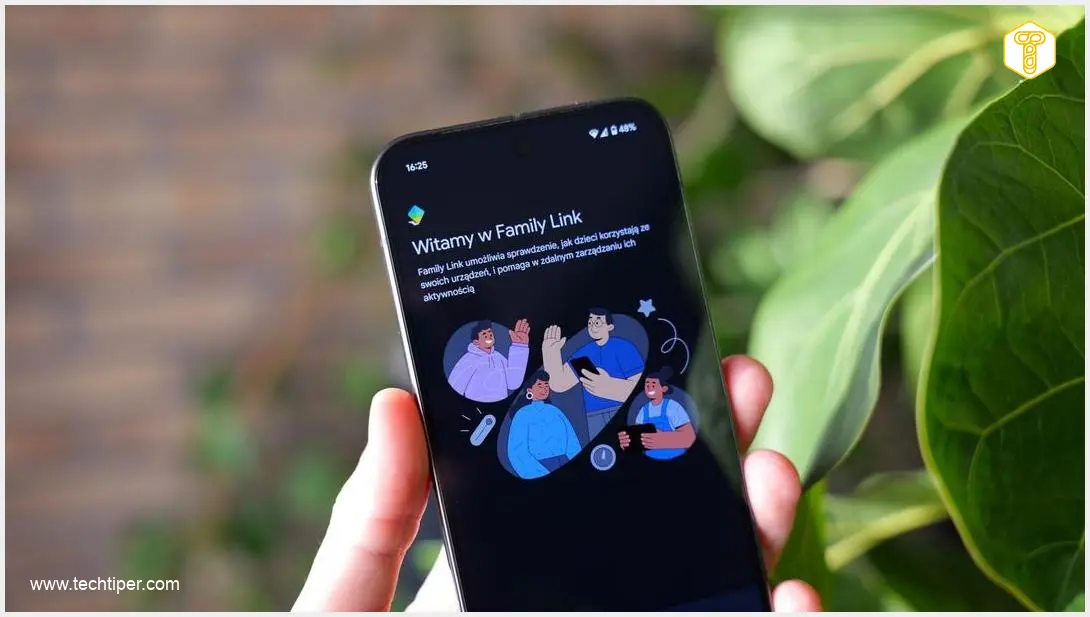
Google Family Link was developed and promoted primarily as a parental control tool. Its main purpose is to allow parents to connect their children’s smartphones to the service, enabling better management of the applications they use, their activities within those apps, and the time frames during which they engage with them.
As an administrator, Family Link provides several key capabilities, including:
- Blocking specific applications (preventing installation via Google Play).
- Setting time limits for various applications.
- Monitoring which applications the user accesses over specific periods.
- Tracking the location of the supervised device.
While designed for children, its features are incredibly useful for enhancing the security of older adults. To protect parents and grandparents from potential hacking attempts, our primary goal will be to block the installation of unauthorized applications from Google Play. This guide will show you precisely how to achieve this using Google Family Link.
Setting Up Guardian and User Accounts with Family Link
For the most seamless setup, it’s often best to perform this operation on a brand-new smartphone. This is because the Google account that your parent or grandparent will use must be designated as a “child’s account” within Family Link. This means the birth date provided during its creation should be set to ensure it remains a child’s account for the foreseeable future, preventing it from automatically converting to an adult account.
Step-by-Step Configuration: Guardian Device
- On the guardian’s smartphone, install the Google Family Link app. You can find it on the Google Play Store.
- Open the app. When prompted with the question, “Does your child have a Google Account?”, select Yes.
Step-by-Step Configuration: User (Senior’s) Device
On the device you wish to supervise (your parent’s or grandparent’s smartphone):
- Open Settings.
- Navigate to Digital Wellbeing & parental controls.
- Scroll to the bottom and select Set up parental controls.
- Follow the subsequent on-screen instructions. It’s crucial to ensure that only the Google account you intend to supervise is logged in on this smartphone during the setup process.
Blocking Unwanted App Installations for Enhanced Security
Once the accounts are linked, you can control app installations directly from the guardian’s smartphone. This is a critical step to prevent the accidental download of malicious apps or unwanted software that could compromise their device’s security. Malware disguised as legitimate apps is a common vector for cyberattacks, making this control essential.
Here’s how to set up app installation restrictions:
- Open the Family Link app on your (the guardian’s) device.
- Select the account you are supervising (your parent’s or grandparent’s profile).
- Tap on Google Play.
- In the “Purchase & download approvals” section, choose Require your approval.
From this point onward, whenever your senior loved one attempts to install a new application from the Google Play Store, you will receive a notification requesting your approval. This provides an invaluable layer of protection, allowing you to vet applications before they are installed, thereby making their smartphone significantly more secure against various digital threats.

Frequently Asked Questions (FAQ)
Why is it necessary to designate my parent’s or grandparent’s account as a “child’s account” for Family Link?
Google Family Link is primarily designed for managing accounts of users under the age of majority. For Family Link’s full suite of monitoring and control features to function effectively and persistently, the supervised account must be designated as a child’s account. This ensures that the parental controls remain active and cannot be easily bypassed by the supervised user, even if they are an adult.
Can I still install necessary apps for them after setting “Require your approval”?
Yes, absolutely. When your parent or grandparent tries to install an app, you’ll receive a notification. You can then review the app and either approve or deny the installation. This gives you complete control over what gets installed on their device, allowing you to approve essential apps while blocking potentially harmful ones.
What if my parent or grandparent already has an existing Google account?
If your parent or grandparent already has a Google account, you can still set up Family Link. However, linking an existing adult account can be more complex than creating a new one designated as a child’s account from the start. Google’s support pages offer specific instructions for adding an existing account to Family Link, which might involve a process to supervise an existing adult account or, in some cases, converting it (which has age restrictions). For simplicity and full functionality, creating a new account designated for a child and transferring essential data might be preferable.
Source: Adrian Rossa. Opening photo: Krzysztof Wilamowski.
About Post Author
