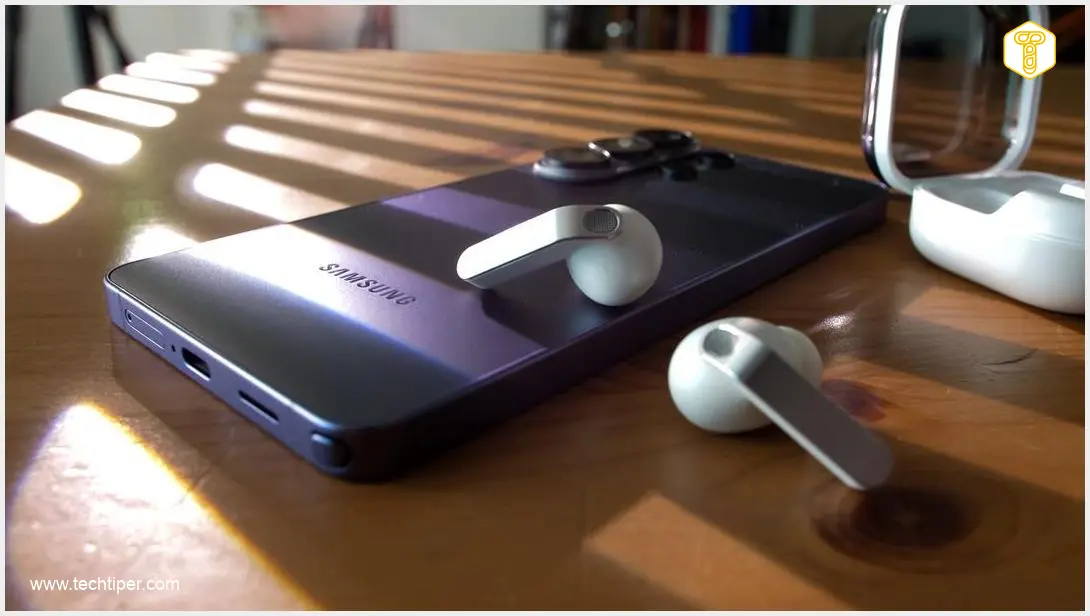
Samsung Galaxy smartphones are packed with innovative features, but some of the most useful ones often remain hidden in plain sight. One such gem is Dual Audio, a capability that allows you to stream audio to two Bluetooth devices simultaneously. Many users are unaware of its existence, despite its incredible potential to enhance shared listening experiences and versatile audio setups.
Contents
Samsung’s Dual Audio: The Hidden One UI Feature You Need to Know
Imagine being able to watch a movie with a friend on a single device, each using their own pair of wireless headphones, or creating a more expansive soundscape by connecting two Bluetooth speakers from your phone. This is precisely what Samsung Dual Audio offers, transforming how you share and experience audio.
What is Samsung Dual Audio?
At its core, Samsung Dual Audio enables your Galaxy smartphone to connect to and simultaneously play audio through two separate Bluetooth-enabled devices. Unlike standard Bluetooth connections that typically limit you to one device at a time, Dual Audio breaks this barrier, allowing for a more communal or customized listening environment. It’s a feature that has been present in Samsung’s One UI for several generations, yet it remains a mystery to a significant portion of its user base.
Why Dual Audio is a Game-Changer for Shared Listening
The practical applications of Dual Audio are numerous and highly beneficial:
- Shared Experiences: Whether you’re traveling, on a commute, or simply relaxing at home, Dual Audio lets you share music, podcasts, or videos with a companion without the need to split a single pair of headphones. Each person can enjoy their own audio device, ensuring comfort and personal preference.
- Enhanced Audio Setups: For gatherings, parties, or simply to amplify your personal listening, you can connect two wireless speakers to your smartphone for a richer, more immersive sound experience. You could even combine headphones and a speaker, catering to different listening needs in the same space.
- Independent Volume Control: One of the most convenient aspects of Dual Audio is the ability to adjust the volume for each connected device separately. This ensures that both listeners or audio outputs can be fine-tuned to their optimal levels without affecting the other.
How to Activate Dual Audio on Your Samsung Galaxy Device
Enabling Dual Audio is surprisingly straightforward and takes just a few moments. Before you begin, ensure both Bluetooth audio devices you wish to use are paired with your Samsung Galaxy smartphone.
Here’s a step-by-step guide:
- Open your phone’s Settings app.
- Navigate to Connections, then tap on Bluetooth.
- Ensure both desired Bluetooth devices (e.g., two pairs of headphones, two speakers, or one of each) are powered on and currently Connected to your smartphone.
- Swipe down from the top of your screen to open the Quick Settings panel.
- Tap on the Media output button. This icon often looks like a music note, speaker, or a circular waveform, and indicates your current audio output.
- In the Media output menu that appears, you will see your currently connected Bluetooth devices. Select both devices you wish to use simultaneously.
- Once selected, your Galaxy smartphone will begin streaming audio to both devices. From this same panel, you can also manage individual volume levels for each connected device.
Dual Audio’s Journey: A Powerful Feature Often Overlooked
Dual Audio isn’t a recent addition; Samsung has been refining this feature for several generations of Galaxy smartphones. Its obscurity often stems from its placement, tucked away within the Bluetooth settings and the quick settings media output panel. This makes it less intuitive for casual users to discover, leading many to miss out on its considerable benefits.
Beyond Dual Audio, Samsung’s One UI continues to evolve, bringing forward innovative features designed to enhance user experience. From advanced sharing capabilities to optimizing multitasking, users can explore new dimensions of their Galaxy devices. For instance, future One UI iterations might introduce functionalities like Namedrop in One UI 9 for even easier content sharing, or further refine Multi-Window and AI Cross-Device features for unparalleled productivity and connectivity across the Samsung ecosystem.
Frequently Asked Questions (FAQ)
Can all Bluetooth devices use Samsung Dual Audio?

Dual Audio is a feature specific to Samsung Galaxy smartphones. While it can connect to most standard Bluetooth headphones or speakers, the feature itself is enabled and managed through your Samsung device’s One UI software. The compatibility of your Bluetooth accessories will typically not be an issue.
Does Dual Audio affect sound quality or introduce lag?
Generally, Dual Audio maintains good sound quality. However, using two devices simultaneously can sometimes introduce a slight latency or reduce the maximum range compared to a single connection. This can be more noticeable with older Bluetooth standards or specific device combinations, but for most modern devices, the experience is seamless.
Is Dual Audio available on all Samsung Galaxy models?
While Samsung has offered Dual Audio for several generations, its availability can depend on the specific Galaxy model and its One UI version. Most recent flagship and mid-range devices support it. If you cannot find the Media output option in your Quick Settings or the ability to select two devices, your particular model or software version might not support it. Always check your device’s settings to confirm.
Can I stream different audio to each device with Dual Audio?
No, Samsung Dual Audio is designed to stream the same audio source to two Bluetooth devices simultaneously. If you need to play different audio tracks, you would typically need to use separate audio sources or specific apps that support multi-stream audio, which is not the primary function of Dual Audio.
Source: Samsung.
Opening photo: Gemini
About Post Author