

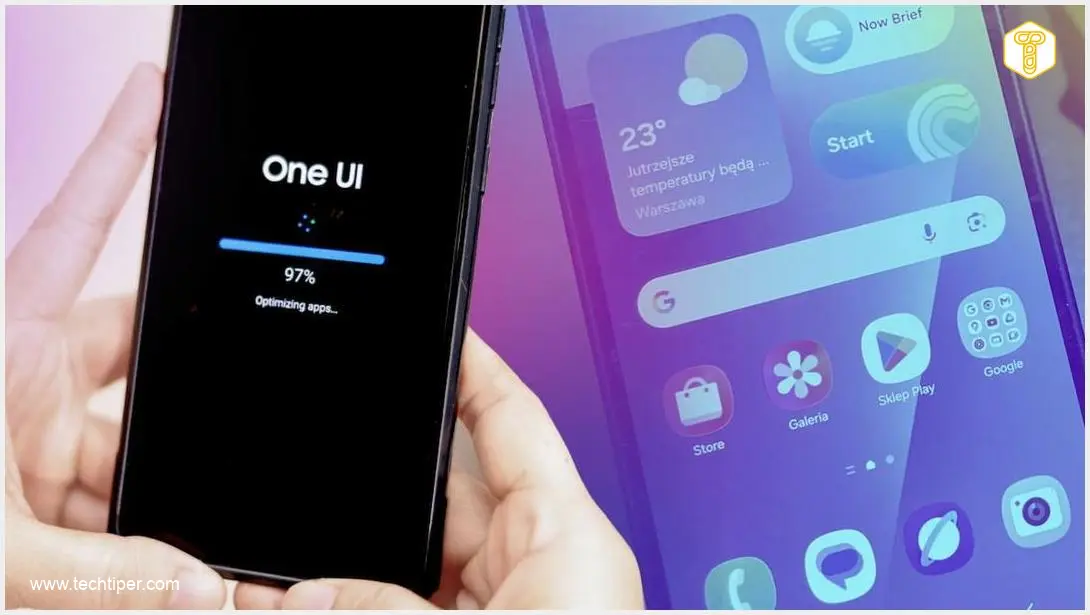
Samsung is gearing up to release One UI 9, its latest custom overlay for Android. As early testers begin to explore its features, new and intriguing details about the company’s software are emerging. The most recent security advisories within One UI 9 indicate a significant shift: Samsung is now treating applications installed from outside official app stores as a serious threat to Galaxy smartphone users. This heightened focus on security reflects a growing industry trend towards protecting users from potential vulnerabilities.
Contents
Samsung’s Enhanced Security Measures in One UI 9
Samsung’s upcoming One UI 9 update signals a notable shift in the company’s approach to user security. As reported by Forbes, new advisories within One UI 9 clearly indicate an end to leniency towards applications installed from sources other than official app stores. Beyond simply updating its security features in conjunction with Android 17 and One UI 9, Samsung is adopting a more direct and assertive tone with users, emphasizing the risks associated with unverified software.
In this new iteration of the One UI overlay, if the system identifies a program flagged as “high-risk,” it will immediately block the application, preventing its launch, and subsequently recommend its uninstallation. This move aligns with growing pressure from Google, which has also been implementing stricter controls on “sideloading” and requiring developer registration before applications can be distributed to devices. The refined settings within the “Manage unknown apps” section leave no doubt: any application not originating from the Google Play Store or Samsung Galaxy Store is now categorically considered a potential security risk.
According to Forbes, Samsung views these changes as part of a broader security strategy. The goal is to bring Android’s security closer to the robust level long associated with iPhones, through fortified threat detection, fraud protection, anti-theft measures, and rapid responses to suspicious app behavior. These new mechanisms and continuously updated protection policies are primarily a response to the escalating number of digital threats, which increasingly hide within seemingly innocent applications downloaded from the internet. This proactive stance helps protect users from malware, data breaches, and other cyber dangers.
Controlling App Installations and Sideloading in One UI
Samsung has progressively made it more challenging to install applications from external sources, often deeply embedding the relevant option within the settings menu. This deliberate design choice aims to ensure that users actively seeking this functionality are fully aware of the implications and have a genuine reason for enabling it. This increased friction for sideloading is a crucial step in enhancing device security.
For those needing to enable sideloading, the option in One UI is located within the following path: Settings → Apps → Special app access → Install unknown apps. From there, users must specifically select the individual application — such as a web browser, file manager, or messaging app used to download installers — that will be granted permission to install APK files. Only then can the toggle be activated to allow that specific app to install external packages. Disabling sideloading follows the exact same process in reverse.
Samsung’s decision to require permission grants for each application individually is intentional. This granular approach helps mitigate the risk where a single careless decision could inadvertently compromise the entire system’s security. Previously, a single toggle in this area would unlock all permissions at once. Now, users must thoughtfully consider which specific application they wish to authorize for installing third-party software. In practice, this means sideloading remains possible, but it explicitly demands conscious user action, significantly reducing accidental security oversights. Learn more about Android sideloading and recent security updates.
Comprehensive App Management in One UI
Managing applications within One UI has become remarkably straightforward and comprehensive. It’s now far more than just “uninstall if you don’t use it”; Samsung has evolved this area into a sophisticated command center. Users can not only monitor what’s happening on their phone but also precisely control and limit aspects they don’t want to experience in the daily operation of their device.
To access these powerful management tools, simply navigate to Settings → Apps. Initially, this displays a list of app icons. However, the three-dot menu and various filters reveal a detailed overview of how your Samsung Galaxy is truly functioning. From here, users can identify:

- Which applications are running in the background.
- Which apps consume the most battery power.
- Apps with access to your location.
- All user-installed applications.
One UI empowers users to not only force-stop processes but also revoke permissions (for example, through the Permission Manager), restrict background activity, or block notifications. This level of control allows for fine-tuning your device’s performance and privacy settings.
Furthermore, Samsung has integrated its own suite of tools, such as “Automatic optimizations” (found under Battery → Background usage limits), which can autonomously put rarely used applications to sleep. There’s also a “Diagnostic Panel” (under Device care → Diagnostics) that proactively warns users about suspicious programs or potential issues. Discover other new features in One UI 9, including multi-window and AI capabilities.
Essentially, this means users no longer need to manually hunt for “culprits” causing slowdowns or security concerns. The system itself provides intelligent recommendations on what to disable, restrict, or ideally remove. App management in One UI is truly multifaceted, offering a wealth of options to maintain optimal device health.
Taking a moment to review this section and organize your Galaxy device can significantly enhance both its speed and security. Through conscious user decisions and the system’s intelligent mechanisms, a streamlined and secure smartphone experience is well within reach.
Frequently Asked Questions (FAQ)
What is “sideloading” and why is Samsung making it more difficult in One UI 9?
Sideloading refers to installing applications on your device from sources other than official app stores like the Google Play Store or Samsung Galaxy Store, typically using APK files. Samsung is making it more difficult and granular in One UI 9 to enhance security, as apps from unverified sources can pose significant risks, including malware and data breaches. By requiring explicit, per-app permission, Samsung aims to ensure users are fully aware of the potential risks and are intentionally choosing to install such applications.
How does One UI 9 improve the overall security of Galaxy smartphones?
One UI 9 significantly boosts security by implementing stricter policies against “high-risk” third-party apps, often blocking them outright and recommending removal. It also enhances threat detection, offers fraud protection, and strengthens anti-theft measures. Furthermore, the update provides users with more precise control over app permissions, background activity, and notifications, alongside intelligent system optimizations and diagnostic tools to proactively identify and manage suspicious programs, aiming to elevate Android security to a level comparable to iPhones.
Will the new security features in One UI 9 impact the performance of my Samsung Galaxy phone?
No, the new security features in One UI 9 are designed to enhance both security and performance. While they introduce stricter checks for third-party apps, features like “Automatic optimizations” and the “Diagnostic Panel” actually help in managing background processes and identifying inefficient or suspicious apps. This allows the system to run more efficiently by putting rarely used apps to sleep and prompting users to remove problematic ones, ultimately contributing to a faster and more secure user experience.
Source: Original research, Forbes. Opening photo: Andri / Adobe Stock, Gemini
About Post Author
