

Contents
Stay Focused and Safe: Automate Your Phone with Samsung One UI’s Driving Mode
Do you often forget to silence your phone before hitting the road? Are you tired of manually rejecting calls and typing “I’ll call you back, I’m driving”? If so, we have great news for you. Samsung Galaxy smartphones feature a powerful built-in function that can solve these problems permanently. Best of all, it requires no extra apps—just a few minutes of simple setup.
Drive Smarter with One UI’s Driver-Centric Features
Navigating busy city streets while your smartphone constantly buzzes with notifications and incoming calls can be incredibly distracting. This is especially true for new drivers who are still developing their multitasking skills and road awareness.
Another common challenge is remembering to adjust all your phone’s settings before you start your journey. In a rush, it’s easy to forget to turn on location services, silence notifications, or activate ‘Do Not Disturb’ mode. Fortunately, there’s a feature that allows your smartphone to handle all these tasks for you automatically.
Introducing “Modes and Routines” in Samsung One UI
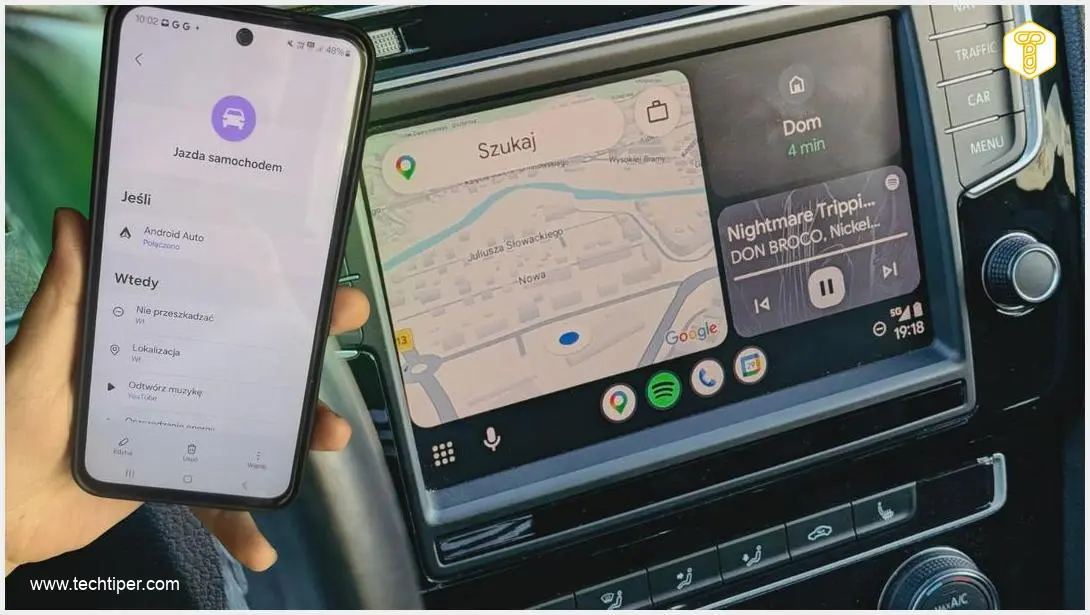
The solution lies within “Modes and Routines” in Samsung’s One UI – an intuitive interface layer that runs on top of Android on Samsung devices. This feature allows you to link specific situations or ‘modes’ with predefined actions or ‘routines’. Once you’ve configured a relevant rule, your smartphone will automatically adjust its settings based on what you’re doing. One of the most obvious and beneficial scenarios is, of course, driving.
For more insights into integrating technology safely while driving, you might be interested in how AI assistants like Gemini are evolving: AI Assistants in Your Car: Gemini, CarPlay, and Android Auto Integration.
“Modes and Routines” in One UI: Designed for Drivers
Setting up a driving-specific routine is straightforward. You simply create a procedure that automatically activates when a certain condition is met, such as opening a navigation app like Google Maps or connecting to your car’s infotainment system via Android Auto.
Once this condition is met, your phone can perform a variety of actions, including:
- Activating ‘Do Not Disturb’ mode to silence all non-essential alerts.
- Launching your preferred music streaming app, such as Spotify.
- Turning on location services for navigation.
- Reading incoming notifications aloud, keeping your eyes on the road.
- Automatically rejecting calls and sending a pre-written message, like “I’m driving, I’ll call you back later.”
As a new driver, I found this exact combination of settings invaluable, but there’s no single ‘right’ scenario. During the setup process, you can add your own custom actions or create a completely personalized rule tailored to your specific needs. Your imagination is truly the only limit here.
Easy Setup for Enhanced Driving Safety
The configuration process itself is not complicated. Simply navigate to your phone’s settings, select “Modes and Routines,” add a new routine, and then define the trigger condition and the corresponding actions. You only need to do this once – after that, everything operates automatically.

Endless Personalization: Samsung Gives You Full Control
The biggest advantage of this solution is the significant time savings. You no longer have to remember to manually silence your phone, enable location, or start your music. Everything happens seamlessly in the background, allowing your smartphone to manage itself in moments when your attention should be fully on the road. You can also configure the routine in reverse, for example, by having your phone read notifications aloud, eliminating the need to glance at the screen every time an alert comes in.
An important aspect to note is that activating ‘Do Not Disturb’ mode through a driving routine ensures that calls and notifications will not appear on your smartphone or on your car’s infotainment screen. Most other settings assigned to the routine function similarly, providing a truly distraction-free environment.
While “Modes and Routines” is not a brand-new feature, many drivers, especially those new to the road, might not realize how a few simple clicks can genuinely make their lives easier and safer. Beyond driving, these modes can be utilized in countless other situations – Samsung offers both ready-made scenarios and the flexibility to create custom ones tailored to your lifestyle.
Frequently Asked Questions (FAQ)
How do I find “Modes and Routines” on my Samsung Galaxy phone?
You can access “Modes and Routines” by going to your phone’s Settings menu. Look for the “Modes and Routines” option, usually located near “Connected devices” or in a similar section depending on your One UI version.
Can I customize the automated message sent when a call is rejected while driving?
Yes, absolutely! When setting up your driving routine, you can customize the text message that is automatically sent to callers when their call is rejected. This allows you to personalize the message to your preference, such as “Currently driving, I’ll get back to you soon!”
What if I want certain calls or notifications to still come through while driving?
“Do Not Disturb” mode within “Modes and Routines” allows for exceptions. You can configure it to permit calls from favorite contacts or repeated callers to still ring through. Similarly, you can allow notifications from specific apps to bypass the ‘Do Not Disturb’ settings if necessary, giving you granular control over what gets through.
Source: Original content. Opening photo: Gemini
About Post Author
