

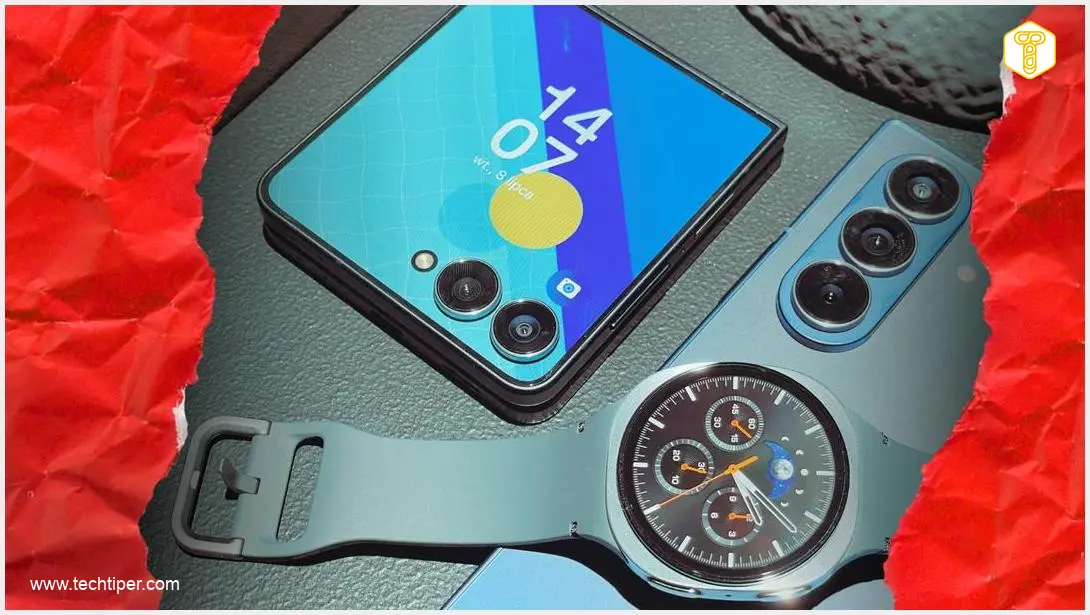
For years, Samsung One UI users have grown accustomed to the same settings, apps, and gestures. Yet, within the system, a wealth of clever tools awaits discovery, capable of replacing separate applications often found on app stores. Samsung’s proprietary One UI offers significantly more than stock Android, and these aren’t features buried deep in menus or requiring complex add-ons like Good Lock. It’s time to explore the less obvious capabilities your smartphone might be hiding.
In this article, we’ll delve into five surprisingly useful features that can enhance your daily smartphone experience, often without needing an internet connection or additional downloads.
Recent leaks suggest exciting design overhauls for Samsung One UI 9, hinting at continuous innovation, but many powerful tools are already at your fingertips.Contents
1. Hidden Tool Panel: Compass and Ruler in Edge Panel
The Edge Panel is a distinctive slide-out bar found on the side of your Samsung screen. Most users associate it primarily with quick access to their favorite apps. However, this versatile panel also houses a built-in suite of tools, including a compass, ruler, and spirit level.
How to Activate and Use the Edge Panel Tools:
To enable the tools panel, navigate to Settings > Display > Edge Panels. Within the “Panels” section, ensure “Tools” is selected. Once activated, simply swipe the Edge Panel out from the side of your screen during normal phone use. You’ll then have immediate access to a compass, flashlight, spirit level, and ruler.
This solution is particularly useful when you’re outdoors and need to quickly check directions, measure a small item, or level a picture frame on a wall, all without installing additional apps or requiring an internet connection.
2. Document Scanner in the Camera App
Samsung has been steadily developing a built-in document scanner within its camera app for several generations. Newer models, such as the latest Galaxy S series, allow users to create PDF files directly from the camera application.
How the Document Scanner Works:
In practice, it’s remarkably simple. Point your camera at a document, and the system automatically detects it, displaying a “Scan” button. After capturing the image, you can easily crop the edges, adjust contrast, sharpen text, remove distracting elements (like fingers in the frame), and finally, save the scan as an image or a PDF file.
This provides a fast and straightforward way to send contracts, signed forms, or invoices without needing separate scanning apps or external devices. It’s a testament to how One UI continues to integrate advanced features like multi-window and AI to streamline user experience.
3. Mapping Wi-Fi Signal Strength Throughout Your Home
One of the most “hidden in plain sight” features is Connectivity Labs, tucked away in the Intelligent Wi-Fi section of your wireless settings. This tool allows you to inspect your home Wi-Fi network and visualize signal coverage in real-time.

Accessing Connectivity Labs:
To enable this menu, go to Settings > Connections > Wi-Fi. Tap the three-dot icon in the top right corner, select Intelligent Wi-Fi, and then rapidly tap on the “Intelligent Wi-Fi” option several times until a message appears confirming the activation of Connectivity Labs and a new menu item becomes visible.
The “Home Wi-Fi inspection” function guides you step-by-step through your living space, recording the signal strength from your router and individual access points. This invaluable insight helps you optimally position your router or mesh system, moving beyond guesswork to achieve the best possible coverage.
4. Bixby Vision: Object, Color, and Text Recognition
While Bixby Vision may be less prominent in Samsung’s ecosystem these days, it’s still present within the camera app and as a standalone application. Its modules can prove surprisingly practical for everyday use.
How to Use Bixby Vision:
Within the camera’s “More” tab, you’ll find an eye icon that launches Bixby Vision. Once in the tool, you can point your camera at an object to get a general description of what’s in the frame, identify the name of a color, or ask the system to read and magnify small text from a label or leaflet.
Although object recognition may not replace specialized shopping apps – let alone advanced features like Circle to Search – it’s sufficient in many situations to quickly understand what type of product you’re looking at, without manually typing names into a search engine.
5. Quick Measure: AR Ruler for Quick, Approximate Measurements
While this article focuses on pre-installed One UI features, there’s one exception worth making for a specific application. This is the AR measuring tool called Quick Measure, available in the Galaxy Store. It’s a free Samsung app that uses your camera and augmented reality to measure distances, dimensions, area, and even estimate the height of a person standing in front of you.
Using the Quick Measure App:
After installing the app, simply point your phone’s camera at the object or space you wish to measure. The system overlays virtual measuring points onto the camera feed, displaying approximate edge lengths, distance from the camera, or height.
This is an ideal tool when you need to quickly estimate if a new wardrobe will fit into an alcove or if a desk will pass through a doorway. It’s important to remember that slight deviations are inevitable, so Quick Measure should not be your sole tool for precise design or construction projects.
Frequently Asked Questions (FAQ)
Most of these features are widely available on Samsung phones running One UI, especially on newer or mid-to-high-range models. Some advanced capabilities, like the PDF creation directly from the camera scanner or certain AR features, might be limited to newer Galaxy S or Note series devices. The Edge Panel and Bixby Vision are core One UI features found on a wide range of devices.
Many of the listed features, such as the Edge Panel tools (compass, ruler), document scanner, and Quick Measure (after initial download), can function offline. Bixby Vision’s basic object and text recognition might work offline for common items, but more detailed information or translation features will likely require an internet connection. Connectivity Labs for Wi-Fi mapping operates locally and doesn’t require external internet.
Yes, Samsung’s Edge Panel is highly customizable. You can choose which panels are active, including the “Tools” panel. Within the “Tools” panel settings, you can also select which specific tools (like compass, ruler, flashlight, spirit level, counter) you want to have readily accessible. You can also download additional Edge Panels from the Galaxy Store for even more functionality.
Source: Android Authority, Samsung, TechAdvisor. Opening photo: Jolanta Szczepaniak
About Post Author
