

Contents
Understanding Your Phone’s Privacy Indicators: The Green and Orange Dots
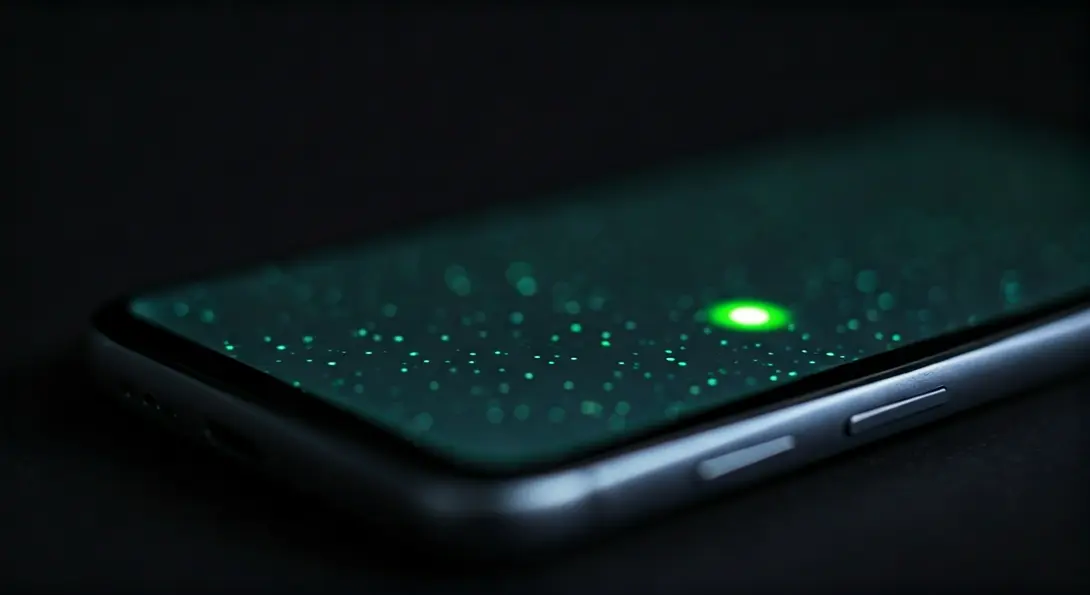
Many smartphone users, especially those new to advanced features, might notice small green or orange dots appearing at the top of their screen and wonder what they signify. Far from being a display glitch, these discreet yet effective indicators are a fundamental part of your device’s privacy protection system. They are designed to give you immediate visual feedback on whether an application is actively using your phone’s camera or microphone.
The Origin of Privacy Indicators
The concept of on-screen privacy indicators gained significant traction with Apple’s introduction in iOS 14. Since then, these dots have become a standard feature on all newer iPhone models and subsequent iOS versions. The green dot, specifically, signals that an application is utilizing one of your phone’s most critical and sensitive functions: the camera.
For example, if you’re on a video call, the green dot indicates that both your camera and microphone are typically in use. Following Apple’s lead, Android incorporated a similar mechanism with version 12. Android devices now display a green indicator in the status bar whenever an app accesses the camera or microphone, ensuring consistent privacy alerts across major mobile operating systems.
When one of these dots appears, expanding your phone’s notification panel will reveal the name of the specific application currently using these permissions. This immediate feedback helps you quickly identify which phone function is active, even if it’s running in the background. Essentially, these dots serve as a software-based equivalent of the hardware LED light found next to webcams on laptops, providing a clear system-level notification directly on your screen.
What Each Dot Signifies
Understanding the distinction between the colors is key to interpreting these privacy alerts:
- Green Dot: This indicator is primarily associated with camera access. It appears whenever an application starts collecting visual data from any of your phone’s cameras. This could be for a variety of tasks, including taking a selfie, scanning a QR code, or engaging in a video call.
- Orange Dot: The orange dot, on the other hand, specifically signals that an application is accessing your device’s microphone. You’ll see this dot when recording a voice message, using a voice recorder app, or making a phone call.
On iPhones, these indicators function consistently across all applications, whether they are system-native or downloaded from the App Store. Furthermore, the Control Center allows you to check which applications have recently used your camera or microphone, offering an audit trail for your privacy. Android 12 and newer versions operate on a similar principle, illuminating the dot whenever the system detects an app accessing either of these sensitive sensors.
When to Be Concerned About the Privacy Dots
The mere appearance of a green or orange dot is generally not a cause for alarm. It’s a normal occurrence during activities like taking photos, participating in video calls, or recording audio. However, you should pay close attention if a dot appears unexpectedly—for instance, while you are simply reading an article, playing a basic game, or browsing your phone’s settings, without any conscious interaction with the camera or microphone.
Such an unexpected activation could indicate several issues:
- An application might be misusing the permissions you’ve granted it.
- Malicious software (malware) could be running in the background, attempting to record video or audio without your knowledge. For more insights on protecting against such threats, you might find this article helpful: Urgent Alert: Android Beat Banker Malware Security Tips.
If you frequently observe a dot appearing without a clear, necessary function, it’s advisable to review your installed applications. Consider removing any apps that seem suspicious or are no longer needed. In more serious cases, performing a full security scan of your device or even a factory reset might be necessary to ensure your privacy and security.

Taking Control: Managing App Permissions and Your Privacy
Modern mobile operating systems are equipped with robust tools that allow you to precisely control which applications can access your camera and microphone. These controls, combined with the visible privacy indicators, form a comprehensive privacy protection mechanism.
In iOS, navigate to the “Privacy & Security” section within your settings. Here, you can specify which applications have permission to use your camera or microphone and even restrict access to only when the app is actively on screen. This granular control empowers you to manage your data effectively.
Similarly, Android smartphones (version 12 and later) offer powerful privacy tools. Within the permission manager, you can quickly revoke camera and microphone access from applications that don’t genuinely require them. Additionally, quick toggle switches in the settings panel allow you to disable camera and microphone access for all applications with a single tap. For further strategies on safeguarding your audio privacy, read our guide on How to Prevent Your Smartphone from Listening In: Microphone Privacy.
Ultimately, the green and orange dots are more than just alerts; they are crucial starting points for consciously managing how your smartphone collects and processes your data, putting you in control of your digital privacy.
Frequently Asked Questions (FAQ)
No, these privacy indicators are a fundamental, system-level security feature designed to inform you when your camera or microphone is active. They cannot be disabled, as their purpose is to provide transparency and enhance your privacy by making app access visible.
When a green or orange dot appears, simply swipe down from the top of your screen to open the notification panel (or Control Center on iOS). You will usually see an icon or text indicating which specific application is currently accessing your camera or microphone.
If a privacy dot appears unexpectedly, first check the notification panel to identify the app. If it’s an app you weren’t using, go to your phone’s settings (Privacy & Security on iOS, Privacy Dashboard/Permission Manager on Android) and review or revoke that app’s camera or microphone permissions. If the issue persists with multiple apps or seems suspicious, consider running a security scan for malware or uninstalling any recently installed, untrusted applications.
Source: PetasPixel, Stack Overflow, Croma, Deia. Opening photo: Gemini
About Post Author
