

Contents
Unlocking Faster Wi-Fi: Investigating a Hidden Windows 11 Setting
Windows 11, like its predecessors, incorporates a vast array of components from older Microsoft operating system versions. Among these inherited modules, a pervasive tech myth suggests the existence of a hidden option designed to significantly accelerate internet speeds on your computer. Our team embarked on an investigation to verify this claim and understand its real-world impact.
How to Optimize Your Wi-Fi Settings in Windows 11
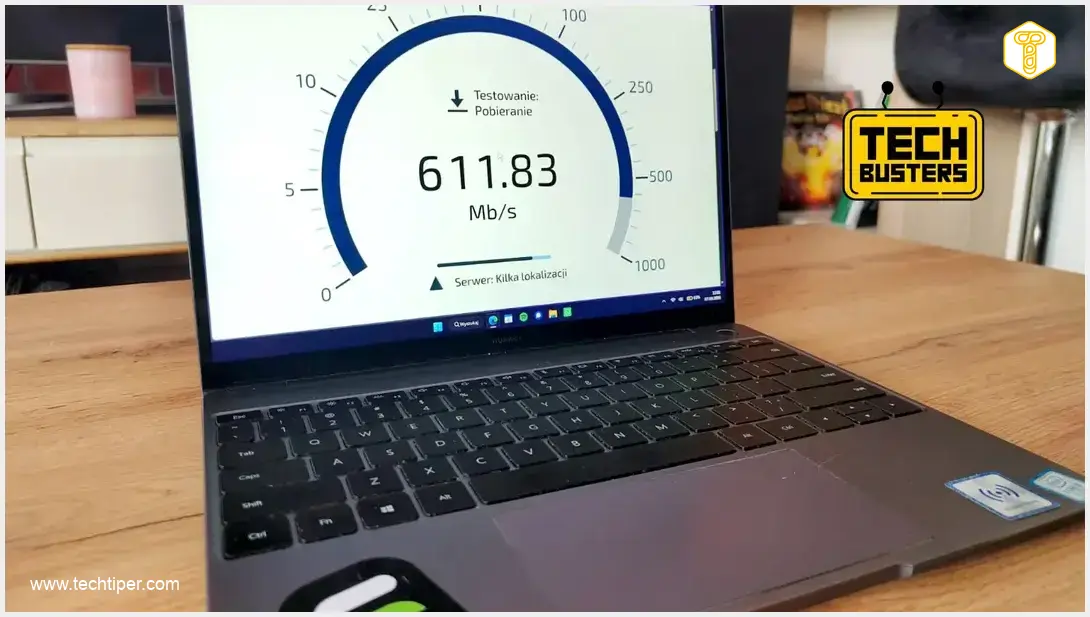
Before making any system adjustments, it’s always a good practice to establish a baseline. We recommend performing an internet speed test using a reliable online service to measure your current connection speed. This will allow you to objectively compare the results after applying the proposed changes.
The solution we tested, as part of our ongoing “TechBusters” series, leverages a feature within Windows 11’s Device Manager. The simplest way to access Device Manager is by typing “Device Manager” into the Start Menu search bar and selecting the relevant option.
Once Device Manager is open, you’ll need to locate your wireless network adapter. It’s crucial to note that this particular trick is effective only for Wi-Fi connections. For wired Ethernet connections, an analogous “Transmission Power” option typically does not appear in the adapter’s properties.
After identifying your wireless device (it usually includes “Wi-Fi” or “Wireless” in its name), right-click on it and select “Properties” from the context menu.
A new, smaller window will appear. Navigate to the “Advanced” tab. From the extensive list of properties, select “Transmission Power” (it might also be labeled “Transmit Power” or “Power Output”). Here, you will change the value from its default “3. Medium” to “5. Highest.” After making this change, click “OK.” For absolute certainty and to ensure the new settings are fully applied, we recommend restarting your computer.
Putting the Settings to the Test: Real-World Results
Following the adjustments and subsequent internet speed tests, the impact became clear. Boosting the transmission power demonstrably improved connection speeds. The further away we were from the Wi-Fi router, the more pronounced the difference became.
Our specific test results illustrate this point:
- Near the Router:
- With Medium Transmission Power: 615–620 Mbps
- With Highest Transmission Power: 615–620 Mbps
In close proximity to the router, where signal strength is already optimal, the change had no discernible effect on speed.
- Further from the Router:
- With Medium Transmission Power: 375 Mbps
- With Highest Transmission Power: 430 Mbps
At a greater distance, the “Highest” setting delivered a noticeable improvement of approximately 55 Mbps, highlighting its utility in areas with weaker signal.
While an increase of 55 Mbps might not be dramatically noticeable during routine daily tasks like web browsing or streaming videos, where network demands are often buffered, this difference becomes significant when downloading large files. In such scenarios, a higher transfer rate directly translates to reduced waiting times, making this an important optimization, especially for Wi-Fi connections.

It’s important to approach such optimizations with caution. Increasing your Wi-Fi adapter’s transmission power may impact your laptop’s battery life, as the adapter draws more power to transmit a stronger signal. There’s also a potential, albeit usually minor, long-term impact on the lifespan of the network card itself due to increased workload. As with any system modification, proceed thoughtfully. For further optimization tips, you might find our guide on Windows 11 debloat, performance, and privacy helpful.
Did you know about this hidden setting, or is this a groundbreaking discovery for you?
Explore More TechBusters Myths
Our TechBusters series explores various technological myths and claims. Here are a few more we’ve investigated:
- Can a smartphone genuinely function as a metal detector?
- Are bananas truly resistant to fire?
- Is wireless charging actually more expensive in practice?
- Is it possible to set up two fingerprints for unlocking a phone simultaneously?
- Do automatic doors open faster for taller individuals?
For more insights into Windows 11, including discussions on major changes, native apps, and search improvements, stay tuned to our updates.
Frequently Asked Questions (FAQ)
While generally safe, increasing Wi-Fi transmission power can potentially lead to slightly reduced laptop battery life due to increased power consumption by the Wi-Fi adapter. There’s also a theoretical, though usually negligible, risk of accelerated wear on the network card over a very long period. It’s recommended to weigh the performance benefits against these minor potential drawbacks.
No, this specific optimization for “Transmission Power” is typically available only for wireless (Wi-Fi) network adapters. Wired Ethernet connections do not have an equivalent setting, as their performance is primarily determined by cable quality, router capabilities, and internet service provider speeds rather than signal strength over airwaves.
The main benefit is improved Wi-Fi signal strength and potentially faster internet speeds, especially in areas further from your router or through obstacles. This can lead to a more stable connection and quicker downloads. The drawbacks include a possible slight decrease in laptop battery life and a very minor, theoretical impact on the longevity of the Wi-Fi adapter. In most home environments, the benefits for distant devices might outweigh the minor downsides.
Source: Self-developed. Opening photo: Krzysztof Rojek
About Post Author
