

Contents
Your Android Phone Will Soon Display a Blue Dot at the Top. Here’s What It Means.
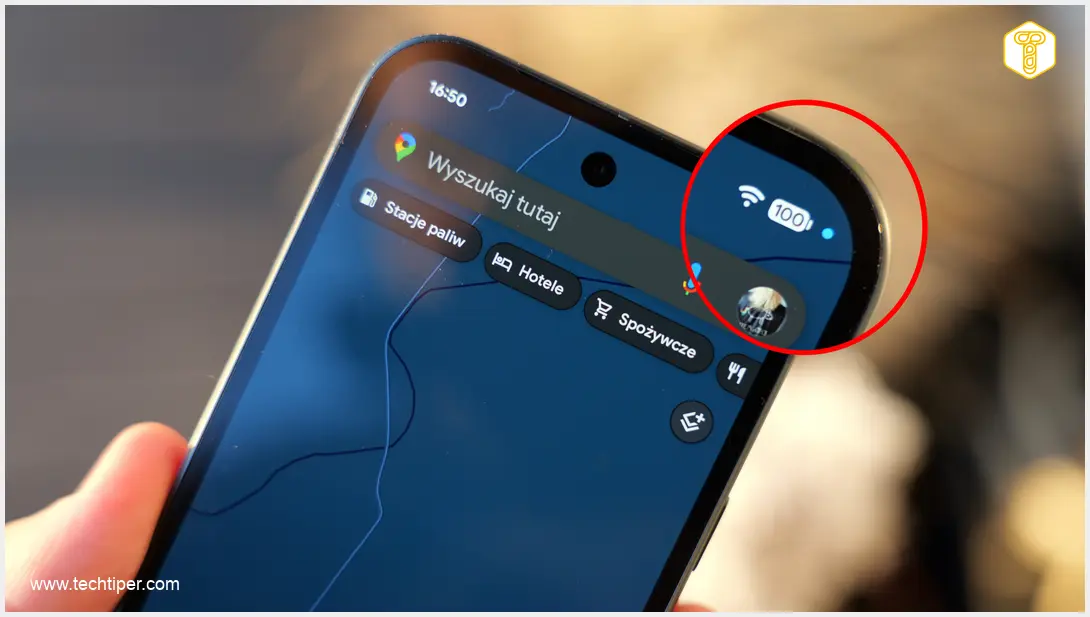
Android smartphones updated to recent versions of the operating system will likely notice a new type of notification. A distinctive blue dot will regularly appear in the top right corner of your device. It’s important to understand exactly what this indicator signifies. These privacy features are a testament to Google’s ongoing commitment to user transparency and control over their data.What Does the Blue Dot Mean on Android?
The blue dot privacy indicator, introduced with Android 12 and present in subsequent versions, provides a clear signal when an active application is utilizing your device’s location services, specifically GPS. This feature was first observed during beta testing phases on Google Pixel devices and has since rolled out to a wide array of Android smartphones. When you see the blue dot in the top right corner of your screen, it means that an app currently open or running in the background is accessing your precise location data. For instance, if you’re navigating with a mapping application, the blue dot will be visible, indicating that the app is actively using your GPS module to provide directions. This visual cue empowers users by making them immediately aware of location access, helping them make informed decisions about their privacy.Understanding Different Colored Privacy Indicators
Android employs a similar mechanism for other sensitive hardware accesses, using different colored dots to signify different types of activity. For example, a green dot in the top right corner indicates that an open application is currently accessing your device’s camera or microphone. This dual-indicator system ensures comprehensive transparency for users regarding critical privacy-sensitive components.The Hierarchical System
Crucially, Google has implemented a hierarchical system for these indicators. If, for instance, both your camera (or microphone) and location services are active simultaneously, only a single dot will appear. In this scenario, the green dot (for camera/microphone) takes precedence over the blue dot (for location). This design choice simplifies the visual feedback for users while still communicating that sensitive hardware is in use. It’s vital to be aware of this hierarchy and consciously grant permissions to various applications. If you haven’t reviewed your app permissions recently, it’s easy to adjust them at any time.How to Manage App Permissions on Android
Controlling which apps can access your sensitive data is a fundamental aspect of Android’s privacy features. Here’s how you can easily manage permissions for any application on your device:- Locate the app’s icon in your main app drawer or on your home screen.
- Press and hold the app icon until a context menu appears.
- Tap on “App info” or “Information” (the exact wording may vary slightly depending on your Android version and device manufacturer).
- From the App info screen, select “Permissions.”
- You will see a list of permissions granted and denied to the app. Tap on the specific permission you wish to modify (e.g., “Location,” “Camera,” or “Microphone”).
- Choose the desired option, such as “Don’t allow” or “Ask every time” (for location).
Frequently Asked Questions (FAQ)
The blue dot appearing in the top right corner of your Android screen indicates that an application is actively using your device’s location services, such as GPS. It’s a privacy indicator introduced in Android 12 to provide transparency to users about when their location data is being accessed.
Android uses different colored dots for different privacy indicators. A green dot signifies that an app is accessing your camera or microphone. If both location and camera/microphone are in use simultaneously, Android employs a hierarchical system where the green dot takes precedence and will be displayed instead of the blue dot.
Not necessarily. The privacy indicators simply inform you that an app is using a specific hardware component (like location, camera, or microphone). Many legitimate apps require these permissions to function correctly (e.g., a maps app needs location, a video call app needs camera and microphone). However, if you see an indicator when you don’t expect it, it’s a good prompt to review that app’s permissions in your phone’s settings and adjust them if needed.
Source: Original content from a Polish technology community.
Opening photo: Krzysztof Wilamowski
About Post Author
