

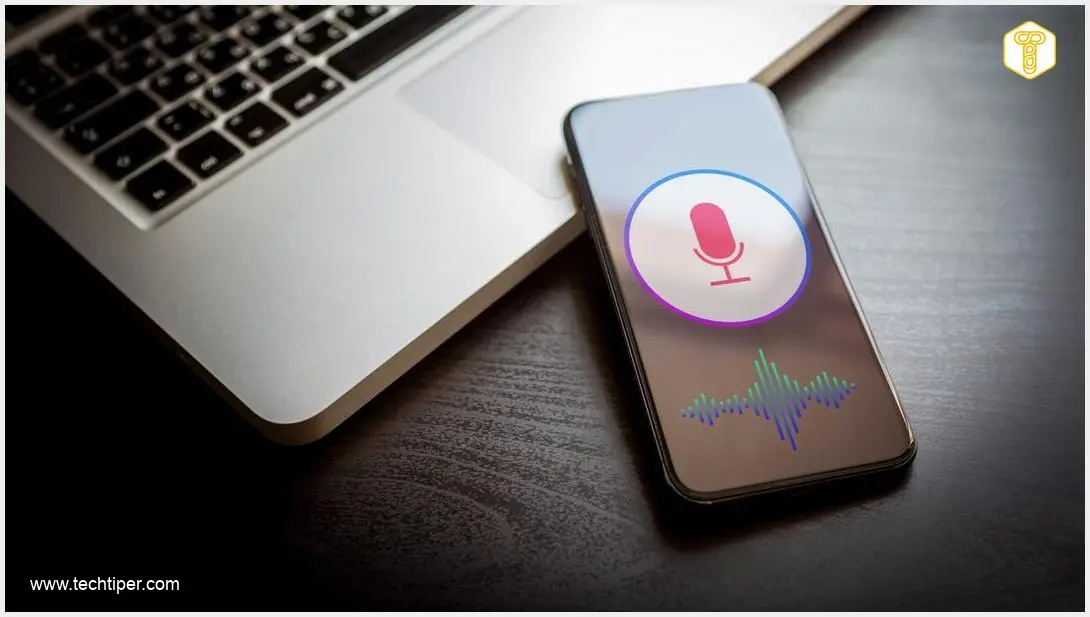
Receiving surprisingly targeted advertisements and other content on your smartphone can make you feel like your phone is secretly listening to your conversations. While this often isn’t the case, it’s smart to keep track of which applications installed on your device have access to your microphone. This guide will walk you through how to check and manage those permissions.
Contents
Is Your Phone Really Listening to You?
Many people have experienced their smartphone displaying content related to a topic shortly after discussing it with others. This could manifest as social media videos covering that exact subject or personalized ads featuring a product you just talked about. Such situations often lead to concerns about being overheard.
However, this phenomenon usually doesn’t mean your smartphone is actively eavesdropping or that a remarkable coincidence has occurred. We often forget instances where we might have searched for content related to the topic around the same time, or perhaps watched a seemingly random video about it while typically skipping others. Sophisticated algorithms detect these subtle interactions, leading to a bombardment of similar material.
Yet, there can be a grain of truth to the theory that your phone is listening. In recent years, companies like Cox Media Group have faced scrutiny for technologies that allegedly leveraged data from private conversations to better target advertisements. Such practices have led to consequences, including major partners like Google terminating their collaboration.
Additionally, virtual voice assistants (like Siri, Google Assistant, or Alexa) constantly listen for a specific “wake word” to initiate interaction. Occasionally, these tools can be activated by accidentally used phrases. When this happens, the assistant might record a short snippet of a private conversation, which could potentially be analyzed by company employees responsible for the tool. This is why understanding and managing permissions is vital. For more insights on preventing unauthorized listening, see our guide on how to prevent your smartphone from listening.
How to Check Which Apps Have Microphone Access
It’s crucial to regularly review which applications on your smartphone have access to your microphone and actively use this permission. If you find that apps like games, photo editors, or shopping apps are using your microphone, it could be suspicious. In such cases, it’s advisable to revoke the permission or uninstall the app and find an alternative that doesn’t require microphone access.
You can typically find app permissions within your phone’s settings, usually in sections related to “Privacy,” “Security & Privacy,” or “Apps & Notifications.” The exact path may vary slightly between device manufacturers:
- For Android devices: Navigate to Settings > Apps (or Apps & Notifications) > [Select an app] > Permissions > Microphone. You can also go to Settings > Privacy > Permission Manager > Microphone to see a list of all apps with microphone access.
- For iOS devices: Go to Settings > Privacy & Security > Microphone. Here, you’ll see a list of apps that have requested or have microphone access.
Modern smartphones are designed to prevent applications from using the microphone without your consent. Furthermore, they often provide visual indicators when the microphone is actively being used. This usually appears as a small dot or icon (e.g., green dot on iOS, green or orange indicator on Android) in the top part of your screen. Pay attention to whether this icon appears unexpectedly when you’re not intentionally using an app that would require microphone activity, such as a voice recorder or a video call application.
Enhancing Your Smartphone Privacy
If you’re concerned about your phone listening in, one of the most effective steps is to limit or deactivate voice assistants. While convenient, these tools are designed to constantly listen for wake words. Deactivating them significantly reduces the chance of accidental recordings of your surroundings.

When installing a new application, always be mindful of its permission requests. If an app asks for microphone access and it doesn’t seem justified by its core function, consider denying the permission. Many phones allow you to grant access only “while using the app,” which is a good compromise for apps that legitimately need the microphone for specific features.
To put your concerns to the test, some privacy experts, like NordVPN, suggest conducting a simple experiment:
- Choose a highly abstract topic that is uncommon for someone your age and unrelated to anything you’ve recently searched for online or discussed.
- For a few days, intentionally have conversations about this specific topic near your phone, using keywords that might trigger advertising algorithms.
- For the next few days, stop discussing the chosen topic and use your phone as you normally would.
- Finally, observe whether advertisements related to the experimental topic start appearing on your device.
This experiment can help you understand how online algorithms respond to your interactions. For broader strategies on digital well-being and privacy, consider exploring ways to reduce phone usage and implement a digital detox.
Frequently Asked Questions (FAQ)
Do all apps that request microphone access listen to my conversations for advertising purposes?
No, not all apps requesting microphone access are doing so to “eavesdrop” for advertising. Many legitimate apps, like video call apps, voice recorders, or even some games, need microphone access to function correctly. The concern arises when apps with no apparent need for a microphone (e.g., a simple photo editor) request it, or when companies are found to misuse collected audio data, as was the case with Cox Media Group. Always verify an app’s purpose against its permission requests.
How can I tell if my microphone is being used without my knowledge?
Modern smartphones include visual indicators for microphone use. On iOS, a small orange or green dot appears in the status bar at the top of your screen. On many Android devices, a green microphone icon or dot will appear in the top right corner. If you see this indicator when you are not actively using an app that requires the microphone, it could signal unauthorized access. Check your recent app usage or privacy dashboard to identify which app might be responsible.
Is turning off voice assistants enough to prevent all potential “eavesdropping”?
Disabling voice assistants significantly reduces the risk of your phone listening for wake words and accidentally recording snippets of conversations. However, it doesn’t eliminate all potential forms of data collection. Apps with microphone permissions could still theoretically record audio. The most comprehensive approach involves regularly reviewing and revoking unnecessary app permissions, being cautious about app installations, and staying informed about privacy settings and features on your device.
What are the best practices for managing app permissions and enhancing overall smartphone privacy?
Best practices include:
- Regularly review permissions: Go through your app settings and revoke microphone access for any app that doesn’t genuinely need it.
- Grant permissions selectively: Choose “Allow only while using the app” whenever possible, instead of “Always allow.”
- Be cautious with new apps: If an app’s permission requests seem excessive for its function, reconsider installing it.
- Use privacy dashboards: Modern OS versions offer privacy dashboards that show which apps accessed sensitive permissions (like microphone or camera) and when.
- Keep software updated: OS updates often include security patches and improved privacy controls.
- Consider disabling voice assistants: If you don’t use them frequently, turning them off can reduce potential listening.
Source: The Guardian, NordVPN, internal research.
Opening photo: A smartphone displaying a microphone icon, suggesting privacy concerns or monitoring.
About Post Author
