

Contents
Unlock the Power of Google Gemini: Your New AI Assistant on Android
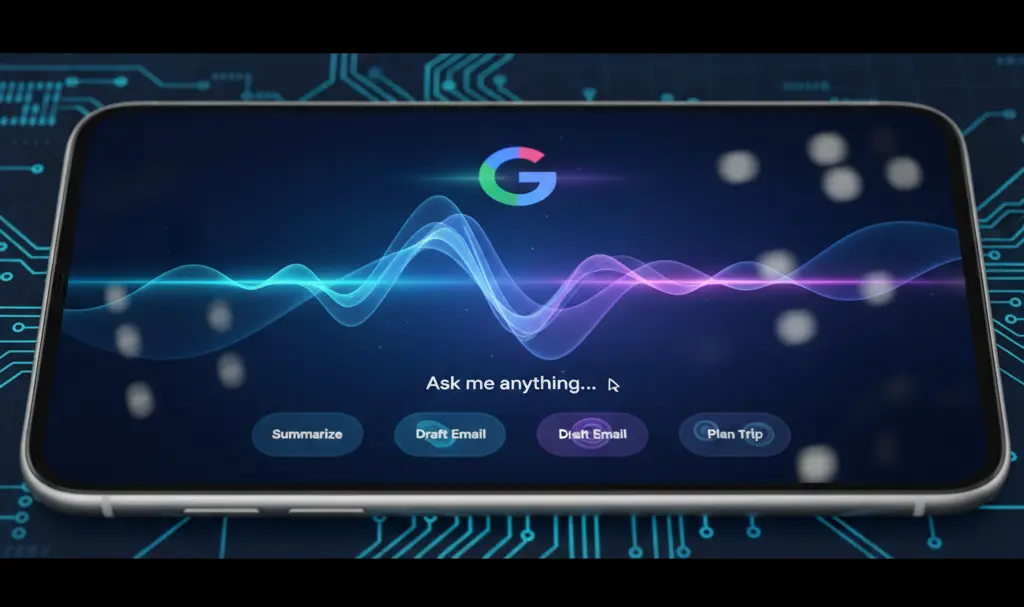
Google Gemini has evolved beyond a simple text-based AI application, transforming into a deeply integrated assistant that syncs across your entire Android system. Designed to be highly responsive to your voice commands, Gemini aims to streamline your mobile experience. This comprehensive guide will walk you through the process of enabling and effectively using Google’s cutting-edge AI assistant.
Understanding Google Gemini and Its Role
Google Gemini is an advanced artificial intelligence assistant capable of processing voice, text, and even visual queries. Unlike traditional search engines, Gemini excels at understanding natural language, allowing you to engage in conversational interactions rather than just inputting keywords. This intuitive interaction makes it a powerful tool for daily tasks and information retrieval.
Gemini officially began replacing the classic Google Assistant for many users on most mobile devices starting in early 2024. This transition signifies a major leap in mobile AI, offering more personalized and powerful assistance.
Is Google Gemini Already on Your Device?
For most newer Android smartphones, Google Gemini comes pre-installed. However, if you don’t find the application readily available on your device, the simplest way to get it is to download it directly from the Google Play Store. Ensure your operating system is up-to-date for optimal compatibility.
How to Enable Gemini on Your Android Phone
Once you’ve confirmed that the Gemini AI application is on your smartphone, you can configure it to respond to your voice commands and set it as your default digital assistant. Follow these steps:
- Open the Google Gemini application.
- Tap on your profile icon, usually located in the top-right corner of the screen.
- Look for and select an option like “Settings” or “Set as default digital assistant.”
- Follow the prompts to confirm Gemini as your primary digital assistant. This process ensures Gemini takes over functions previously handled by Google Assistant.
For more advanced automation and integration, explore how Google Gemini can enhance screen automation and AI apps on your device.
Connecting Your Applications with Google Gemini
To maximize Gemini’s ability to execute tasks efficiently via voice commands, it’s crucial to connect it with other useful applications on your phone. Here’s how:
- Open the Google Gemini application.
- Tap on your profile icon in the top-right corner of the screen.
- Select “Connected apps” or “Extensions.”
- Activate each connection for the apps you wish Gemini to interact with. This step is vital to unleash the full potential of Gemini’s voice-controlled capabilities.
Google is continuously developing Gemini, with new features and integrations being added regularly. Stay updated with the latest enhancements, including quick access updates for Google Gemini, to get the most out of your AI assistant.
Initiating Commands with Google Gemini as Your Digital Assistant
With Gemini configured as your digital assistant, you can simply say “Okay, Google” (or “Hey Google”) to your smartphone, even when it’s locked, and then issue a specific command in your preferred language. Gemini’s natural language understanding makes these interactions seamless and intuitive.

Some particularly useful applications include:
- Timers and Alarms: “Okay Google, set a timer for 15 minutes.”
- Media Playback: “Okay Google, play my workout playlist on Spotify” or “Hey Google, open YouTube Music and play [song name].” This feature is incredibly convenient when your hands are occupied.
- Navigation: Google Gemini is seamlessly integrated with Google Maps by default. You can simply say, “Okay Google, give me driving directions to Main Street 123 in Anytown.”
- Information Retrieval: Ask for weather updates, current events, or quick facts.
- Device Control: Adjust volume, turn on the flashlight, or send messages with your voice.
Google Gemini represents a significant leap forward in personal AI assistance, making your smartphone more intuitive and powerful than ever before.
Frequently Asked Questions (FAQ)
What is the main difference between Google Gemini and the older Google Assistant?
Google Gemini represents a more advanced generation of AI assistant. While both respond to voice commands, Gemini is built on Google’s sophisticated large language models, offering more natural conversational abilities, better contextual understanding, and deeper integration with various applications and services, leading to more comprehensive and personalized assistance compared to the previous Google Assistant.
Do I need to download a separate app for Google Gemini?
On many newer Android smartphones, Google Gemini comes pre-installed or is available as an update to the existing Google app. If you don’t have it, you can easily download the dedicated Google Gemini app from the Google Play Store. It’s always a good idea to ensure your device’s operating system is updated for the best experience.
Can Google Gemini control smart home devices?
Yes, Google Gemini retains and expands upon the smart home control capabilities of its predecessor. As long as your smart home devices are linked to your Google Home account, you can use Gemini to control lights, thermostats, speakers, and other compatible devices with voice commands. Ensure your Google Home app and devices are properly configured for seamless integration with Gemini.
What should I do if Gemini isn’t responding to “Okay Google”?
If Gemini isn’t responding to your voice commands, first check if Gemini is set as your default digital assistant in your phone’s settings. You can usually find this under “Settings” > “Apps” > “Default apps” > “Digital assistant app.” Also, ensure “Voice Match” is enabled in Gemini’s settings, allowing it to recognize your voice. Lastly, check your device’s microphone permissions for the Gemini app and ensure it has access.
Source: Original article content & Google documentation
Opening photo: Gemini AI Assistant on Android phone
About Post Author
