

Contents
Unlock Advanced Security: The Samsung “Auto Blocker” Feature Explained
In an era where digital threats are constantly evolving, safeguarding your smartphone is paramount. Samsung offers a powerful yet often overlooked security feature called “Auto Blocker” that can significantly enhance your device’s protection against cyberattacks and data loss. A few simple taps can activate this crucial setting, minimizing risks and providing peace of mind.
What is Samsung’s “Auto Blocker” and How Does It Protect You?
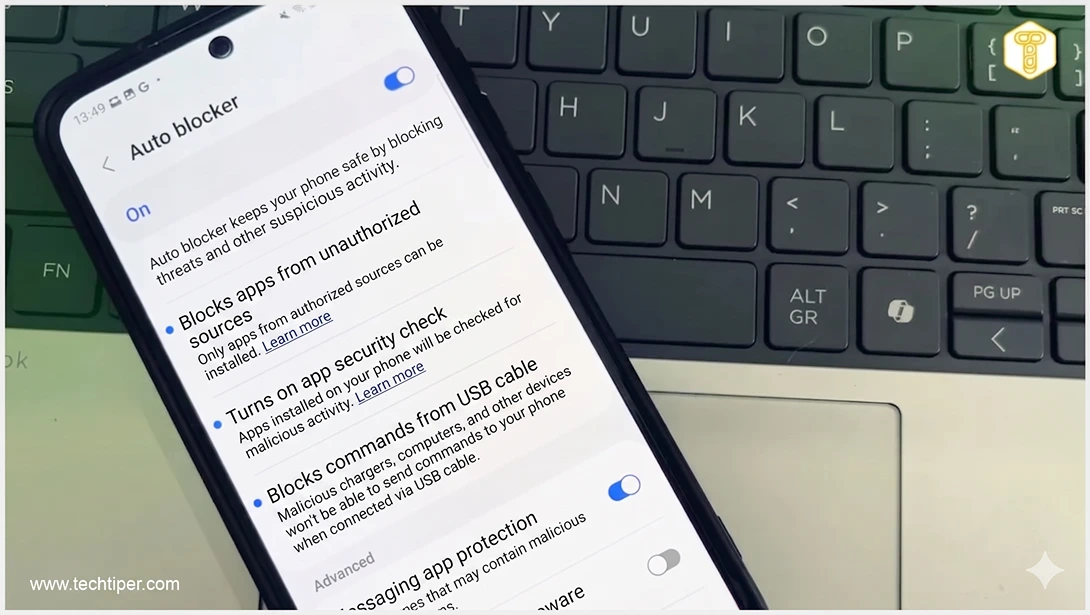
The “Auto Blocker” function is a robust security measure integrated into Samsung smartphones running One UI 6.0 and later versions. You can find this essential setting within the “Security and privacy” section of your device settings. Once activated, it operates silently in the background, proactively blocking potentially dangerous activities.
Key Protections Offered by “Auto Blocker”:
- Prevents Installation from Unauthorized Sources: One of its primary functions is to restrict app installations to official stores like the Google Play Store and Galaxy Store. Any attempt to download applications from unknown or external sources will be automatically blocked. This critical barrier helps protect your device from malware, spyware, and other malicious software often disguised as legitimate apps.
- Secures USB Connections: Beyond app installation, “Auto Blocker” also fortifies your device when connected via USB to a computer or charger. When active, it prevents external devices from sending unauthorized commands through the USB cable. This is especially vital as “malicious chargers” or compromised computers could attempt to access or or manipulate your data without your consent. With “Auto Blocker” enabled, such attempts are instantly thwarted.
- Defends Against Malware in Messages: The feature also works in conjunction with your phone’s message protection mechanisms. If an image or file received via text message or third-party messaging apps is detected as potentially containing malware, “Auto Blocker” will block it before it can even be displayed or processed on your device.
For users seeking even greater security, Samsung provides “Maximum Protection.” This advanced option offers an even more stringent security posture by:
- Scanning applications for suspicious activity.
- Blocking the installation of administrative applications.
- Restricting automatic downloads of attachments.
- Preventing the opening of suspicious links.
- Automatically removing location data from photos when sharing them.
- Blocking access to shared albums from unknown contacts.
While “Maximum Protection” offers unparalleled security, it’s important to note that activating it might lead to a reduced availability of certain functionalities on your device. Users must weigh the balance between convenience and absolute security.
Ensure Your Device is Protected: Verify “Auto Blocker” Status
Although “Auto Blocker” is often enabled by default when you set up a new Samsung device, it’s not uncommon for users to inadvertently disable it or for its status to change during updates or system adjustments. To ensure continuous protection, it’s highly recommended to periodically check your phone’s settings and confirm that “Auto Blocker” remains active.
Keeping your Samsung device’s software up to date is also crucial for security. For instance, recent updates like the Samsung Galaxy A36 security update with One UI 8.5 and the Samsung Galaxy S23 March 2024 security update often include critical patches and enhancements to features like “Auto Blocker”.
Frequently Asked Questions (FAQ)
Which Samsung devices support the “Auto Blocker” feature?
“Auto Blocker” is available on Samsung smartphones running One UI 6.0 or newer. To check your One UI version, go to Settings > About phone > Software information.

Will “Auto Blocker” prevent me from installing legitimate apps from third-party sources?
Yes, “Auto Blocker” is designed to prevent installations from all unknown or unofficial sources. While this enhances security by blocking malicious apps, it also means you won’t be able to install legitimate apps from sources outside of the Google Play Store or Galaxy Store if the feature is active. You would need to temporarily disable “Auto Blocker” to install such apps, which is not recommended unless you are absolutely certain of the app’s safety.
What is the difference between “Auto Blocker” and “Maximum Protection”?
“Auto Blocker” provides essential protection against common threats like unauthorized app installations, malicious USB commands, and malware in messages. “Maximum Protection” is an advanced, more stringent security option that adds layers of protection, such as scanning apps for suspicious activity, blocking administrative app installations, restricting automatic attachment downloads, and removing location data from shared photos. While “Maximum Protection” offers higher security, it may limit some device functionalities.
Source: Samsung, Internal research. Opening photo: Gemini
About Post Author
