Contents
Unlock Android’s Hidden Memory Monitor to Identify Resource-Hungry Apps
Android has long provided powerful diagnostic tools, but most users never discover them. One of the system’s hidden features allows you to quickly check which applications are constantly running in the background, consuming valuable RAM and potentially draining your battery. This crucial tool is nestled within the developer options and reveals data typically accessed only by developers. Understanding and utilizing this feature can significantly improve your device’s performance and battery longevity.
What is the Hidden Memory Monitor and Why Should You Use It?
The hidden memory monitor is a diagnostic tool embedded within the Android operating system. It provides a detailed breakdown of how your device’s Random Access Memory (RAM) is being utilized. This includes:
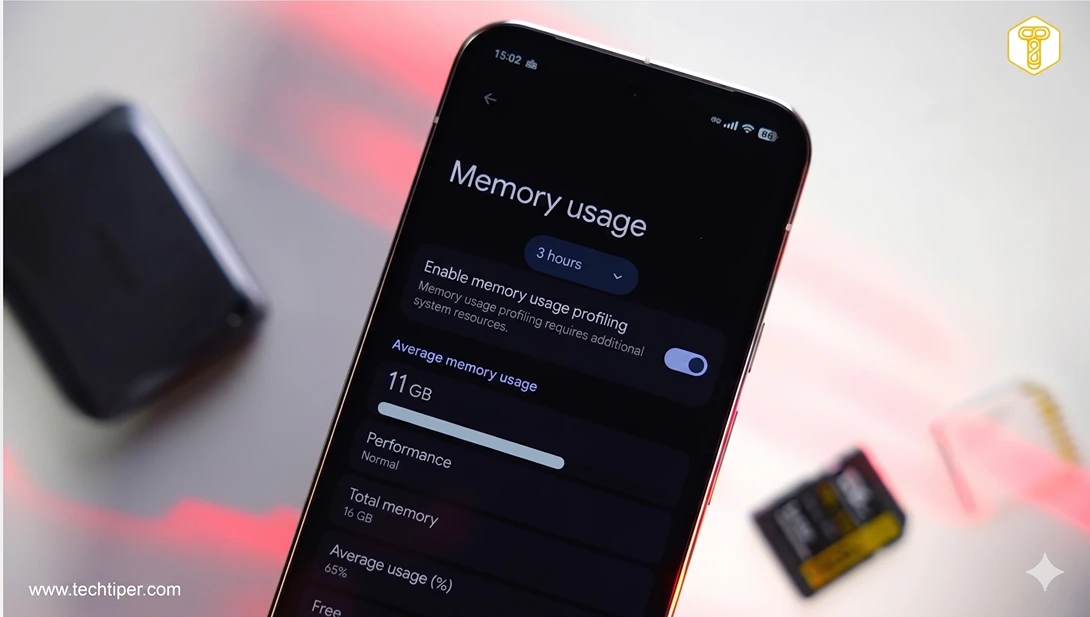
- Average RAM Usage: See historical data on how much RAM has been consumed over periods like 3, 6, 12, or 24 hours.
- Available Memory: Understand how much RAM is currently free for new tasks.
- Top Consuming Apps: Identify which applications are using the most memory, differentiating between those active in the foreground and those running silently in the background.
- System Processes: Gain insights into essential Android services, synchronization tasks, and notification processes that also consume resources.
By using this monitor, you can pinpoint apps that are unnecessarily active in the background, which can lead to sluggish performance, increased heat, and rapid battery depletion.
How to Enable Android’s Hidden Memory Usage Feature
The feature for tracking operating memory usage is located within Developer Options, which is hidden by default in system settings.
Activating Developer Options
To gain access to this powerful tool, follow these steps:
- Go to your phone’s Settings.
- Scroll down and tap on “About phone” (the exact wording might vary slightly depending on your device manufacturer).
- Locate “Build number” and tap on it rapidly, usually seven times.
- After several taps, Android will display a message confirming that “Developer options have been activated” or “You are now a developer!”
Accessing Memory Statistics
Once Developer Options are enabled:
- Go back to your main Settings menu.
- Scroll down. Developer Options should now appear, typically near the bottom, often within a “System” or “Additional settings” section. Tap on it.
- Inside the hidden Developer Options menu, look for an entry like “Memory,” “Memory usage,” or “Running services.”
- On some smartphones, you might need to enable memory profiling, which could require a device restart.
For the most accurate results, it’s recommended to let the monitoring run for at least several minutes, or ideally, a few hours. Your smartphone might warn you that the memory profiling feature requires additional system resources, which could lead to slightly increased battery consumption. Therefore, it’s a good practice to disable this function once you’ve gathered the necessary information to avoid unnecessarily straining your system.
Understanding Android’s Memory Statistics
The memory function provides detailed statistics on your operating memory. Android displays average RAM usage over the past few hours (3, 6, 12, or 24), the amount of free memory, and the applications consuming the most resources. You can inspect both foreground processes and those operating in the background.
Decoding the Data
This data includes system services and operations responsible for synchronization or notifications. This makes it easy to identify applications that consistently remain active in the background and might be affecting your device’s performance or leading to faster battery drain. For instance, if you’ve been experimenting with sideloaded apps, monitoring their memory footprint here can offer crucial insights into their behavior and resource demands.

Identifying Resource Hogs
You might notice that certain applications you rarely use are consuming a significant amount of resources. For example, a payment app for a specific region (like WeChat for payments in China) or a health tracking app (such as OHealth, which connects phones with certain smartwatches) could be using hundreds of megabytes of RAM. Uninstalling such apps can free up RAM for other programs on your smartphone, leading to a snappier experience.
Should You Actively Clear Your Android’s RAM?
The most important aspect is correctly interpreting the data you receive. If an application is using a lot of RAM, it doesn’t always indicate a problem.
Android’s Intelligent Memory Management
Android is designed to actively utilize operating memory to speed up system operations. It keeps frequently used apps in RAM so they can launch quickly. Therefore, you generally should not terminate crucial background applications. Frequently force-closing apps manually usually does not improve performance; sometimes, it even increases energy consumption because the system has to restart processes from scratch.
Effective Strategies for Managing Apps
Instead of constantly clearing RAM, it’s more effective to uninstall applications you no longer use, especially those that consistently run in the background. These are often responsible for unnecessary memory load, data synchronization, and additional battery consumption. Efficient memory management also goes hand-in-hand with battery optimization, and understanding resource hogs can help you get the most out of features like priority charging.
Beyond RAM: Monitoring Battery Usage for Optimal Performance
While RAM consumption is important, it’s also worth reviewing your battery statistics. RAM itself uses much less power than the processor or graphics chip. The battery usage tab will therefore be more helpful in trying to find programs that are causing your device to run out of power faster than it should. Many smartphones display energy consumption by application, providing a clear picture of what’s draining your battery.
Frequently Asked Questions (FAQ)
Is it bad if an app uses a lot of RAM?
Not necessarily. Android is designed to use available RAM to keep apps ready and speed up performance. An app using a lot of RAM is only a concern if it’s an app you rarely use, or if its high usage is causing noticeable performance issues or excessive battery drain.
Will force-closing apps improve my phone’s speed or battery life?
Generally, no. Force-closing apps can sometimes make performance worse and consume more battery, as the system then has to reload them from scratch when you need them again. Android’s memory management is quite efficient at handling background processes. Focus on uninstalling unused apps rather than constantly closing active ones.
How often should I check my memory usage?
You don’t need to check it constantly. It’s most useful when you notice your phone is slowing down, experiencing unusual battery drain, or behaving unexpectedly. Check it after installing new apps or if you feel your device isn’t performing as it should. Remember to disable the monitoring feature once you have the information you need.
Are Developer Options safe to enable?
Enabling Developer Options is safe and won’t harm your device. However, some settings within Developer Options can change system behavior and might affect performance or stability if misused. It’s best to only change settings you understand or follow trusted guides.
Source: Android Police, internal research. Opening photo: Krzysztof Wilamowski
About Post Author