

Contents
How to Fix Google Pixel Battery Drain Issues: 4 Proven Solutions
Google Pixel smartphones offer outstanding camera performance and clean software, but they are historically known for possessing rather average battery capacities compared to some competitors. Recently, a growing number of users have reported that their batteries are draining significantly faster, particularly following recent system patches.
If you have noticed unusual device behavior recently, you are not alone. Recent software rollouts have caused a few headaches, including Google Pixel March update display issues and severe power drain. While a future software update will likely resolve the root cause of these software-induced battery drains, there is no need to wait. Here is exactly what you can do right now to enjoy longer screen-on time.
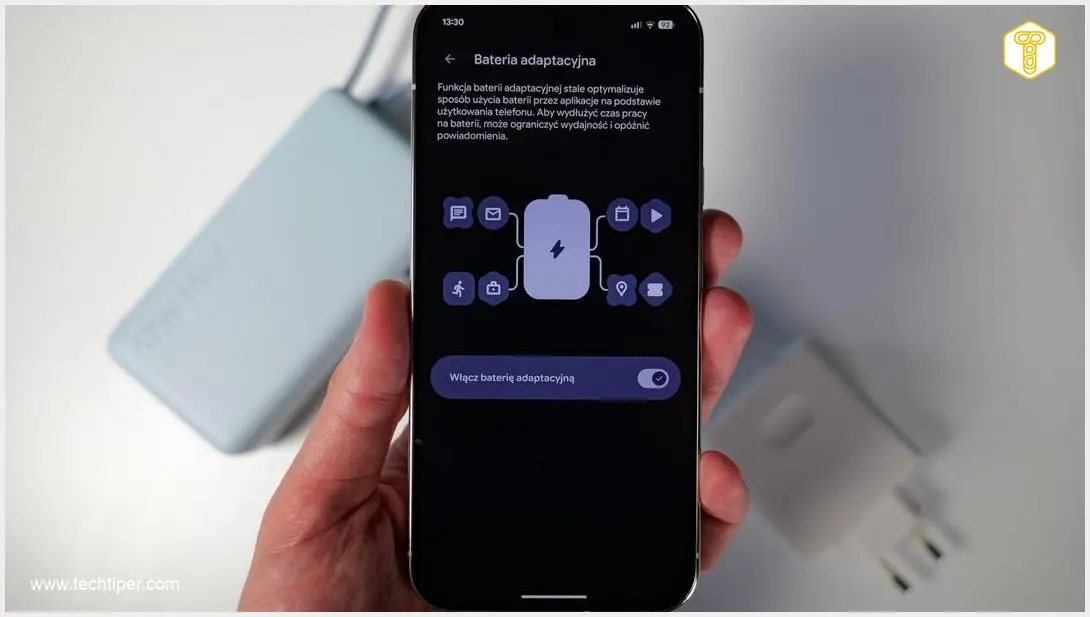
1. Turn On the Adaptive Battery Feature
Google’s Adaptive Battery mechanism uses machine learning models to prioritize background processes and limit the activity of applications you rarely use.
How the Algorithm Works
The operating system actively analyzes your usage patterns and restricts access to power-hungry system resources for less frequently launched programs. This intelligent management minimizes unnecessary software wake-ups and translates to significantly lower battery consumption.
What to Expect
- Standby Efficiency: You will notice the biggest difference when the smartphone is not being actively used, as background drain is heavily reduced.
- Calibration Time: The effect is not instantaneous. The AI algorithm requires time to calibrate to your personal habits. However, after a few days of regular use, you will see a noticeable stabilization in your daily battery consumption.
2. Utilize Adaptive Brightness (With Manual Tweaks)
One of the most energy-intensive components of any modern smartphone is the display. The latest Google Pixel models are capable of reaching a peak brightness exceeding 3,000 nits, which can drastically drain your battery if left unchecked.
Managing Screen Power
To manage this demanding hardware component, it is highly recommended to enable automatic screen brightness. This feature uses the ambient light sensor to adjust the display based on your surroundings. However, the automatic system is not flawless. A single stray ray of light hitting the sensor can spike the brightness unnecessarily.
Do not be afraid to manually intervene. If the panel is glowing brighter than required, manually dragging the brightness slider down will train the algorithm over time and significantly extend the operating time of your smartphone.
3. Disable the “Mobile Data Always Active” Option
Deep within the developer options (and sometimes enabled by default depending on carrier settings), Android maintains a feature called “Mobile data always active.” This setting keeps your cellular modem running continuously, even when your device is connected to a stable Wi-Fi network.
- The Benefit: It speeds up network switching if your Wi-Fi suddenly drops out, providing a seamless internet experience.
- The Drawback: It generates a constant load on the connectivity module, eating away at your battery percentage.
Disabling this option reduces unnecessary modem activity and limits energy consumption. This is especially crucial if you spend most of your day in environments with reliable Wi-Fi, such as an office or at home.

4. Leverage Battery Saver Modes in Emergencies
Google has equipped Pixel smartphones with a highly effective, two-stage energy-saving mode. Leveraging these tools can be a lifesaver when you know you will not have access to a wall outlet or power bank for several hours.
Standard vs. Extreme Battery Saver
Personally, relying on the standard Battery Saver in pinch situations works wonders. This mode automatically switches your phone to a dark theme, limits background app refreshing, and curbs visual effects.
When the situation is dire and your battery is in the single digits, you can activate Extreme Battery Saver. This aggressive mode pauses most background activity and notifications, allowing only essential applications—such as your phone dialer and core messaging apps—to function.
While these software tweaks are excellent for current generations, many enthusiasts are looking ahead to see if Google will include larger, more efficient batteries in their future hardware. If you are curious about what is on the horizon, read about the latest Google Pixel 11 leaks, specifications, and release date.
Frequently Asked Questions (FAQ)
Why does my Pixel battery drain rapidly right after a system update?
It is common for smartphones to experience temporary battery drain following a major software update. This happens because the operating system is running intensive background tasks, such as re-indexing files, optimizing apps, and rebuilding the cache. Battery life typically normalizes within a few days once these processes are complete.
Does Extreme Battery Saver degrade my phone’s battery health over time?
No, Extreme Battery Saver does not negatively impact your long-term battery health. In fact, by severely restricting background processing and reducing how frequently your phone uses power, it can actually help preserve battery longevity by lowering the overall number of charge cycles your phone goes through.
How often should I manually adjust my Adaptive Brightness slider?
You should manually adjust it whenever you feel the screen is too bright or too dim for your current environment. The Adaptive Brightness feature uses machine learning to remember your manual adjustments in specific lighting conditions. Over a week or two, it will learn your preferences, and you will rarely need to touch the slider again.
Source: ZDNet, own elaboration. Opening photo: Krzysztof Wilamowski
About Post Author
