

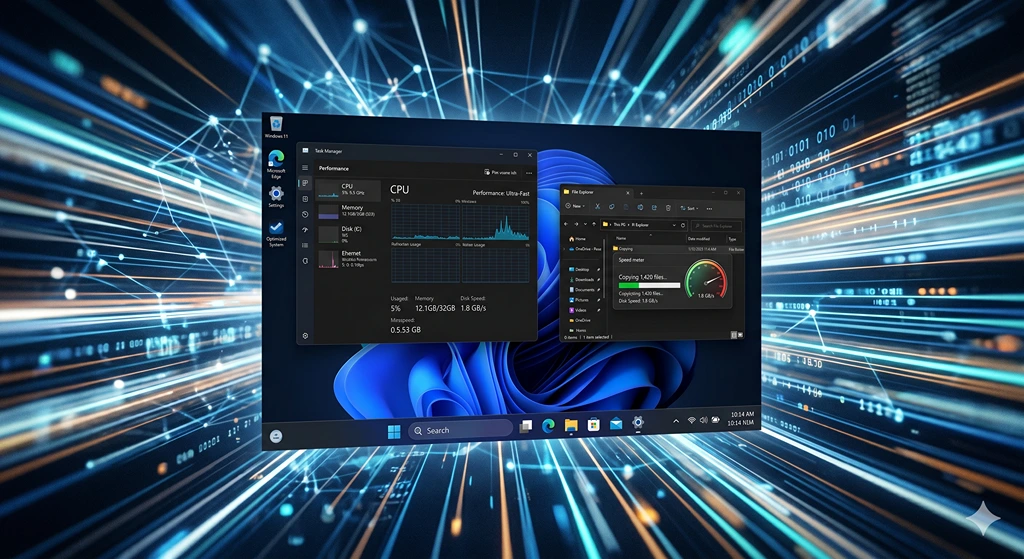
Windows 11, while visually appealing and modern, can sometimes feel sluggish, especially on systems not equipped with top-tier specifications like 32 GB of RAM and a powerful i9 processor. For the majority of users with more modest hardware, the operating system might perform as if it’s running on outdated technology rather than a modern solid-state drive (SSD). Despite Microsoft’s recurring promises over the years that “this time the system will feel like new” – a pledge they reiterate even now – it’s crucial for users to proactively manage and optimize their system’s performance.
Contents
How to Speed Up Windows 11: 5 Effective Methods
1. Utilize System Optimization Applications
One of the most effective, yet often underestimated, ways to boost Windows 11 performance is through regular system maintenance and cleaning. This isn’t about frantically deleting files from your desktop; it’s about systematically removing the digital clutter that accumulates over time and can significantly burden any computer.
Microsoft PC Manager is an excellent tool for this task, coming directly from the system’s developer. Its primary advantage is that it’s an official Microsoft product, ensuring compatibility and reliability. With just a few clicks, it allows you to:
- Clean junk files from your system.
- Free up valuable RAM.
- Organize background processes.
The application simplifies these complex tasks, making them accessible even without deep technical knowledge. The Boost feature can quickly clear items that Windows might overlook for weeks, while Health Check provides a comprehensive diagnostic overview of your device’s health in various areas, all presented in a user-friendly interface. This application has undergone significant improvements recently, adding a multitude of features that truly warrant a dedicated exploration.
2. Free Up Disk Space
A critical factor that can dramatically slow down Windows 11 is insufficient free space on your hard drive. A system without adequate room for temporary files and operations begins to function like a person trying to work at a desk buried under piles of papers – every action takes significantly longer. To address this, navigate to Settings > System > Storage.
Here, you can review installed programs and files, categorized for easy management. It’s highly recommended to utilize Storage Sense, an automated tool designed to clean temporary system and application files periodically. For a more hands-on approach, explore the Cleanup recommendations section, where you can manually select and remove unnecessary data. Implementing these steps can lead to a noticeable improvement in operating speed, particularly on older devices.
3. Manage Startup Applications
Applications that launch automatically with your system are frequently responsible for long boot times, making your computer take several minutes to become fully responsive after being turned on. Many applications default to launching at startup, assuming users want immediate access. However, a significant number of these only consume valuable RAM and extend your computer’s startup sequence unnecessarily. For a comprehensive guide on decluttering your system, consider exploring Windows 11 Debloat, Performance, and Privacy Guide.
To manage these applications, simply right-click the Windows icon, launch Task Manager, and go to the Startup apps tab. From there, select any program you wish to disable from launching automatically, right-click, and choose “Disable.” Disabling unnecessary startup applications often yields an immediate positive impact: Windows 11 starts faster, and your desktop becomes less congested with competing processes vying for system resources.
4. Scan for Malware
Another crucial, yet often overlooked, aspect of system performance is the presence of malicious software. Malware can secretly consume system resources in the background, burdening your disk, CPU, and memory, making your computer feel perpetually bogged down. Regular scanning with Windows Defender (the built-in antivirus) or another trusted security tool can restore your system’s efficiency and, in severe cases, prevent data loss.

To perform a quick scan, search for Windows Security, navigate to the Virus & threat protection tab, and click “Quick scan.” While this method may not offer a dramatic speed boost, it is absolutely essential for ensuring Windows 11 operates stably and predictably.
5. Install Essential Updates
Many users view system and driver updates as a necessary evil, often dreading the unexpected interruptions caused by Windows Update. However, these updates are frequently the source of performance enhancements, optimizations for newer processors, and crucial bug fixes that can prevent your computer from overheating or experiencing other issues. Microsoft explicitly states that updates include patches that improve system speed. Ignoring them is akin to driving a car with the parking brake engaged – you might move, but with unnecessary strain. Additionally, remember to check for optional driver updates, which can sometimes make a more significant difference than major system updates. For more insights into how updates shape the Windows 11 experience, including improvements to native apps and search, refer to the Windows 11 Major Changes: Native Apps and Search Improvements article.
Microsoft’s Latest Performance Promises
The final point on updates is particularly relevant given Microsoft’s recent commitments. The Redmond giant claims that Windows 11 will become faster not just through cosmetic tweaks, but through fundamental changes touching the very core of the system. Microsoft has undertaken a significant optimization effort for WinUI 3 – the framework powering modern applications – leading to noticeable improvements. For example, tests have shown that File Explorer now launches significantly faster. These optimizations include a reduction in memory allocation by over 40 percent, fewer function calls, and a cut in code execution time by up to a quarter.
These are not merely “stability improvements” listed in a changelog; they are foundational enhancements designed to prevent the system from stumbling over its own animations. Furthermore, the Start menu and other interface elements are being rebuilt on WinUI 3, and a new Low Latency Profile mode will temporarily boost the processor to its maximum to accelerate application opening. Microsoft frames this as a long-term investment in Windows’ responsiveness. If these promised figures translate effectively into daily user experience, we might finally see a system that not only looks modern but performs with matching agility.
Frequently Asked Questions (FAQ)
How often should I perform system cleaning and maintenance?
For optimal performance, it’s recommended to perform basic system cleaning (like clearing temporary files and checking startup apps) at least once a month. Running a full malware scan quarterly is also a good practice. Tools like Microsoft PC Manager can help automate some of these tasks, making regular maintenance much easier.
Can disabling too many startup applications cause issues?
Disabling essential system processes or antivirus software from startup can potentially cause issues. However, most third-party applications like communication tools, cloud storage clients, or entertainment software can often be safely disabled from startup without affecting core system functionality. If unsure, research the specific application before disabling it.
Are third-party optimization tools better than Microsoft’s built-in options?
While many reputable third-party tools offer advanced optimization features, Microsoft’s built-in tools like PC Manager, Storage Sense, and Windows Security are generally sufficient for most users and offer the highest level of compatibility and safety since they come directly from the system developer. For advanced users, a combination might be beneficial, but caution should be exercised with less-known third-party software.
Will Microsoft’s promised performance improvements negate the need for user-level optimization?
While Microsoft’s ongoing efforts to optimize Windows 11 at a foundational level are significant and will undoubtedly improve overall performance, user-level optimization will always remain beneficial. Practices such as managing startup apps, freeing disk space, and scanning for malware address factors often unique to individual user habits and installed software, which system-level updates cannot fully account for. Therefore, a combination of both will yield the best results.
Source: Internal compilation, Windows Central.
Opening photo: Gemini
About Post Author
