Contents
Chrome Undergoes Tab Revolution: A New Option Changes Everything
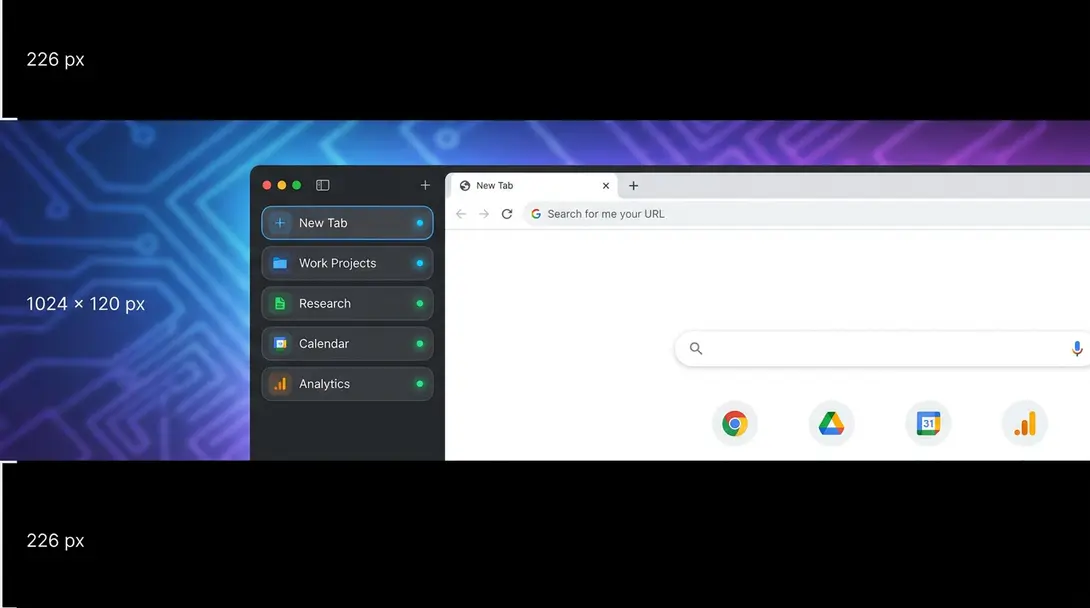
Google Chrome, one of the most widely used web browsers globally, has introduced a significant new feature that could fundamentally change how users interact with their tabs. For years, browser tabs have been a staple at the top of the browser window. Now, however, Chrome offers the flexibility to move these tabs to the side, creating a vertical tab stack. While this new layout might initially appear unconventional, it offers substantial benefits for productivity and organization, appealing to a broad range of users. Let’s explore how to enable this feature and why it might become your preferred way to browse.
Embrace the Vertical: How to Enable Vertical Tabs in Chrome
Activating Chrome’s new vertical tab layout is straightforward and requires just a few clicks. This functionality is now available in the standard desktop version of Google Chrome, making it accessible to everyone without needing special developer builds.
To enable vertical tabs:
- First, ensure your Google Chrome browser is updated to the latest version. This feature is rolling out progressively, so a recent update is key.
- Navigate to an empty space on your current horizontal tab bar at the top of the browser window.
- Right-click on this empty space.
- From the context menu that appears, select the option labeled “Show tabs vertically”.
Upon selection, you’ll immediately notice a transformation. Your tabs, along with the entire tab management bar, will seamlessly shift to the left side of your screen. This redesign isn’t just aesthetic; it’s a functional upgrade designed to enhance your browsing experience.
The Advantages of Vertical Tabs: More Space, Better Organization
The transition to vertical tabs offers several compelling advantages, especially for users who frequently juggle multiple webpages. This new layout addresses common challenges associated with traditional horizontal tabs.
Maximize Your Tab Real Estate
One of the primary benefits of vertical tabs is the ability to display significantly more tabs simultaneously. Unlike horizontal tabs, which shrink in width as more are opened, vertical tabs maintain a readable size. This means you can see the titles of many more webpages at a glance, making it easier to identify and switch between them without constant hunting or relying on favicon recognition. This can greatly improve your workflow, particularly if you find yourself comparing products, researching complex topics, or managing numerous online projects.
Streamlined Navigation and Reduced Clutter
The vertical orientation provides a clearer, more organized view of your open pages. Instead of a cramped row at the top, you get a dedicated panel on the side. Furthermore, this vertical tab bar can be easily minimized to show only the icons of your open pages, reclaiming precious screen space when you need it while still providing quick access to your active tabs. This contributes to a more focused and less cluttered browsing environment.
For users who appreciate efficiency and a clean interface, this feature is a game-changer. It redefines browser organization, making tasks like cross-referencing information or monitoring several live pages much more intuitive. This advancement makes a strong case for why Chrome remains a top contender in browser rankings, as highlighted in various analyses like the ranking of web browsers.
Reverting to Traditional Tabs
While the vertical tab experience offers numerous benefits, personal preference plays a significant role. If you find that the new layout doesn’t suit your browsing style, reverting to the classic horizontal view is just as simple.

- Again, navigate to the vertical tab bar on the left side of your screen.
- Right-click on any empty space within this bar.
- From the context menu, select “Show tabs horizontally”.
Your browser will instantly switch back to the familiar horizontal tab layout at the top, offering you the flexibility to choose the configuration that best supports your productivity and comfort.
Availability and Rollout
Initially, the vertical tabs feature was exclusively available within Google Chrome Canary, the experimental version of Chrome designed for developers and early testers. This allowed Google to gather feedback and refine the feature before a wider release.
Now, however, this innovative tab management system is being progressively rolled out to the stable, traditional desktop application of Google Chrome. Users should expect to see this option appear automatically after their browser updates to the latest version. If you don’t see it immediately, don’t worry; browser updates are often staggered, and the feature should become available to you shortly. This commitment to enhancing user experience with features like vertical tabs demonstrates how Chrome continues to innovate against competitors.
Frequently Asked Questions (FAQ)
Vertical tabs are a new layout option in Google Chrome that allows users to move their browser tabs from the traditional horizontal position at the top of the window to a vertical panel on the left side of the screen. This design change aims to improve tab management and overall browsing efficiency.
Vertical tabs offer several benefits, including the ability to view more tab titles simultaneously without them shrinking, improved organization, and a cleaner interface. They are particularly useful for users who often have many tabs open for research, multitasking, or project management, as they reduce clutter and make switching between pages more intuitive.
Initially, vertical tabs were only available in Google Chrome Canary, the developer’s version. However, the feature is now being rolled out to the stable, standard desktop application of Google Chrome. Users should ensure their browser is updated to the latest version to access this functionality.
Yes, the vertical tab bar can be minimized. When minimized, it will only display the favicons (small icons) of the individual webpages, allowing you to free up screen real estate while still providing quick visual access and navigation to your open tabs. You can expand it again when you need to see the full tab titles.
If you don’t see the “Show tabs vertically” option after right-clicking on your tab bar, ensure your Google Chrome browser is fully updated. This feature is part of a phased rollout, meaning it might take a short while longer to become available to all users. Keep your browser updated, and it should appear automatically.
Source: Original content based on recent Google Chrome updates. Opening photo: Gemini
About Post Author