

Contents
Transforming Your Old Tablet into a Smart Home Command Center
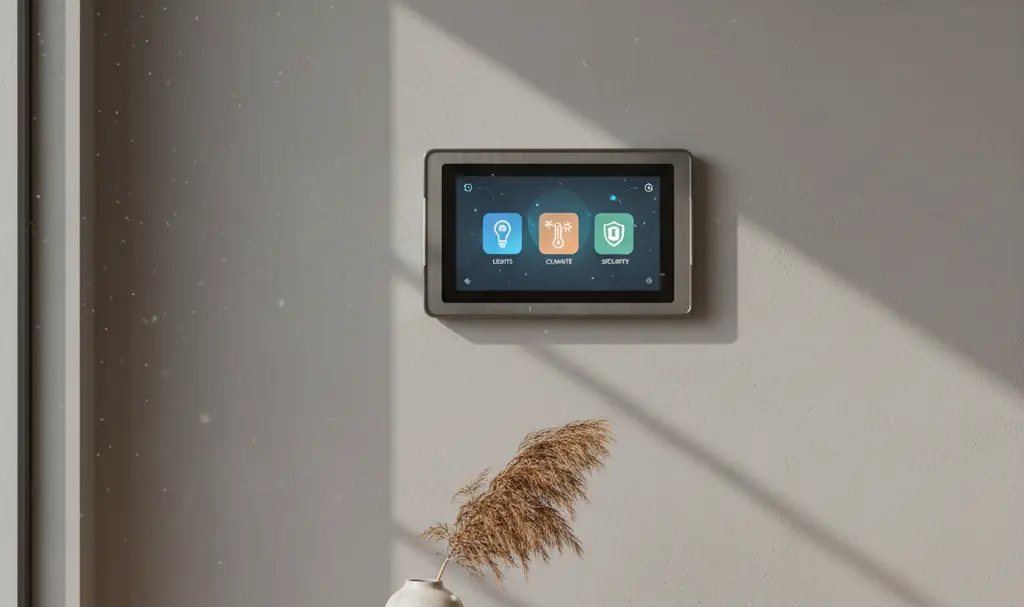
Repurposing an old tablet into a central management hub for your modern smart home is easier than you might think. Many people assume that setting up a smart home requires expensive, dedicated wall panels. However, a dusty iOS or Android tablet sitting in your drawer is often more than capable of doing the job. You only need a few essential modifications to get started.
Similar to how you can turn an old phone into a Wi-Fi hotspot extender, breathing new life into an outdated tablet is an excellent way to reduce electronic waste while simultaneously upgrading your living space.
Step 1: Choose Your Main Smart Home Ecosystem
A common misconception is that home automation requires a massive budget. By repurposing existing hardware and pairing it with affordable smart home devices, you can achieve a fully connected home at a fraction of the cost.
The first crucial step is selecting the right platform. Your tablet will act as the interface for this system. Here are the most reliable options available on the market:
- Google Home: A highly popular option, especially for Android tablets. It offers broad compatibility with thousands of international brands, making it an excellent choice for diverse and growing setups.
- Amazon Alexa: Renowned for its natural language processing and advanced voice command capabilities. Thanks to artificial intelligence, Alexa routines can trigger multiple devices simultaneously with a single natural phrase.
- Apple Home (HomeKit): The go-to choice for Apple enthusiasts. If you are repurposing an old iPad, Apple Home provides a highly secure, privacy-focused, and visually clean interface. However, it operates within a more closed ecosystem compared to Google or Amazon.
- Open-Source Alternatives: For more advanced users, building a system on open-source software (such as Home Assistant) offers unparalleled control and compatibility. While it requires a steeper learning curve, it allows you to run a highly customized setup locally, without relying heavily on cloud servers.
Step 2: Prepare and Optimize Your Tablet
Once your ecosystem is chosen, it is time to optimize the tablet for its new full-time job. A cluttered device will not perform well as a dedicated dashboard.
Factory Reset and App Cleanup
Start by performing a complete factory reset. This clears out unnecessary files, old media, and background processes that could slow down the device. After the reset, bypass unnecessary sign-ins where possible and install only the specific tools needed to control your smart home.
Enable “Always On” Display
A true smart home dashboard needs to be visible at a glance. Navigate to your tablet’s display settings and enable the “Always On Display” feature, or adjust the screen timeout settings to “Never” so the screen remains active.
Because the screen will be on constantly, the tablet will drain its battery much faster than usual. You will need to keep the device permanently connected to a charger. Pro tip: To prevent battery degradation over time, consider plugging the charger into a smart plug that automatically turns off when the tablet hits 80% charge and turns back on at 20%.
Step 3: Lock the Tablet to a Single Application
To prevent the tablet from reverting to the home screen or being used for other purposes, you should lock it into a single application. This ensures your smart home dashboard is always front and center. The method depends on your operating system:

- For iOS (iPad): Go to your Accessibility settings and enable Guided Access. This feature restricts the iPad to a single app and allows you to disable hardware buttons so the dashboard cannot be accidentally closed.
- For Android: You can use the built-in “App Pinning” feature found in the security settings. Alternatively, for a more robust setup, download a dedicated kiosk application from the Google Play Store, such as WallPanel or Fully Kiosk Browser. These apps often offer advanced features, like using the tablet’s front camera for motion detection to wake the screen as you approach.
Step 4: Mounting and Final Setup
Finally, choose a strategic location for your new hub. High-traffic areas like the kitchen, living room, or hallway are usually best. You can purchase a minimalist wall mount or simply place the tablet on a sturdy stand on a console table or kitchen counter.
While having a centralized wall tablet is incredibly convenient, it should not be your only point of control. Always keep your smart home companion apps installed on your primary smartphone as a backup in case the tablet loses power, requires a software update, or experiences network issues.
Frequently Asked Questions (FAQ)
Does keeping an old tablet plugged in 24/7 pose a fire or battery swelling risk?
Leaving a tablet constantly charging at 100% can lead to battery degradation and swelling over time. To mitigate this risk, use a smart plug configured with a routine to stop providing power when the tablet reaches 80% battery, and resume charging when it drops to 20%. Some modern tablets also feature built-in battery protection modes that limit the maximum charge automatically.
Can I use a very old tablet, or are there minimum OS requirements?
While you can use older devices, extremely outdated operating systems might no longer support the latest official versions of apps like Google Home or Apple Home. However, if your tablet is too old for modern apps, you can use a lightweight web browser in Kiosk mode to display a web-based dashboard (like a Home Assistant local URL), bypassing app store compatibility issues entirely.
How do I hide the charging cable if I decide to mount the tablet directly on the wall?
Hiding the cable can be achieved by installing a recessed wall box directly behind the tablet mount to house the charger and cable. If you prefer not to cut into your drywall, you can run a flat USB cable along the edge of the wall or use paintable raceways (cable concealers) for a clean, minimalist look.
Source: Gemini & Opening photo: Gemini
About Post Author
